
A website is often the first place a customer meets your business. Yet building one, keeping track of who visits it and answering the inquiries it brings usually means juggling several tools.
The Website Builder module in DataBridge CRM brings these tasks into one place. It lets you launch and manage high-converting single and multi-page websites, track their performance and read the inquiries they receive, all from the same account you use for the rest of your business.
This guide explains what the module is and how it works, screen by screen.
What Is the Website Builder Module?
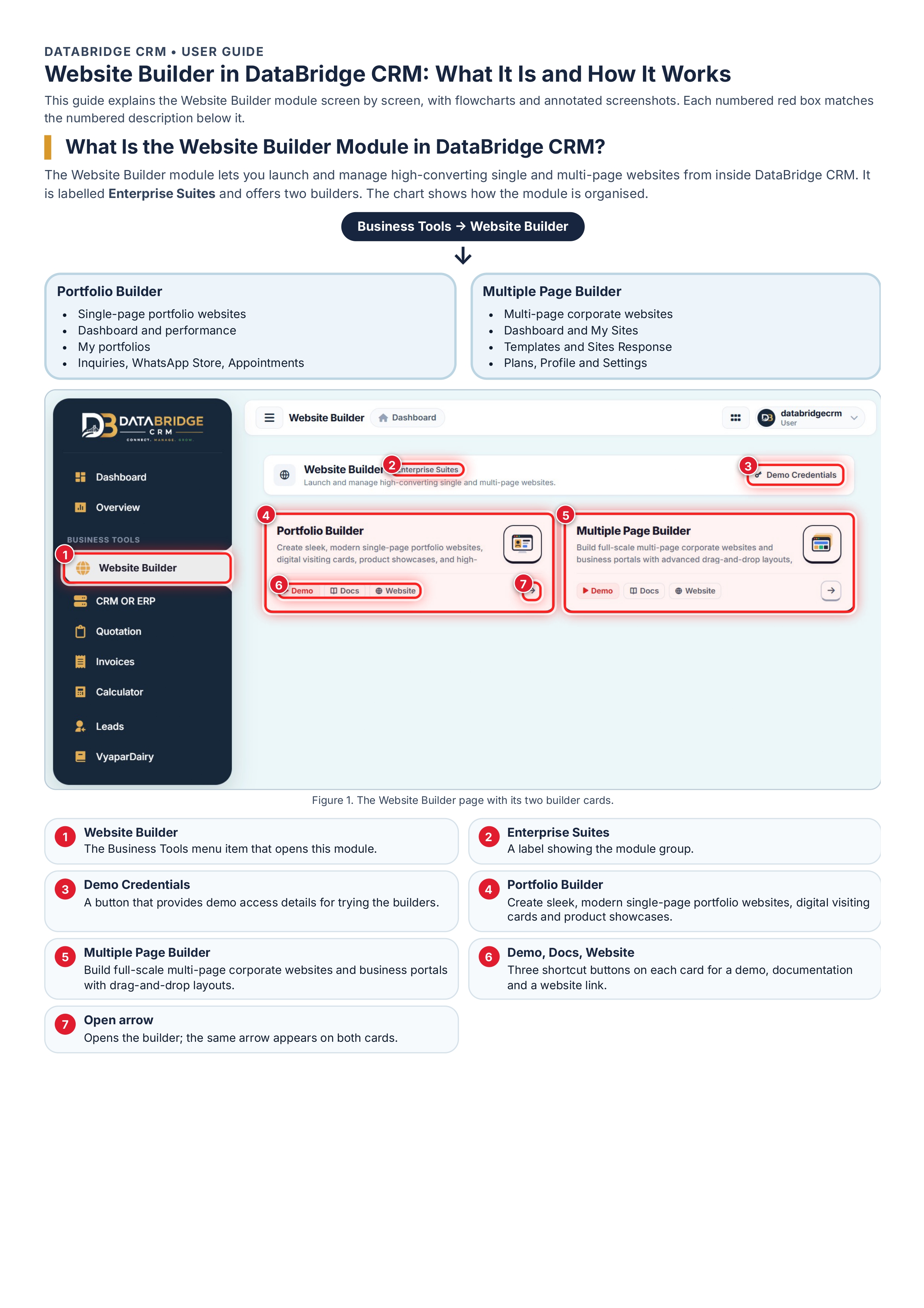
The Website Builder sits under Business Tools in the DataBridge CRM left menu and is labelled Enterprise Suites. Its start page describes it as a way to launch and manage high-converting single and multi-page websites. A Demo Credentials button on the same page lets you try the builders.
The page offers two builders:
- Portfolio Builder: create sleek, modern single-page portfolio websites, digital visiting cards and product showcases.
- Multiple Page Builder: build full-scale multi-page corporate websites and business portals with advanced drag-and-drop layouts.
Each card has three shortcut buttons, Demo, Docs and Website, plus an arrow that opens the builder.

How the Module Is Organised
Business Tools → Website Builder, then choose one of two paths:
- Portfolio Builder: dashboard and performance, My portfolios, inquiries, WhatsApp Store and appointments.
- Multiple Page Builder: dashboard, My Sites, templates, Sites Response, plans, profile and settings.
Portfolio Builder: Your Single-Page Presence
The dashboard at a glance
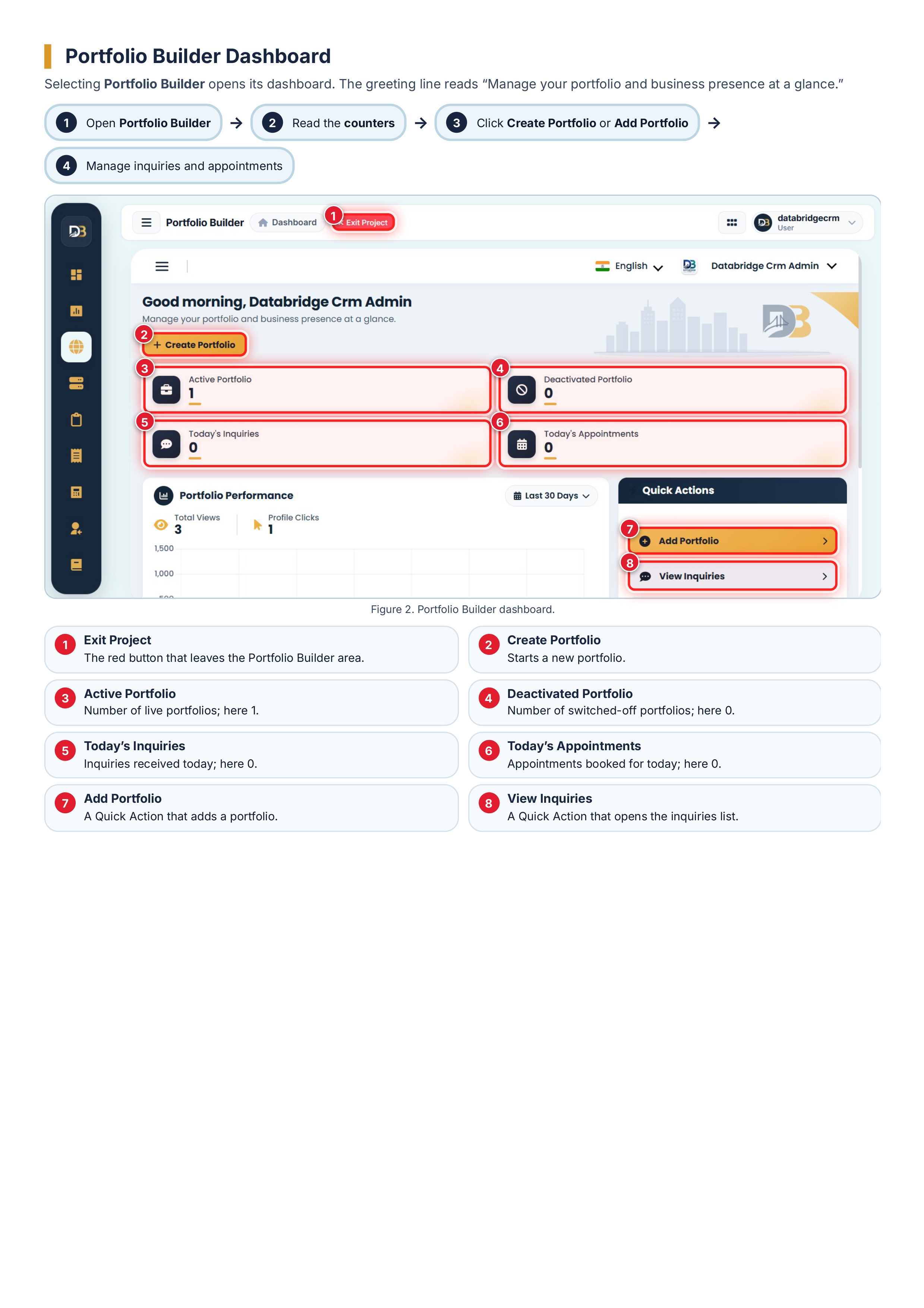
The Portfolio Builder dashboard greets you with the line "Manage your portfolio and business presence at a glance." From there you can:
- Click Create Portfolio to start a new portfolio
- Read four counters: Active Portfolio, Deactivated Portfolio, Today's Inquiries and Today's Appointments
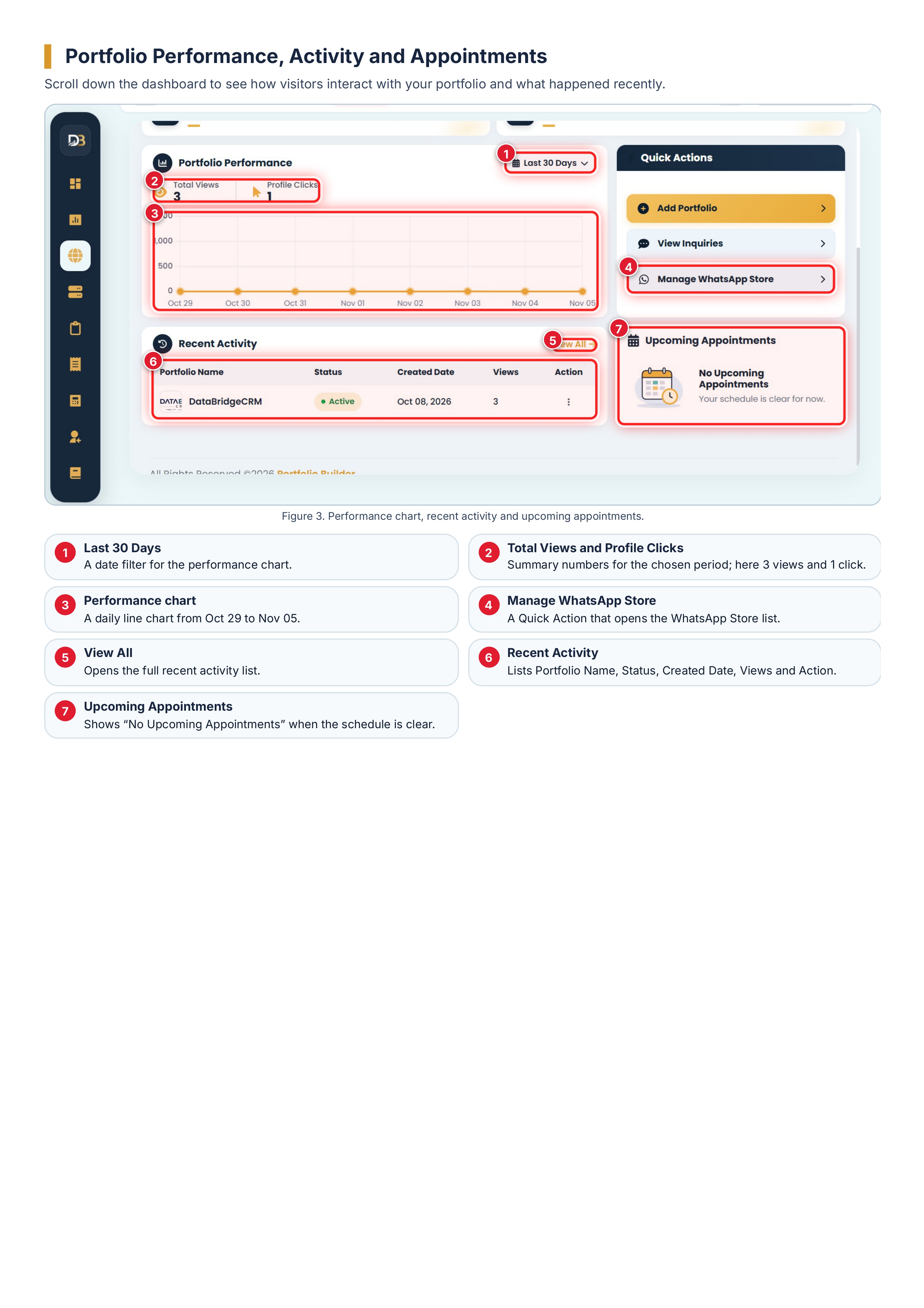
- Use Quick Actions: Add Portfolio, View Inquiries and Manage WhatsApp Store
- Click Exit Project to leave the builder area

Track performance
The Portfolio Performance panel shows Total Views and Profile Clicks and draws a daily line chart. A date filter, set to Last 30 Days in our example, controls the period. Below the chart, Recent Activity lists each portfolio with its name, status, created date, views and an action menu, and Upcoming Appointments tells you when your schedule is clear.
Manage your portfolios
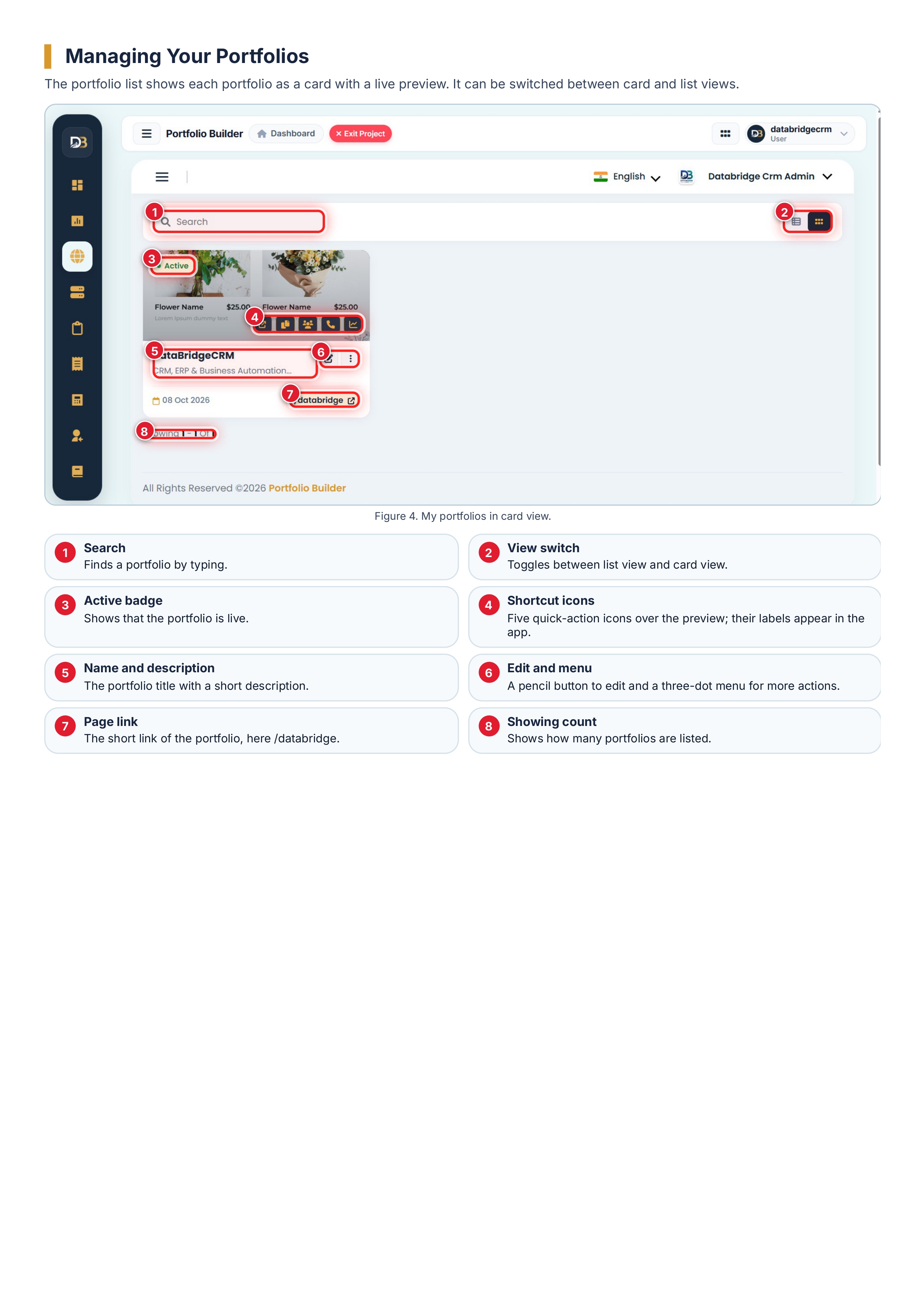
The portfolio list shows each portfolio as a card with a live preview. You can:
- Search by typing in the search box
- Switch between list and card view
- See an Active badge on live portfolios
- Use five shortcut icons over the preview
- Edit the portfolio or open a three-dot menu for more actions
- Open the portfolio through its short link, for example /databridge
Inquiries, WhatsApp Store and appointments
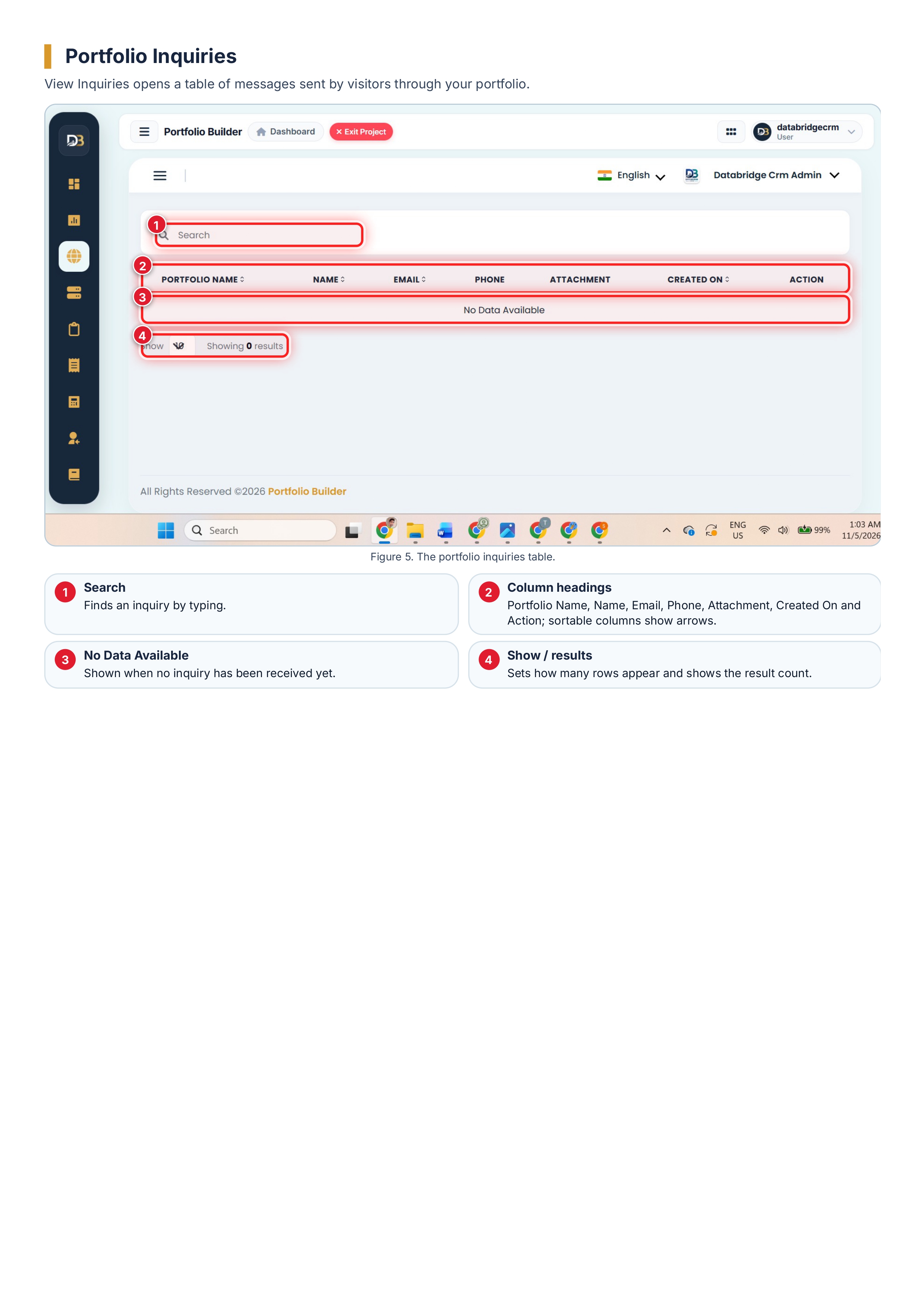
- Inquiries: a searchable table with Portfolio Name, Name, Email, Phone, Attachment, Created On and Action columns. It shows "No Data Available" until a visitor sends a message.
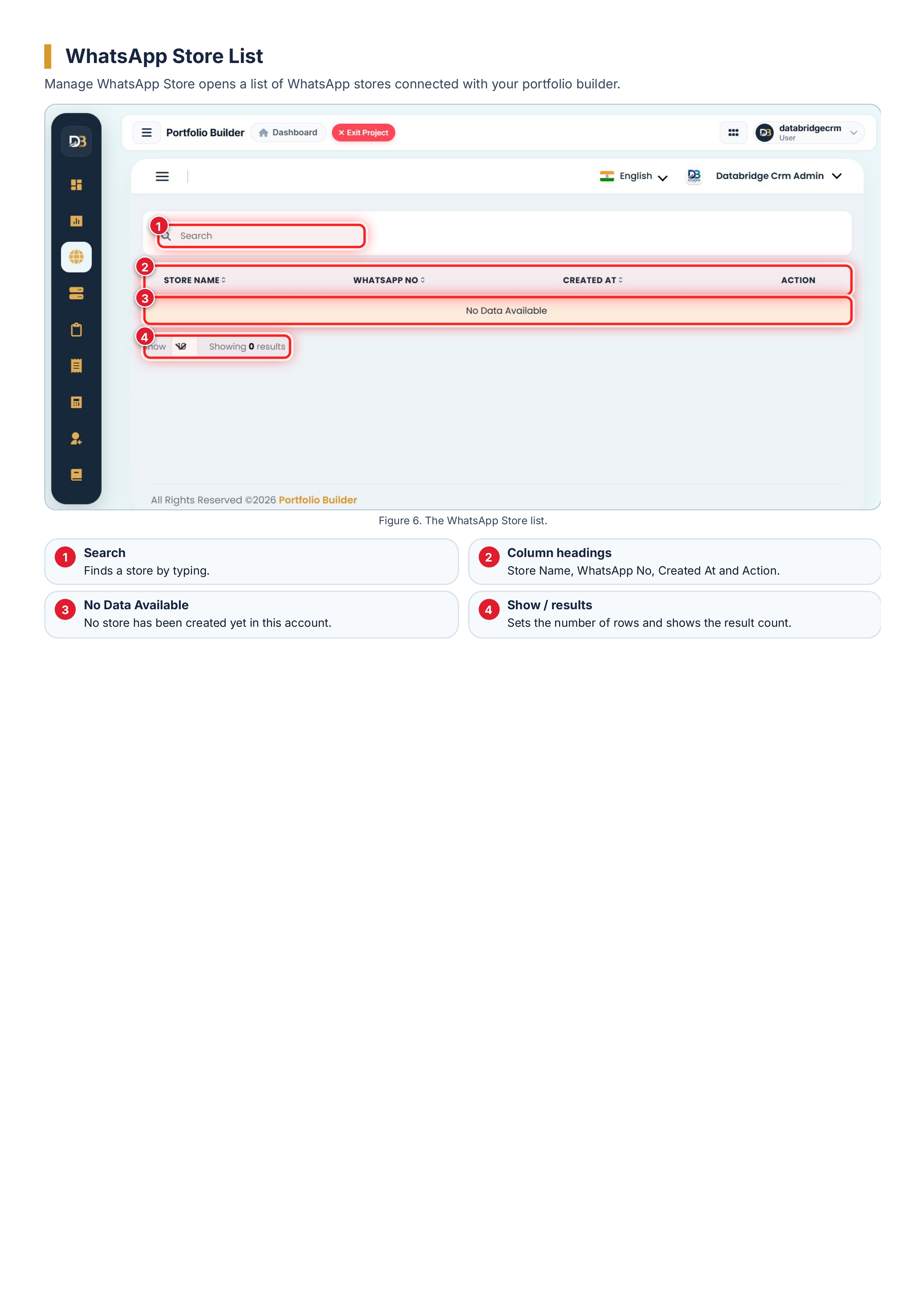
- WhatsApp Store: a list with Store Name, WhatsApp No, Created At and Action columns.
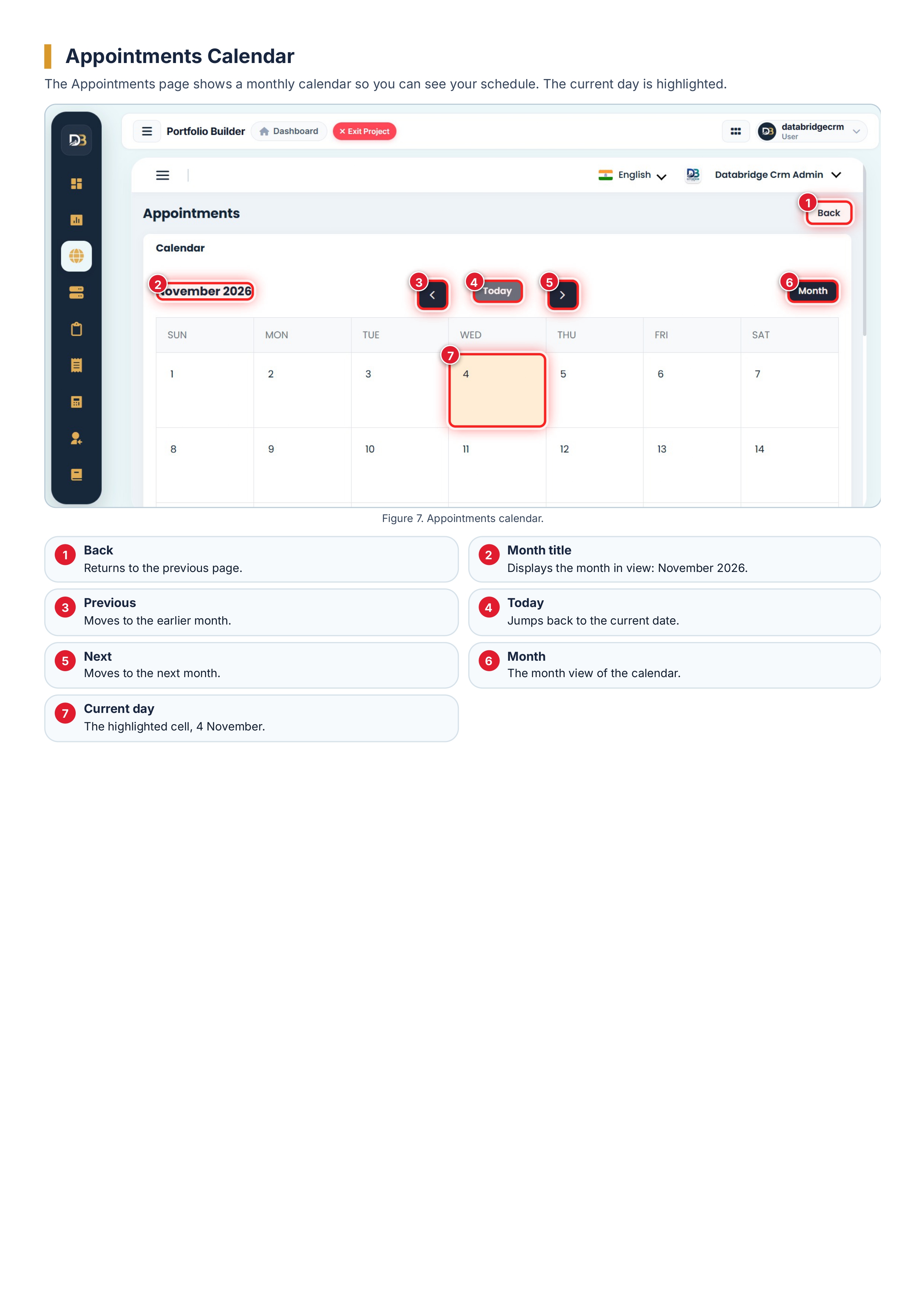
- Appointments: a monthly calendar with Previous, Today, Next and Month controls. The current day is highlighted.
Multiple Page Builder: Full Websites and Business Portals
A dashboard with its own menu
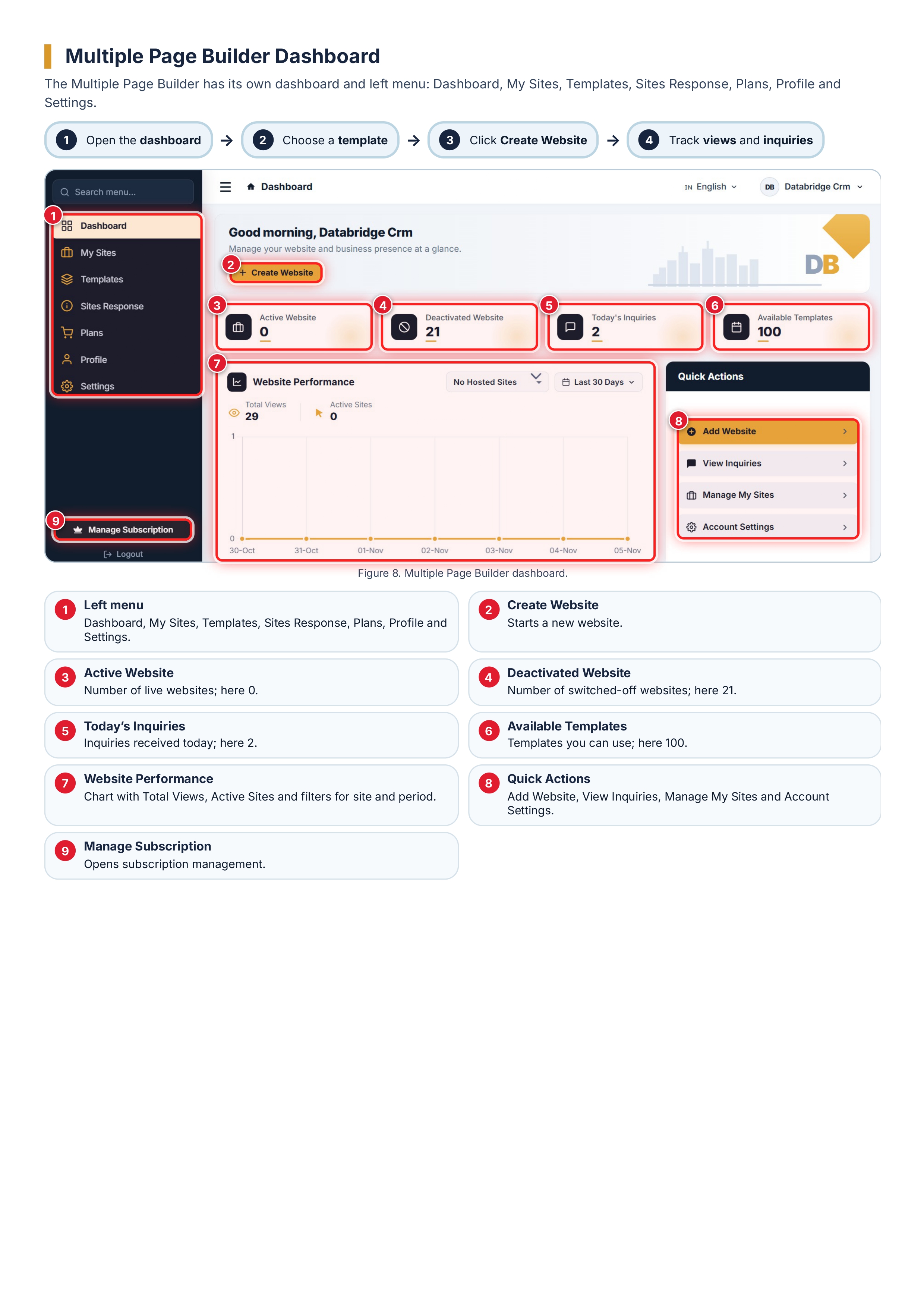
The Multiple Page Builder has a dedicated left menu: Dashboard, My Sites, Templates, Sites Response, Plans, Profile and Settings, with Manage Subscription and Logout at the bottom.
The dashboard offers a Create Website button, four counters (Active Website, Deactivated Website, Today's Inquiries and Available Templates), a Website Performance chart with Total Views and Active Sites, and Quick Actions for Add Website, View Inquiries, Manage My Sites and Account Settings.

Recent activity and recent inquiries
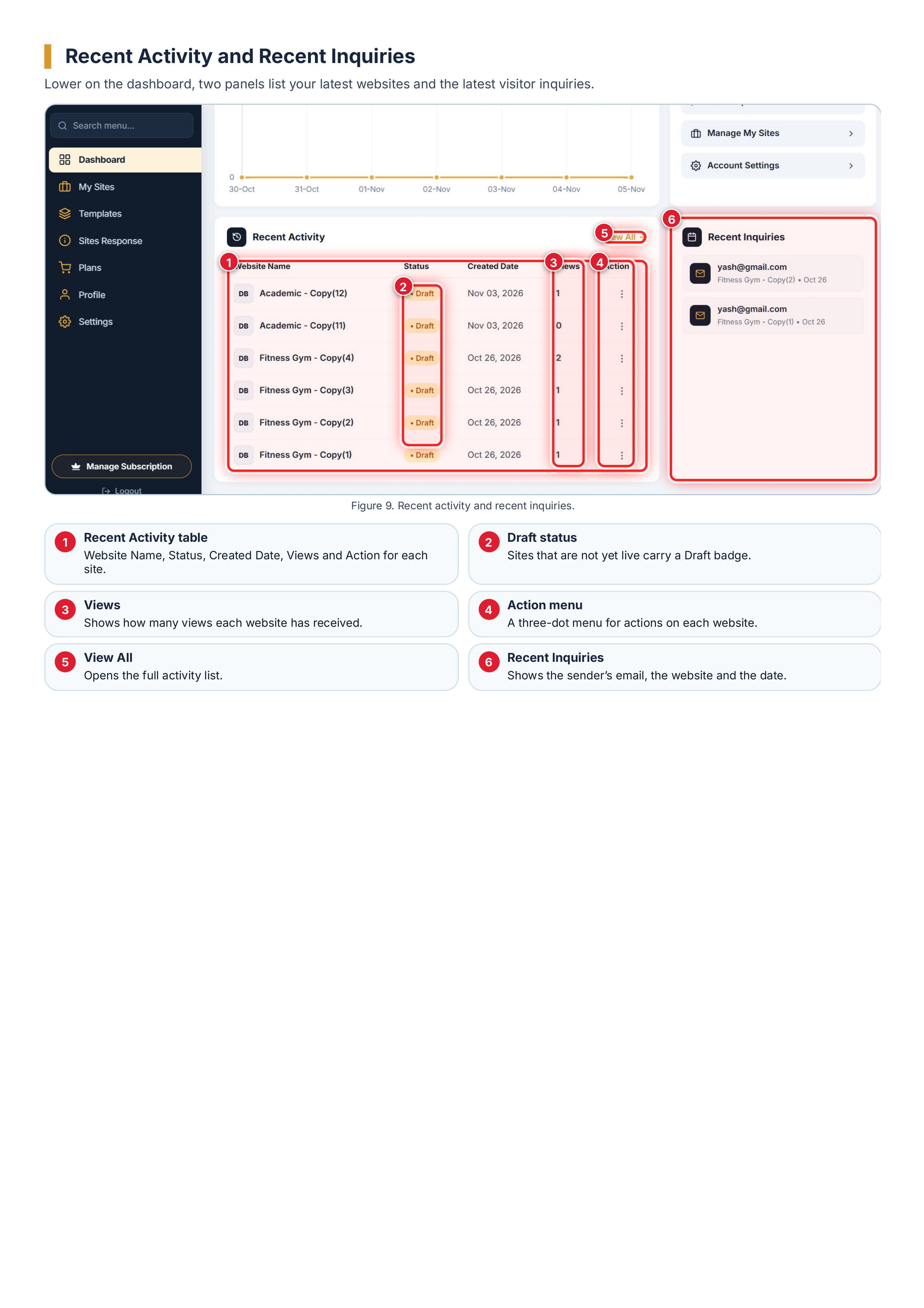
Lower on the dashboard, a Recent Activity table lists each website with its status (for example Draft), created date and views. A Recent Inquiries panel shows the latest messages, each with the sender's email, the website and the date.
Start faster with templates
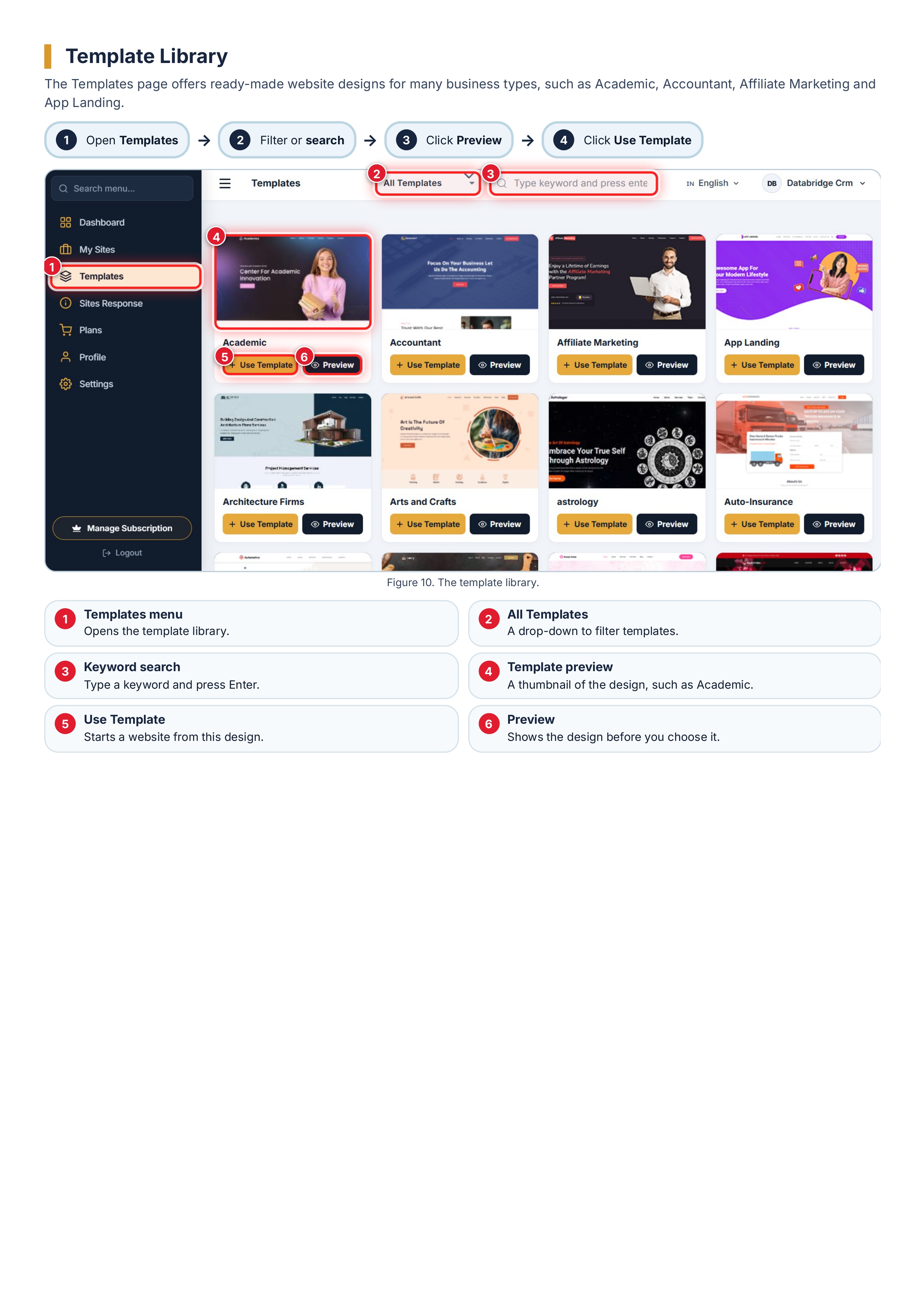
The Templates page is a library of ready-made designs for many business types, such as Academic, Accountant, Affiliate Marketing, App Landing, Architecture Firms, Arts and Crafts, Astrology and Auto-Insurance. You can:
- Filter with the All Templates drop-down
- Search by typing a keyword and pressing Enter
- Click Preview to see a design before you choose it
- Click Use Template to start a website from it

Sites Response: collect form submissions
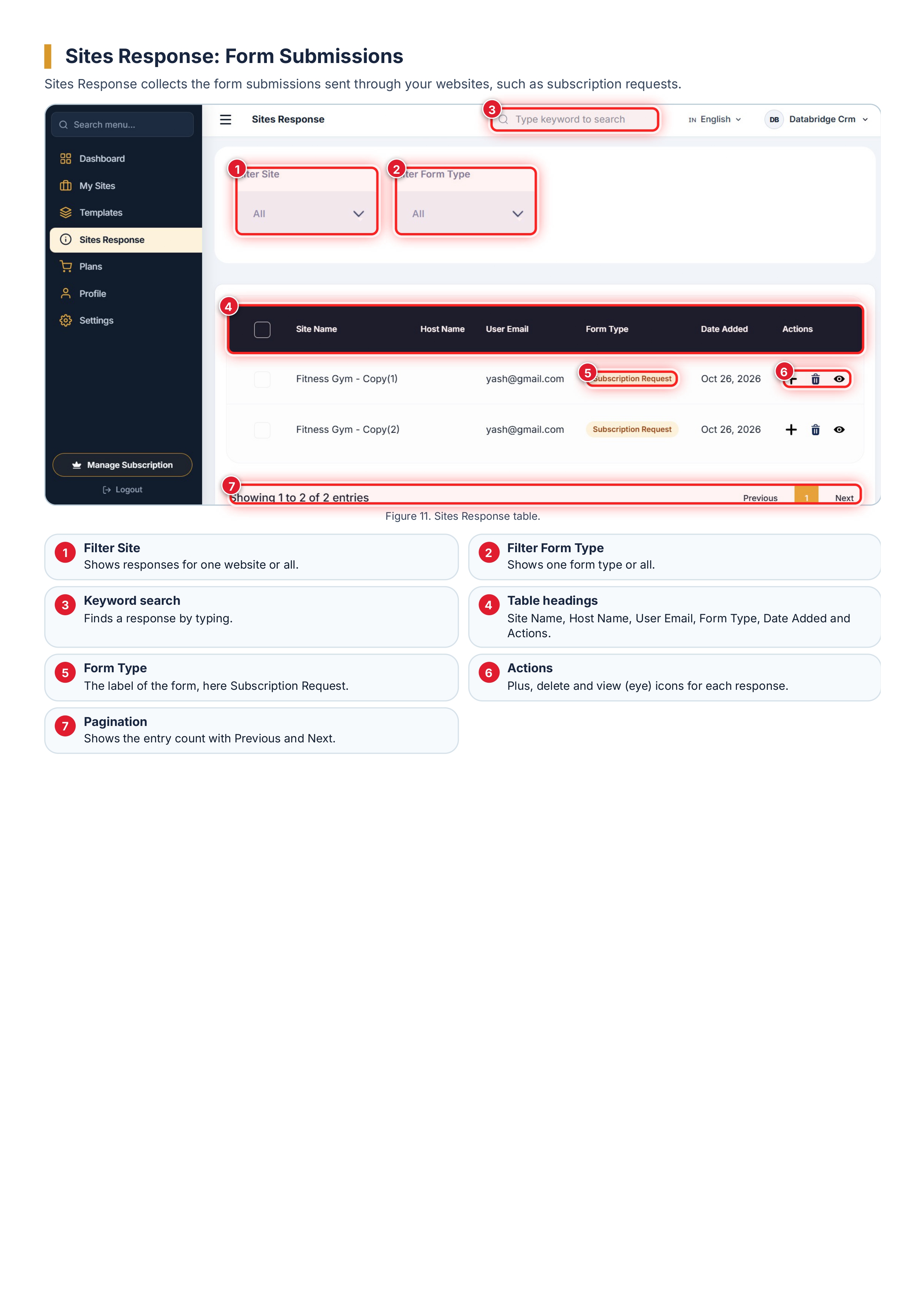
Sites Response gathers the form submissions sent through your websites. Use Filter Site and Filter Form Type to narrow the list, or search by keyword. Each row shows the Site Name, Host Name, User Email, Form Type (for example Subscription Request) and Date Added, with plus, delete and view icons under Actions.
Plans and included templates
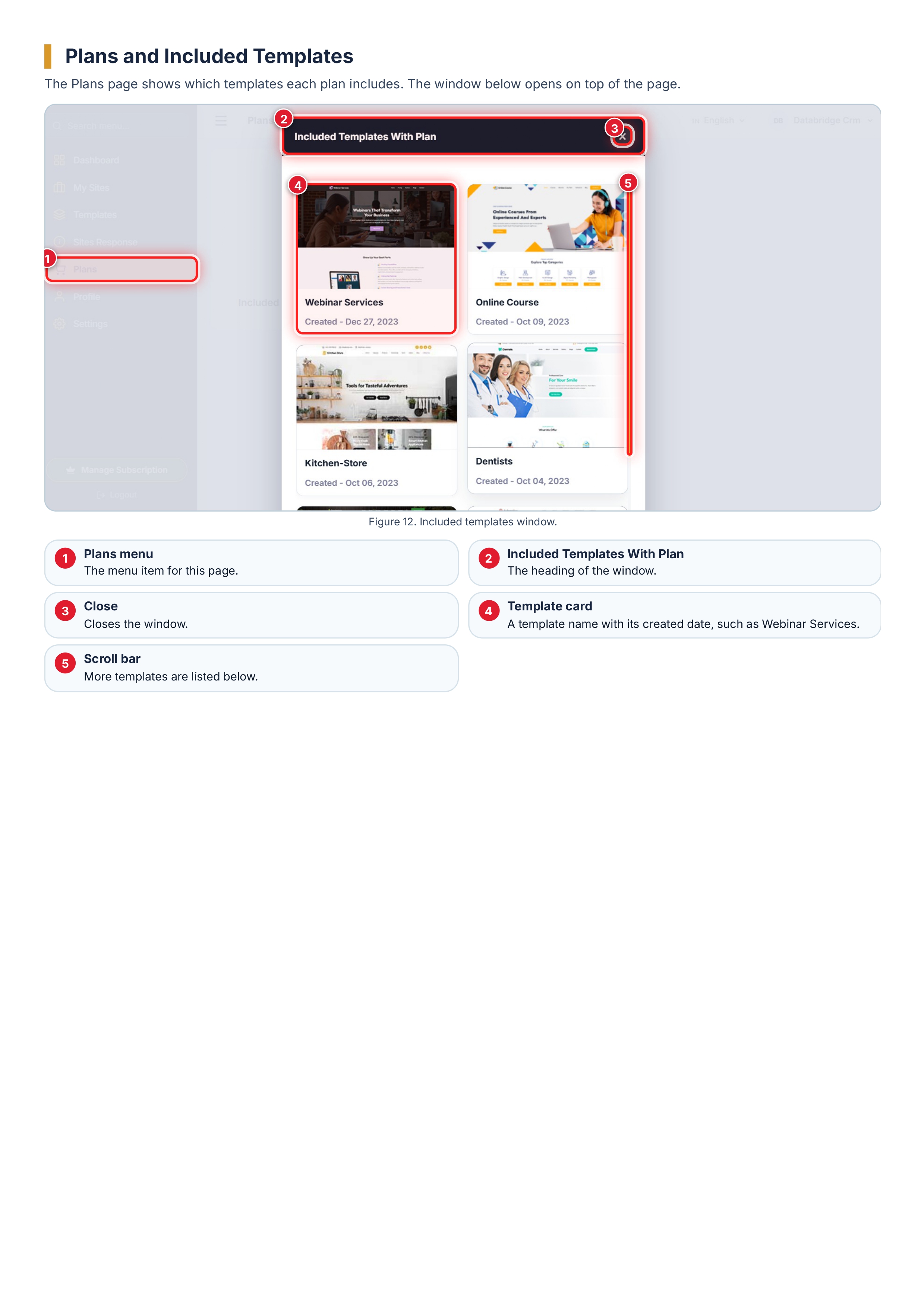
The Plans page opens an Included Templates With Plan window. It lists template cards with their names and created dates, so you can see which designs come with a plan.
Profile and auto responder settings
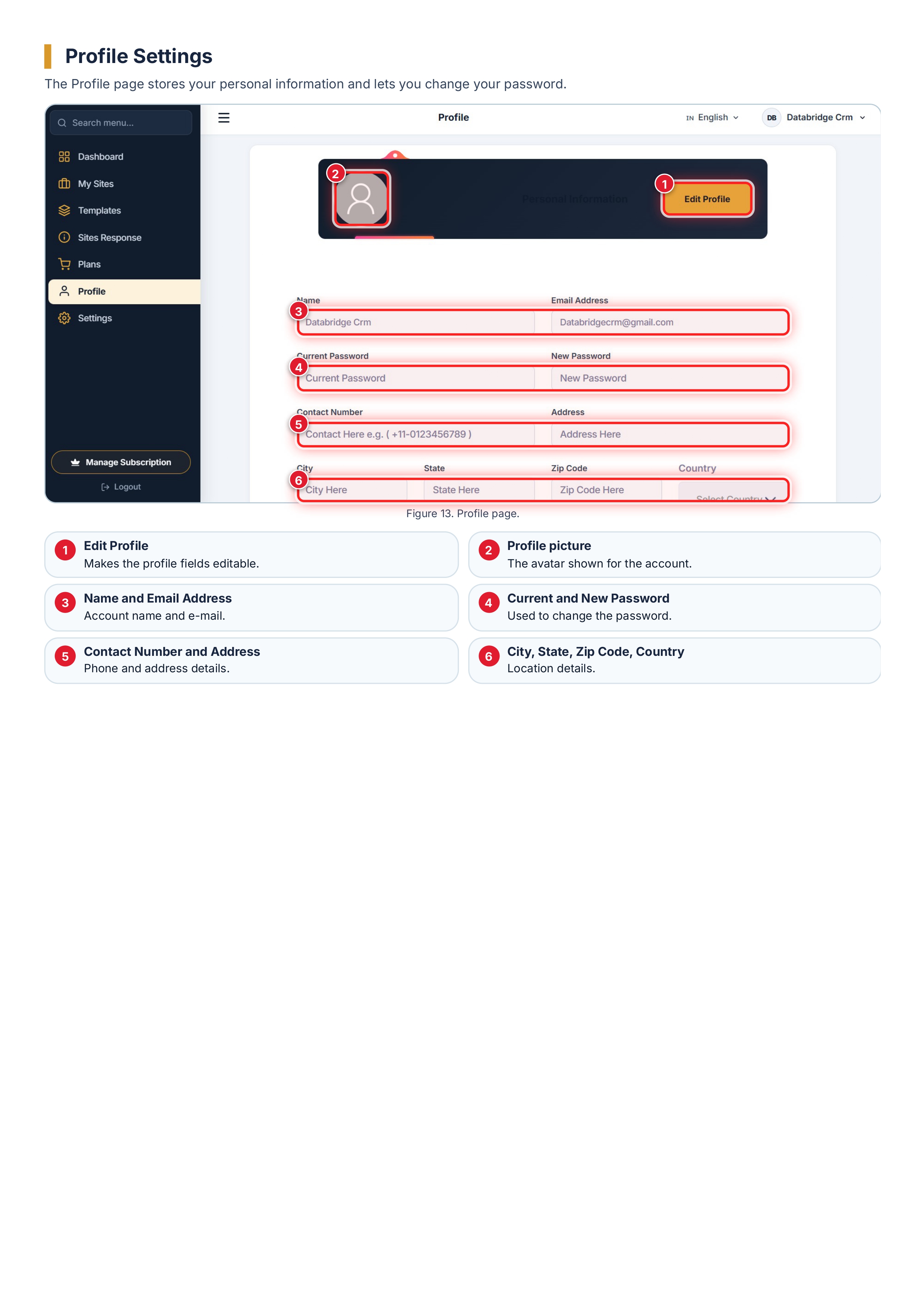
- Profile: store your name, e-mail address, contact number, address, city, state, zip code and country, and change your password. Click Edit Profile to make the fields editable.
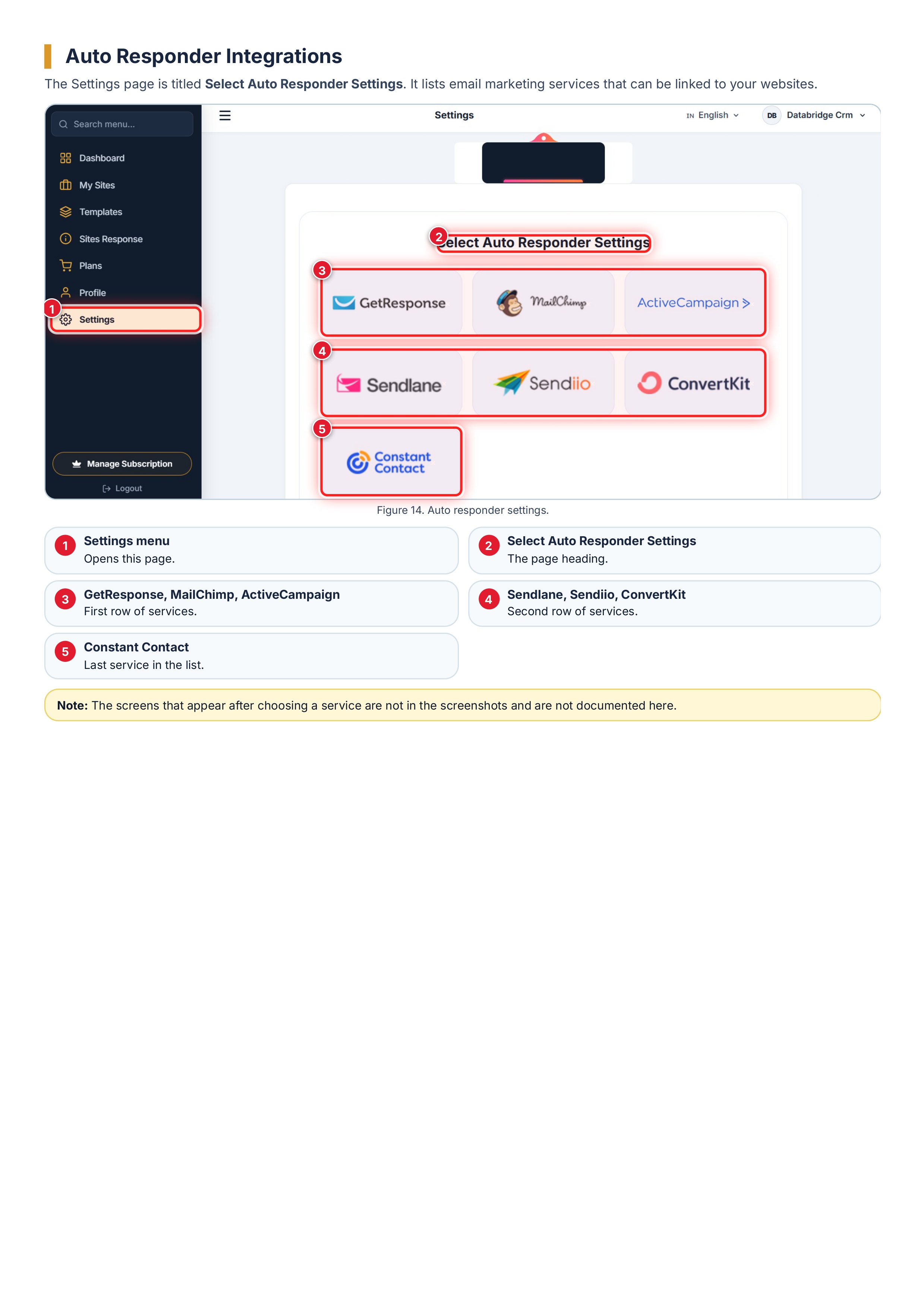
- Settings: the page is titled Select Auto Responder Settings and lists seven email marketing services: GetResponse, MailChimp, ActiveCampaign, Sendlane, Sendiio, ConvertKit and Constant Contact.
Complete Workflow: From Idea to Live Website
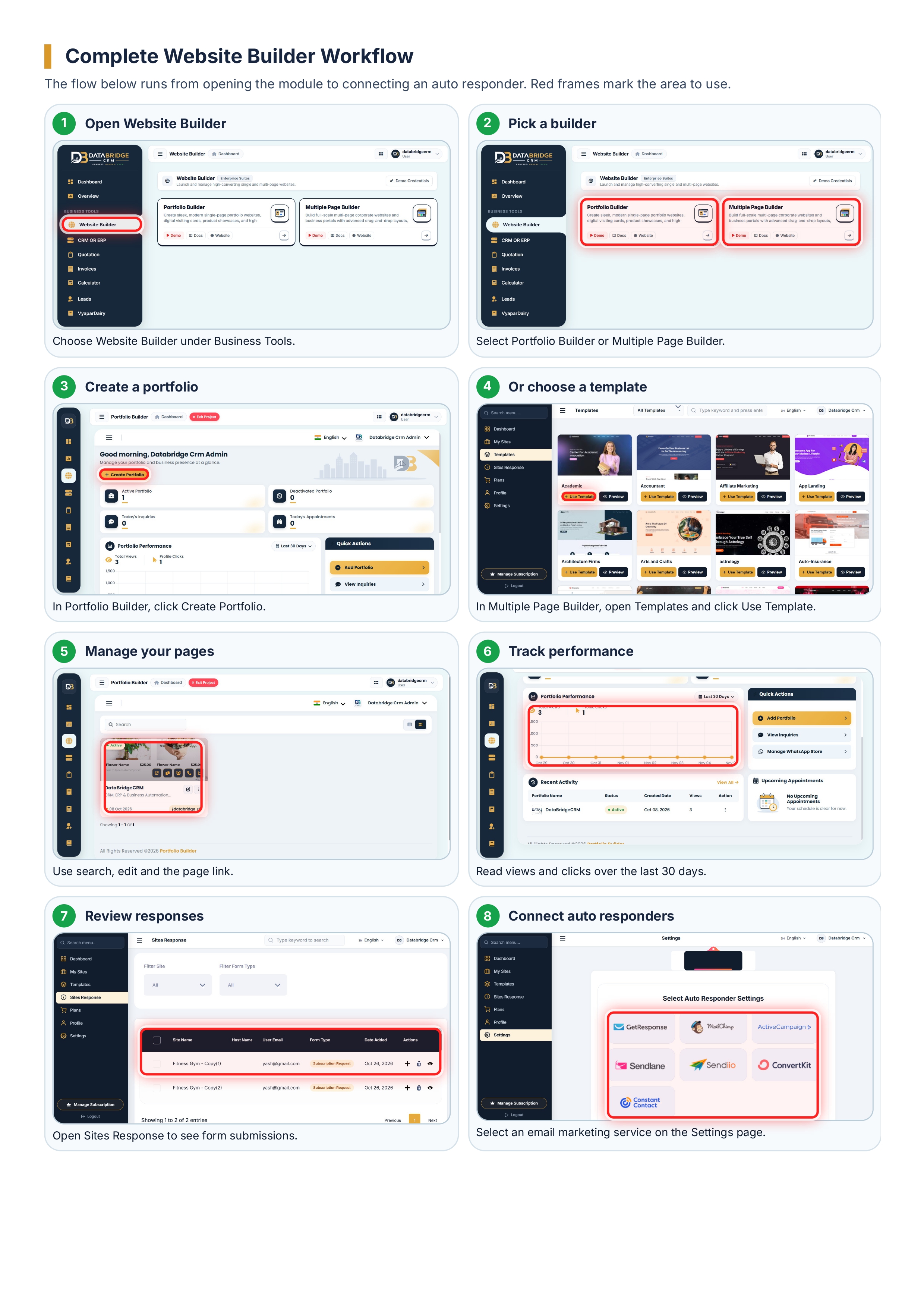
- Open Website Builder under Business Tools.
- Pick Portfolio Builder or Multiple Page Builder.
- In Portfolio Builder, click Create Portfolio.
- In Multiple Page Builder, open Templates and click Use Template.
- Manage your pages: search, edit and open the page link.
- Track performance: views and clicks over the last 30 days.
- Review responses in Sites Response.
- Connect an email marketing service on the Settings page.
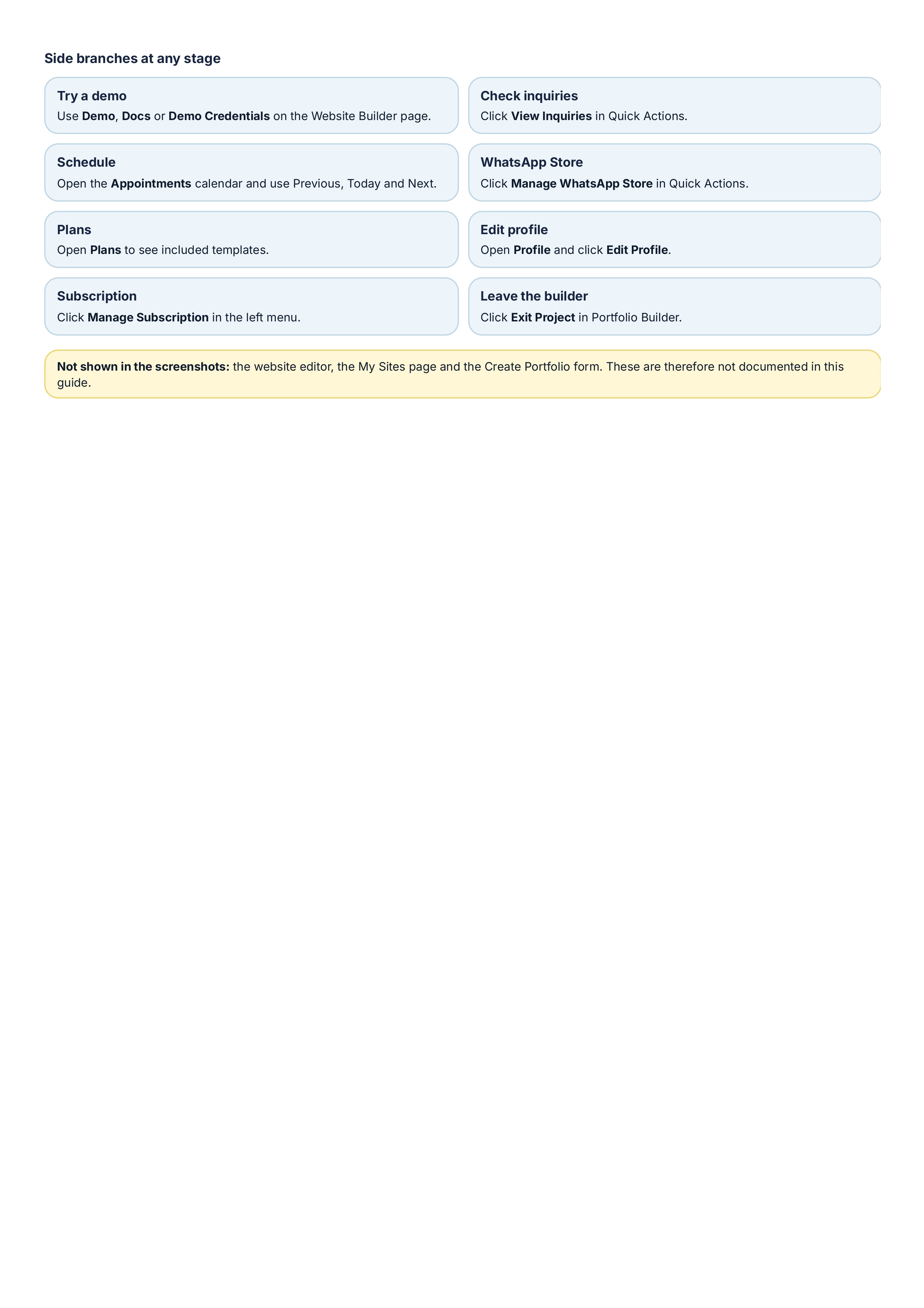
At any stage you can try a demo, check inquiries, open the appointments calendar, review plans, edit your profile or manage your subscription.
Benefits of Building Websites Inside Your CRM
- One login: websites, inquiries and appointments sit next to your other business tools.
- Two builders: a quick single-page portfolio or a full multi-page site.
- Ready-made templates: start from a design built for your business type.
- Clear tracking: views, profile clicks and inquiries are visible on the dashboard.
- Lead capture: form submissions are collected in Sites Response.
- Email marketing links: auto responder settings connect your sites with email services.
Who Is It For?
The module suits freelancers who need a portfolio or digital visiting card, shops that want a product showcase, and companies that need a multi-page corporate website or business portal.
Frequently Asked Questions
What is the Website Builder in DataBridge CRM?
It is a module under Business Tools that lets you launch and manage single-page and multi-page websites, track their performance and handle inquiries.
What is the difference between Portfolio Builder and Multiple Page Builder?
Portfolio Builder creates single-page portfolio websites, digital visiting cards and product showcases. Multiple Page Builder builds full multi-page corporate websites and business portals with drag-and-drop layouts.
Can I start from a ready-made design?
Yes. The Templates page lets you preview a design and click Use Template to start a website from it.
Where do I see messages sent through my website?
In Portfolio Builder, use View Inquiries. In Multiple Page Builder, use Recent Inquiries on the dashboard or the Sites Response page.
Can I see how many people visit my site?
Yes. The performance panels show Total Views, Profile Clicks (Portfolio Builder) and Active Sites (Multiple Page Builder) for a chosen period such as the last 30 days.
Can I connect an email marketing service?
Yes. The Settings page lists seven auto responder services you can select.
Is there a demo?
Yes. The Website Builder page has Demo, Docs and Demo Credentials buttons.
Conclusion
The DataBridge CRM Website Builder gives you two ways to get online and the tools to manage what happens next: performance charts, inquiries, appointments, templates and auto responder settings. Open Website Builder from Business Tools, choose the builder that fits your business and publish your first page today.
Ready to try it? Click Demo on the Website Builder page to see how it works.

