Running a thriving business requires more than just collecting phone numbers—it demands building long-lasting client relationships. Yet, thousands of business owners, sales executives, and entrepreneurs struggle with the same frustrating bottleneck: client data scattered across phone contact books, messy WhatsApp chats, sticky notes, and lost Excel sheets.
When crucial customer information is fragmented, follow-ups slip through the cracks, important client paperwork gets misplaced, and vital personal milestones like birthdays and anniversaries are forgotten.
That is exactly why [DataBridge CRM](https://databridgecrm.com/) introduced Contact Diary—a dedicated, private client directory engineered to centralize your customer contacts, follow-up notes, contracts, and special day reminders under one single, intuitive interface. Whether you manage accounts through the core platform or operate via the [DataBridge VyaparDairy Panel](https://panel.databridgecrm.com/user/vyapardairy), Contact Diary ensures you never lose track of a client again.
In this comprehensive visual guide, we walk you step-by-step through every feature of Contact Diary so you can streamline your sales pipeline and retain high-value clients effortlessly.
1. What Is Contact Diary? A Private Directory Built for Modern Businesses
Contact Diary is not just another basic address book. It is a secure, searchable client relationship vault built directly into the [DataBridge CRM](https://databridgecrm.com/) ecosystem.
Unlike public phone books or complex ERP modules, Contact Diary provides a clean, visual command center where every contact profile is linked with actionable intelligence: call logs, WhatsApp shortcuts, interaction comments, client documents, and automated reminders.
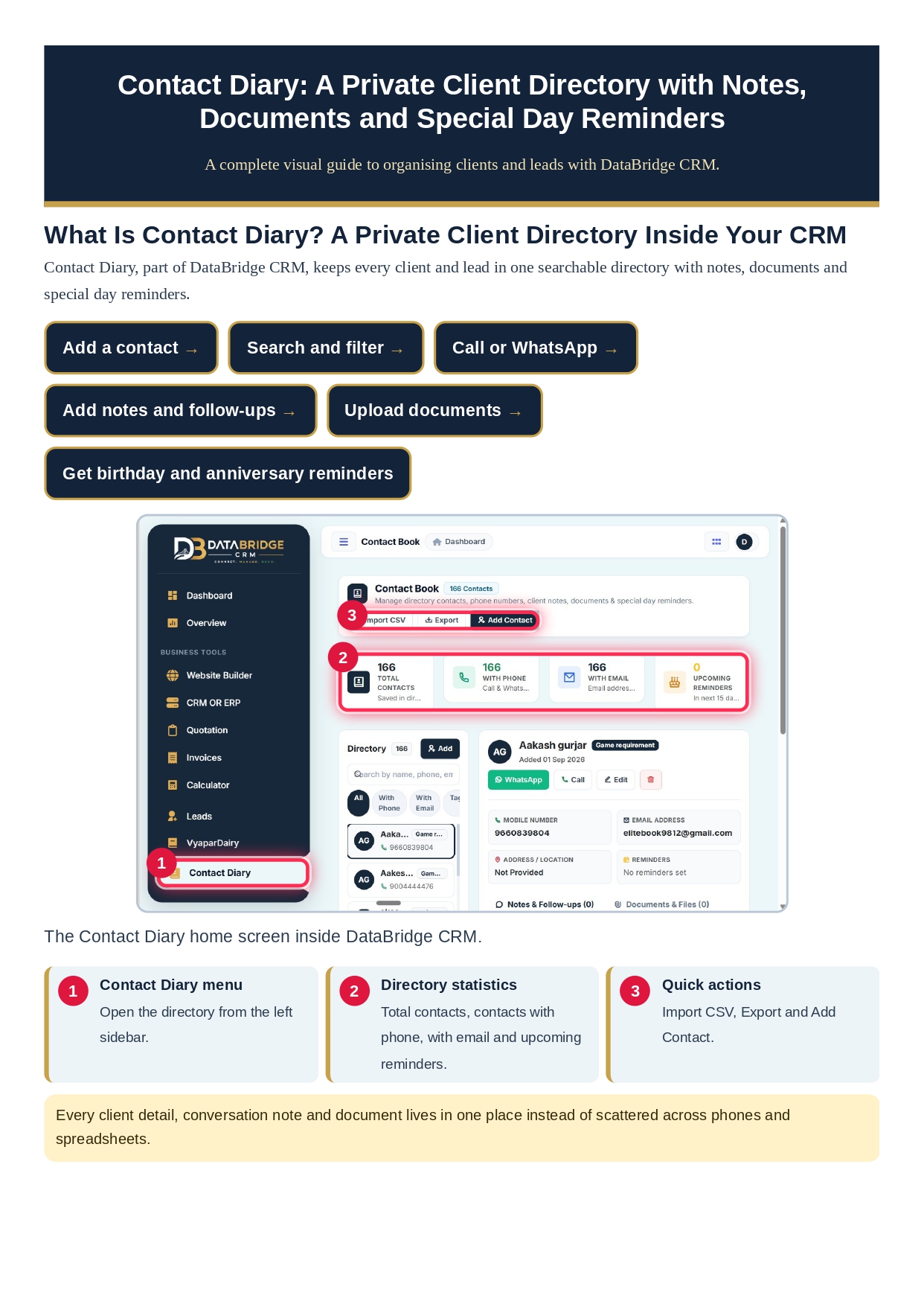
Key Interface Highlights:
1. Contact Diary Menu: Easily accessible from the left-hand navigation bar alongside essential tools like Invoices, Quotations, Leads, and [VyaparDairy](https://panel.databridgecrm.com/user/vyapardairy).
2. Directory Statistics: Real-time visual cards giving you immediate visibility into total contacts, phone contacts, email accounts, and upcoming reminders.
3. Quick Action Hub: Instant buttons to import large contact lists, export data for backups, or create individual records on the fly.
> Key Takeaway: Every client detail, conversation note, and KYC document lives securely in one searchable directory instead of scattered across personal devices.
2. Contact Book Header Actions: Import CSV, Export & Add Contact
Speed and data portability are critical when scaling your client list. Contact Diary simplifies bulk contact management through three primary header controls located at the top of your dashboard.

Figure 2: The top action toolbar featuring the live Contact Counter, CSV Import, Data Export, and Add Contact trigger.
The Action Toolbar Explained:
- Contact Counter (1): Displays real-time counts of saved directory profiles (e.g., 166 Contacts), letting you verify your database size at a single glance.
- Import CSV (2): Transitioning from Google Contacts or Microsoft Excel? Use the CSV import tool to upload hundreds of leads and existing clients in seconds.
- Export (3): Full data ownership. Download your complete contact directory as a secure offline backup or share records with your administrative team.
- Add Contact (4): Opens the streamlined contact entry modal to log new leads or walk-in clients immediately.
3. Real-Time Directory Health: Understanding Contact Summary Cards
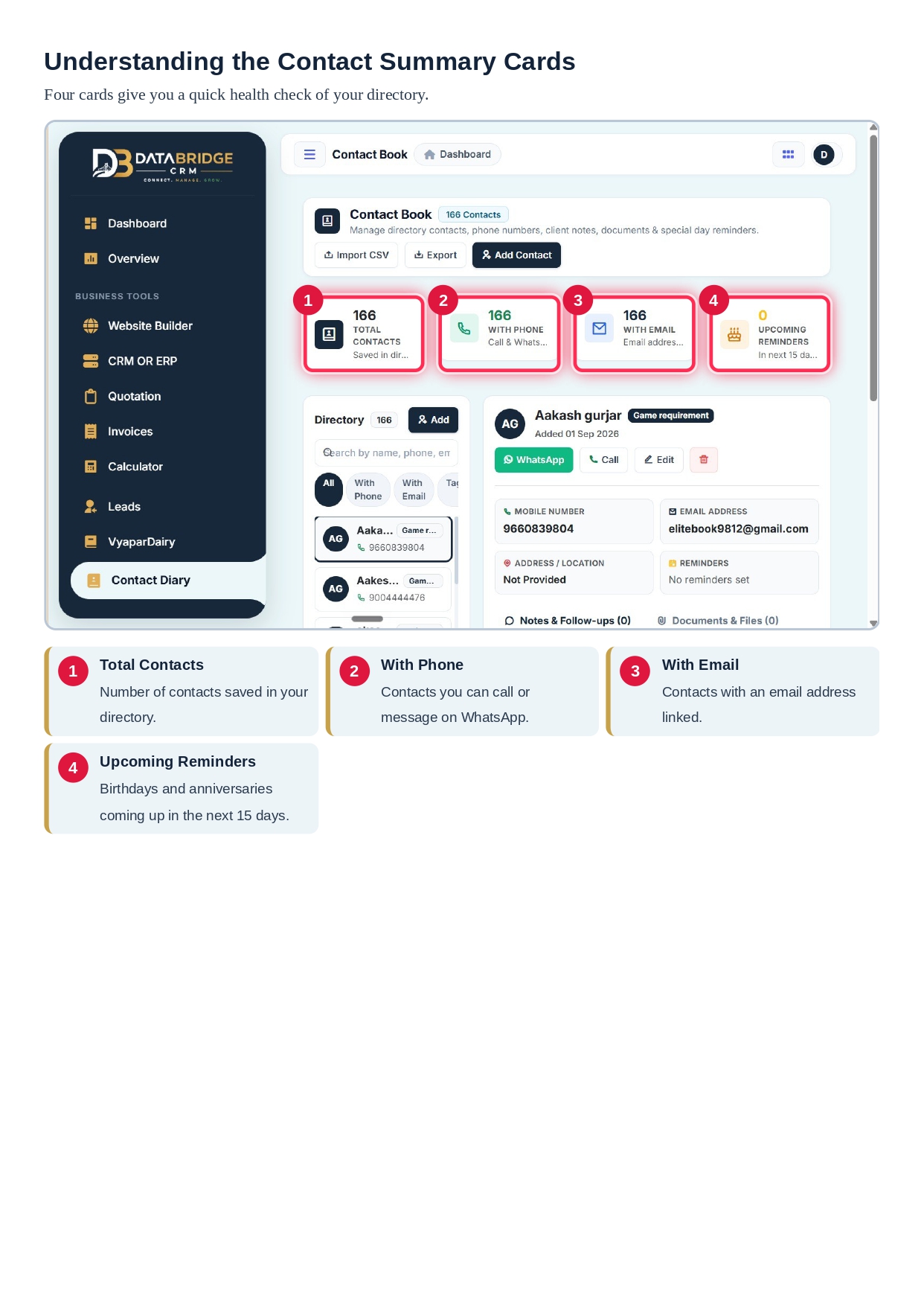
Staying on top of your outreach pipeline requires actionable metrics. At the top of your workspace, four interactive summary cards act as a real-time health check for your contact database.
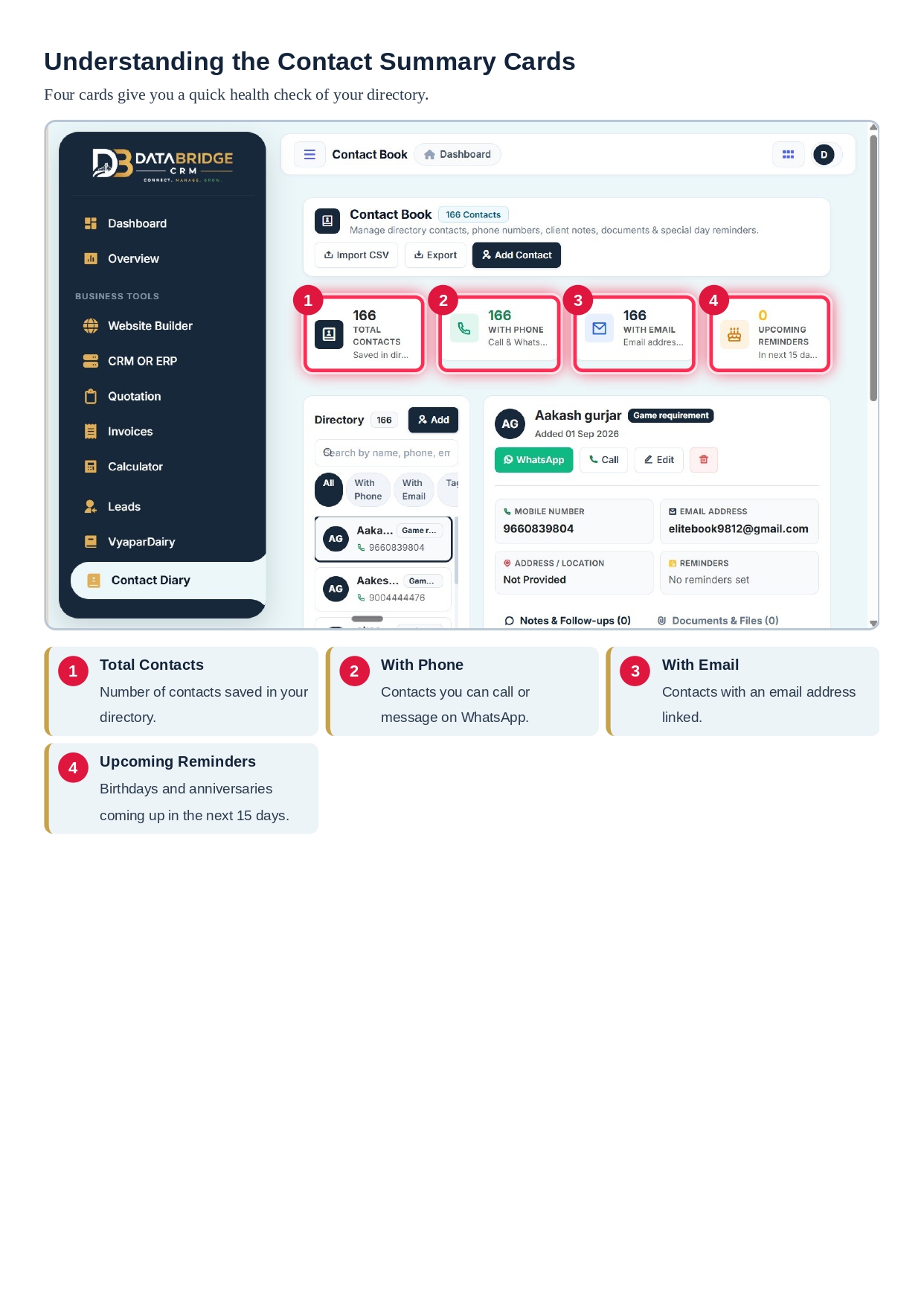
The 4 Status Cards Breakdown:
1. Total Contacts Card: Reflects the complete volume of leads, vendors, and clients stored in your private directory.
2. With Phone Card: Shows the total number of contacts with verified mobile numbers ready for direct phone calling and WhatsApp messaging.
3. With Email Card: Summarizes profiles with attached email addresses, ideal for sending official proposals or newsletters via [DataBridge CRM](https://databridgecrm.com/).
4. Upcoming Reminders Card: Highlights critical dates (birthdays, anniversaries, renewal milestones) due within the next 15 days so your team can prepare timely greetings and offers.
4. How to Add a New Contact in Under 30 Seconds
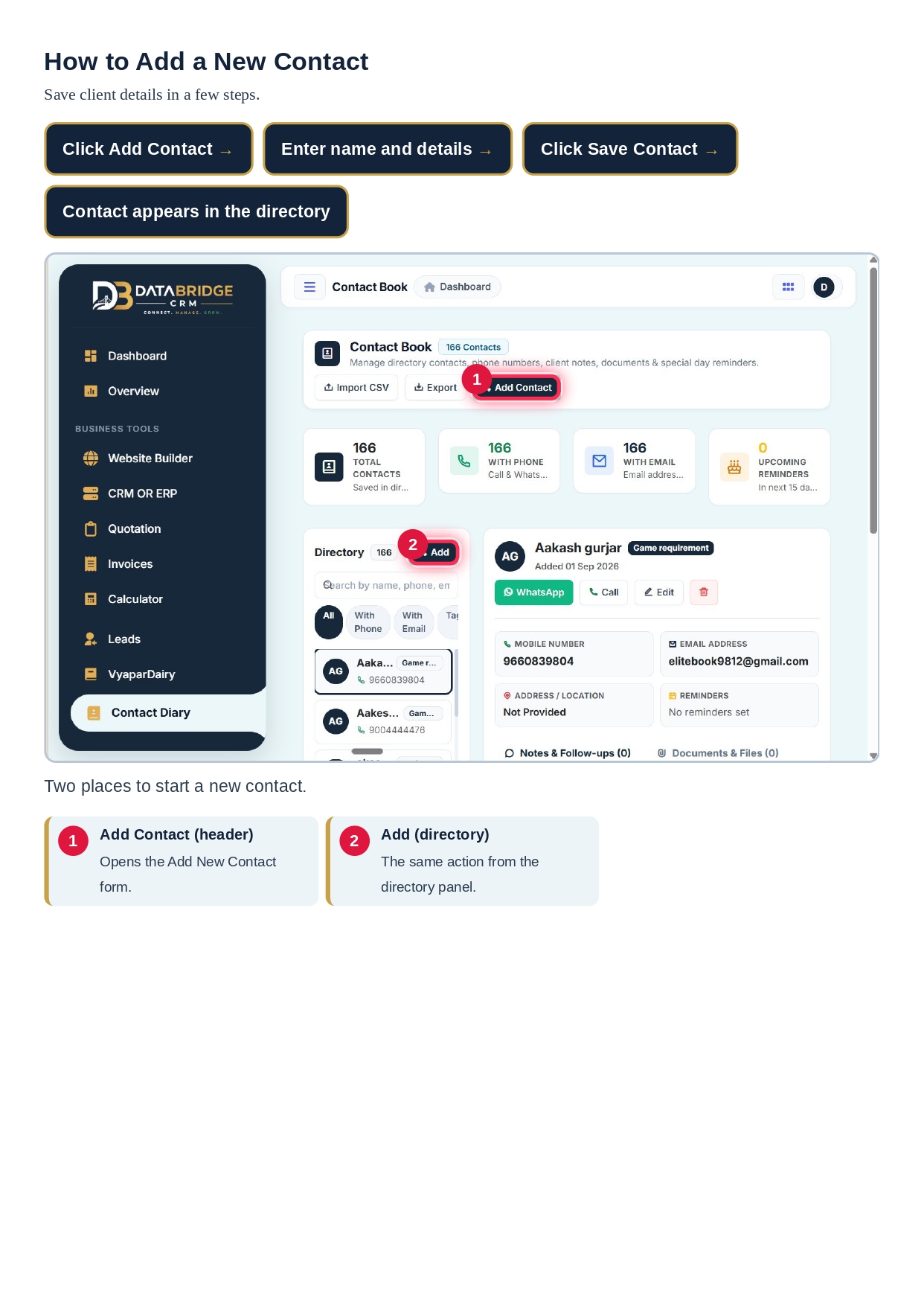
Adding a new prospect or client to your directory is effortless. [DataBridge CRM](https://databridgecrm.com/) provides two intuitive entry points to launch the contact creation form depending on where you are in the application.
Step-by-Step Entry Process:
1. Top Header Button (1): Click the primary Add Contact button situated at the top right header for instant access from any screen.
2. Directory Panel Button (2): Alternatively, click the + Add button positioned directly above your contact list.
3. Both buttons immediately summon the structured contact creation modal.
5. Add New Contact Form: Comprehensive Profile Categorization
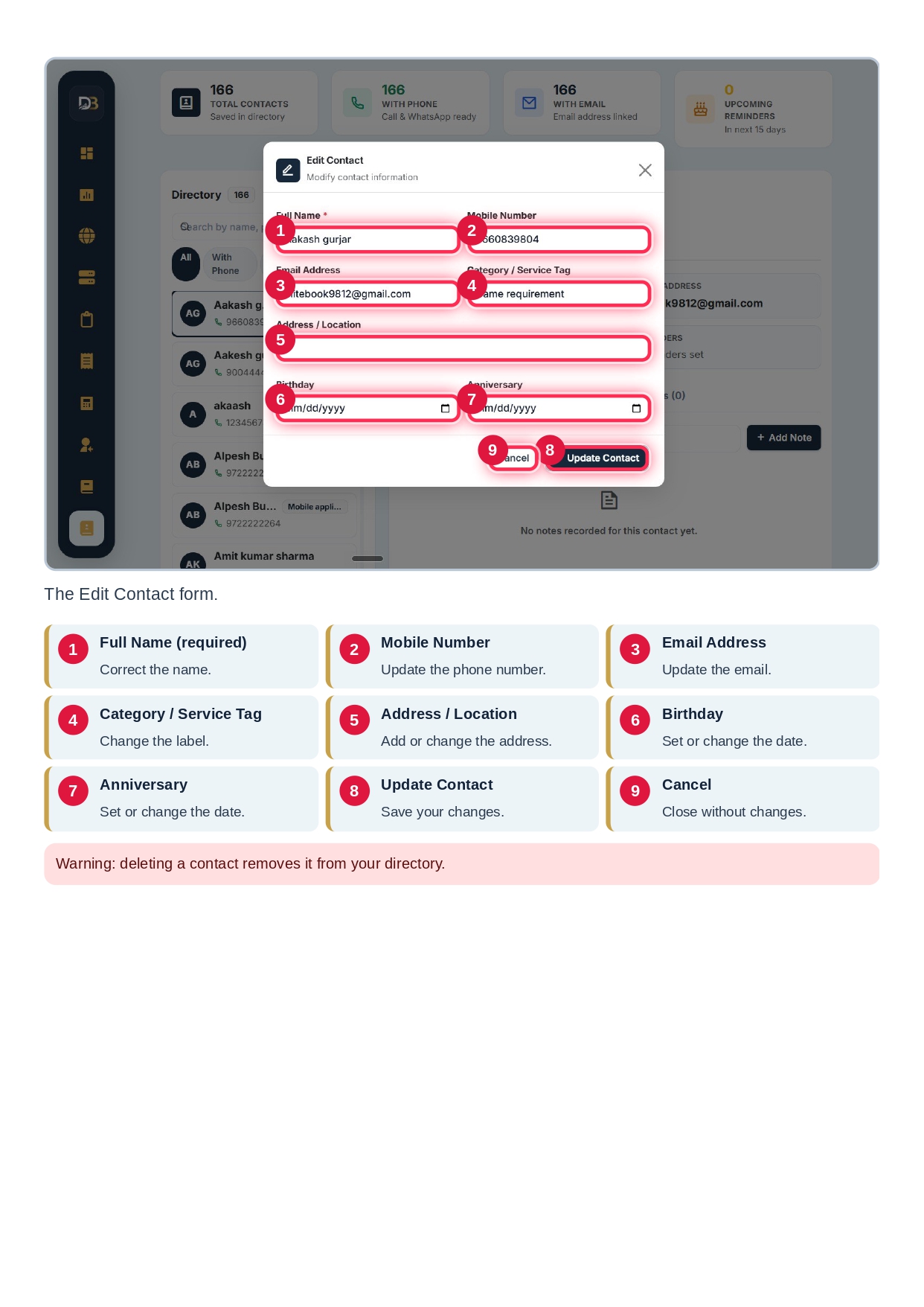
Data integrity is the backbone of effective CRM marketing. The Add New Contact form gives you comprehensive fields to capture both essential communication details and deep relationship context.
Field Breakdown & Best Practices:
- 1. Full Name (Mandatory): The primary identifier for your client (e.g., Ramesh Kumar).
- 2. Mobile Number: Enables instant 1-click WhatsApp messaging and direct calling directly from your browser or mobile app.
- 3. Email Address: Stores formal email correspondence points for quotations and invoices.
- 4. Category / Service Tag: Group your contacts by custom labels (e.g., Retail Partner, VIP Client, Raw Material Vendor, Game Requirement). This enables precise filtering later.
- 5. Address / Location: Record client billing or office locations for logistics, deliveries, and field visits.
- 6. Birthday (Optional): Never miss a client’s special day—automatically feeds into the 15-day reminder engine.
- 7. Anniversary (Optional): Deepen B2B and retail loyalty by remembering relationship milestones.
- 8. Save Contact: Commits the profile to your private database instantly.
- 9. Cancel: Closes the form without saving unwanted entries.
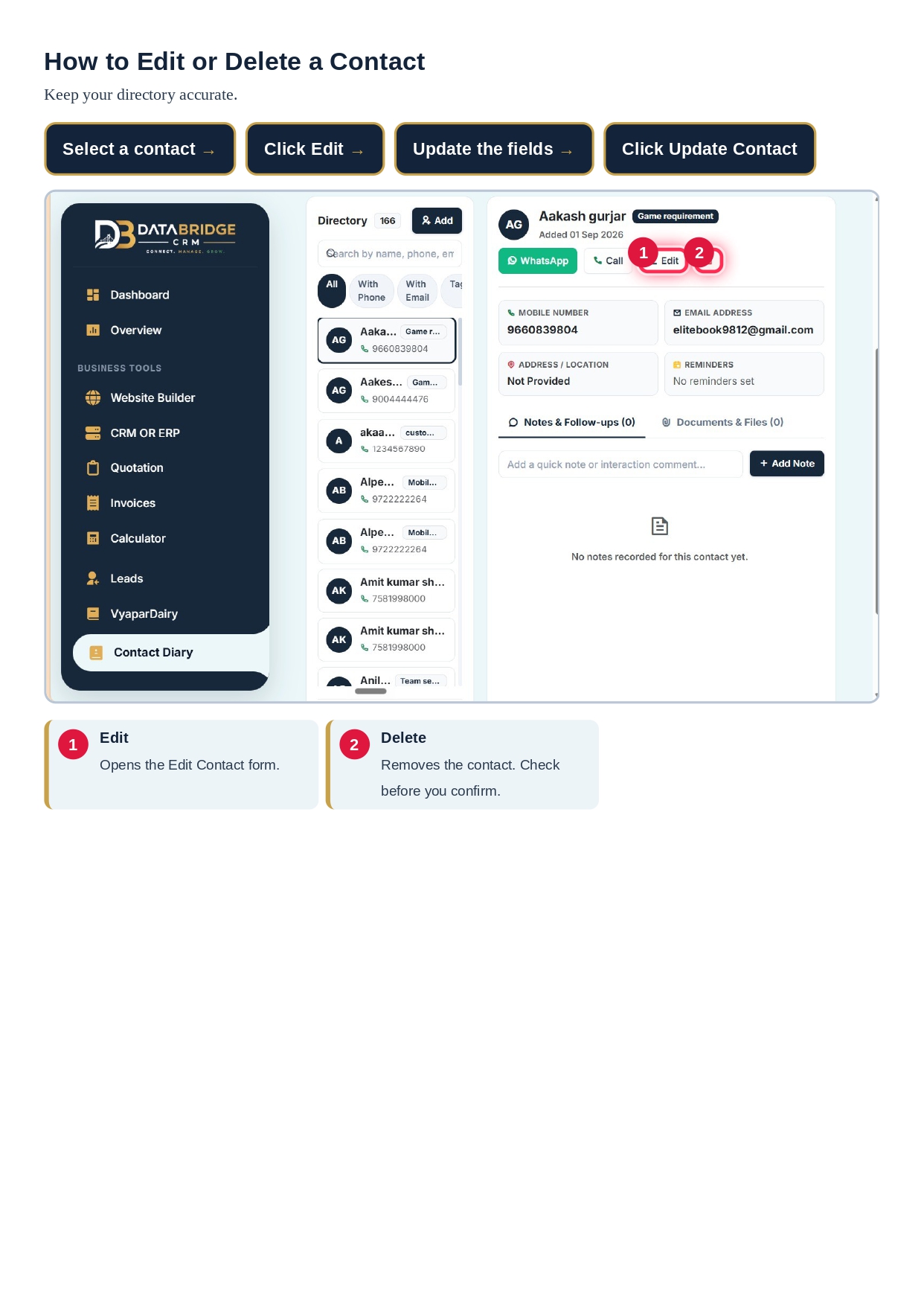
Advanced Discovery Capabilities:
- Instant Search Box (2): Type any partial keyword—client name, phone digits, email domain, or assigned service tag—to see matching results update instantaneously.
- Segmented Filter Chips (3):
- All: View your entire contact roster.
- With Phone: Filter down exclusively to records reachable via call or SMS.
- With Email: Isolate clients available for email campaigns.
- Tagged: Group contacts according to specific operational categories or customer lifecycle stages.
- Contact List Panel (4): Displays compact summaries showing name, category tag, and phone number. Clicking any contact opens their full 360-degree profile.