
Most small and mid-sized businesses keep client information in too many places. A few numbers sit in the phone. Some details are in a spreadsheet. Important conversations live in WhatsApp chats, and documents are buried in email. When you need to follow up with a client, you spend more time searching than selling.
The DataBridge CRM Contact Diary solves this problem. It is a private client directory built inside DataBridge CRM, where every client and lead is saved in one searchable place along with notes, documents and special day reminders.
This guide explains how the Contact Diary works, what each part does, and how you can use it in your daily business routine.
What Is the DataBridge CRM Contact Diary?
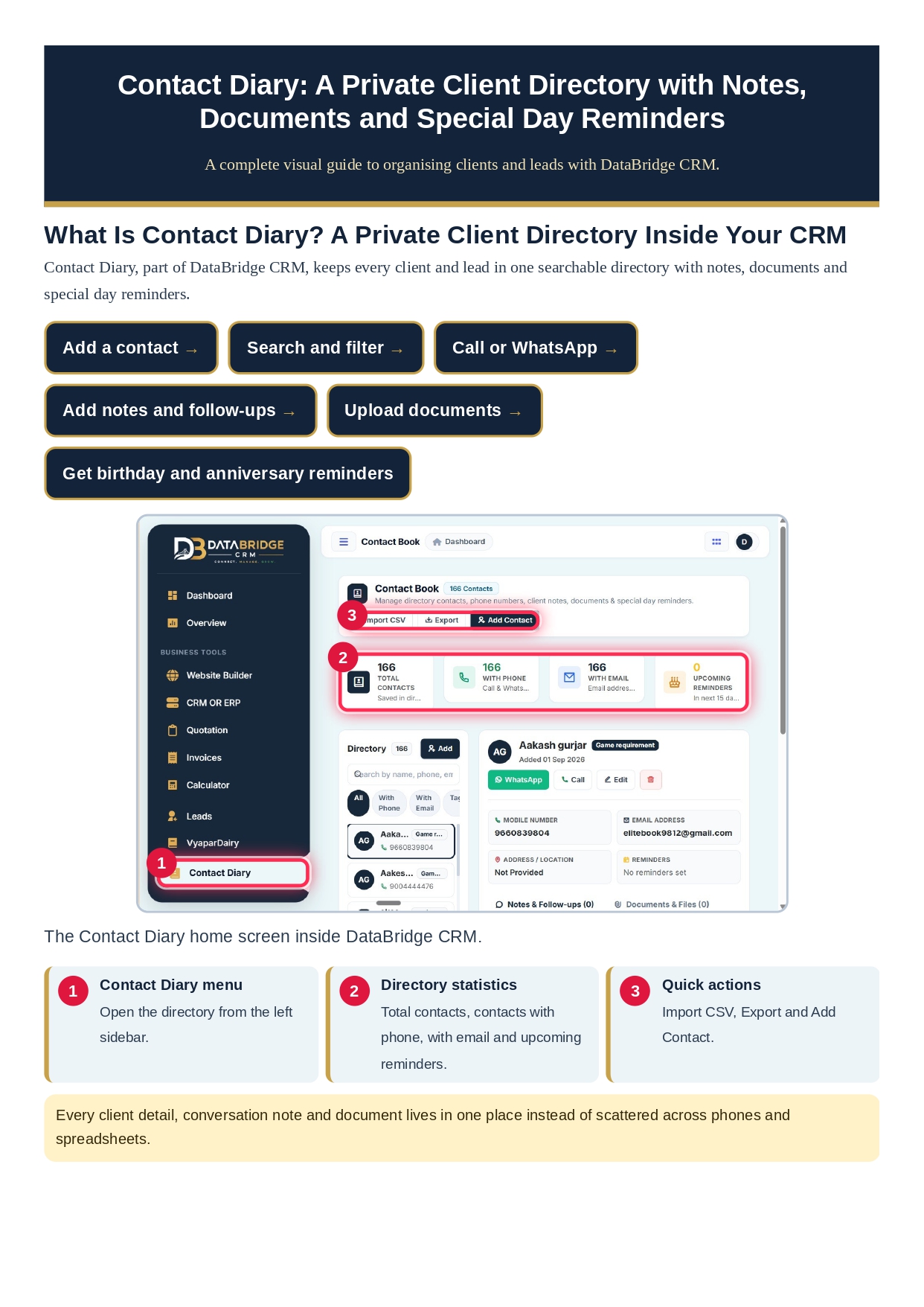
The Contact Diary is a client contact book CRM module that sits in the left sidebar of DataBridge CRM, along with other business tools such as Website Builder, Quotation, Invoices, Calculator, Leads and VyaparDairy.
In simple words, it is a digital address book designed for business. Unlike a normal phone contact list, it lets you:
Save complete client details in one profile
Search and filter contacts in seconds
Call or message clients on WhatsApp with one click
Record notes after every conversation
Upload client documents and files
Get birthday and anniversary reminders
Because it is private, your client data stays inside your own CRM account instead of being scattered across personal devices.
Understanding the Contact Book Home Screen
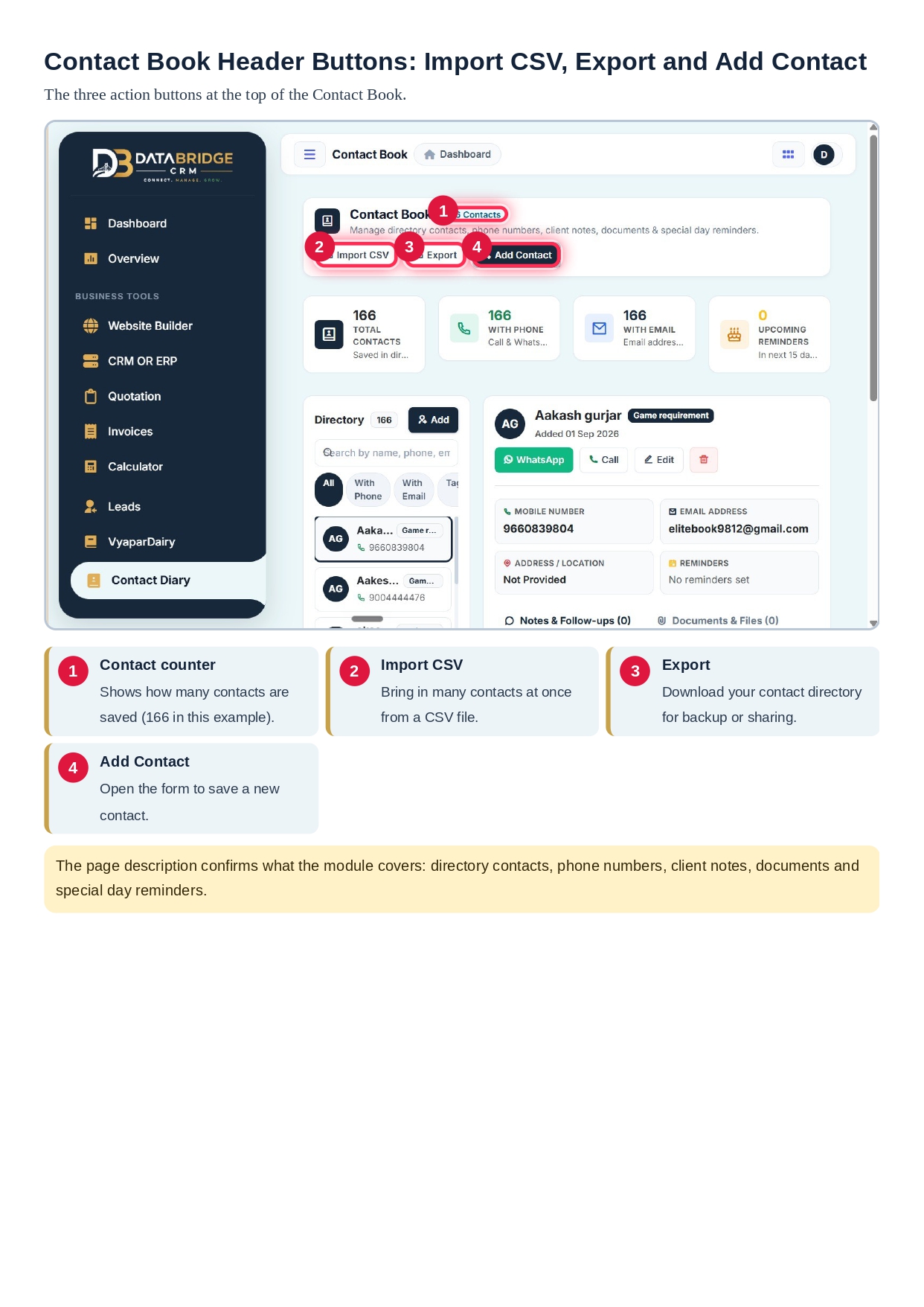
When you open the Contact Diary, you land on the Contact Book screen. The top of the page shows a contact counter, for example “166 Contacts”, and a short line explaining that you can manage directory contacts, phone numbers, client notes, documents and special day reminders.
Three action buttons appear in the header:
Import CSV: Lets you bring many contacts into the CRM at once from a CSV file. This is useful if your client list is currently in Excel or Google Sheets.
Export: Lets you download your contact directory for backup or sharing.
Add Contact: Opens the form to save a new client or lead.
These three buttons cover the full life of your data: bringing it in, adding to it and backing it up.
Contact Summary Cards: A Quick Health Check of Your Directory
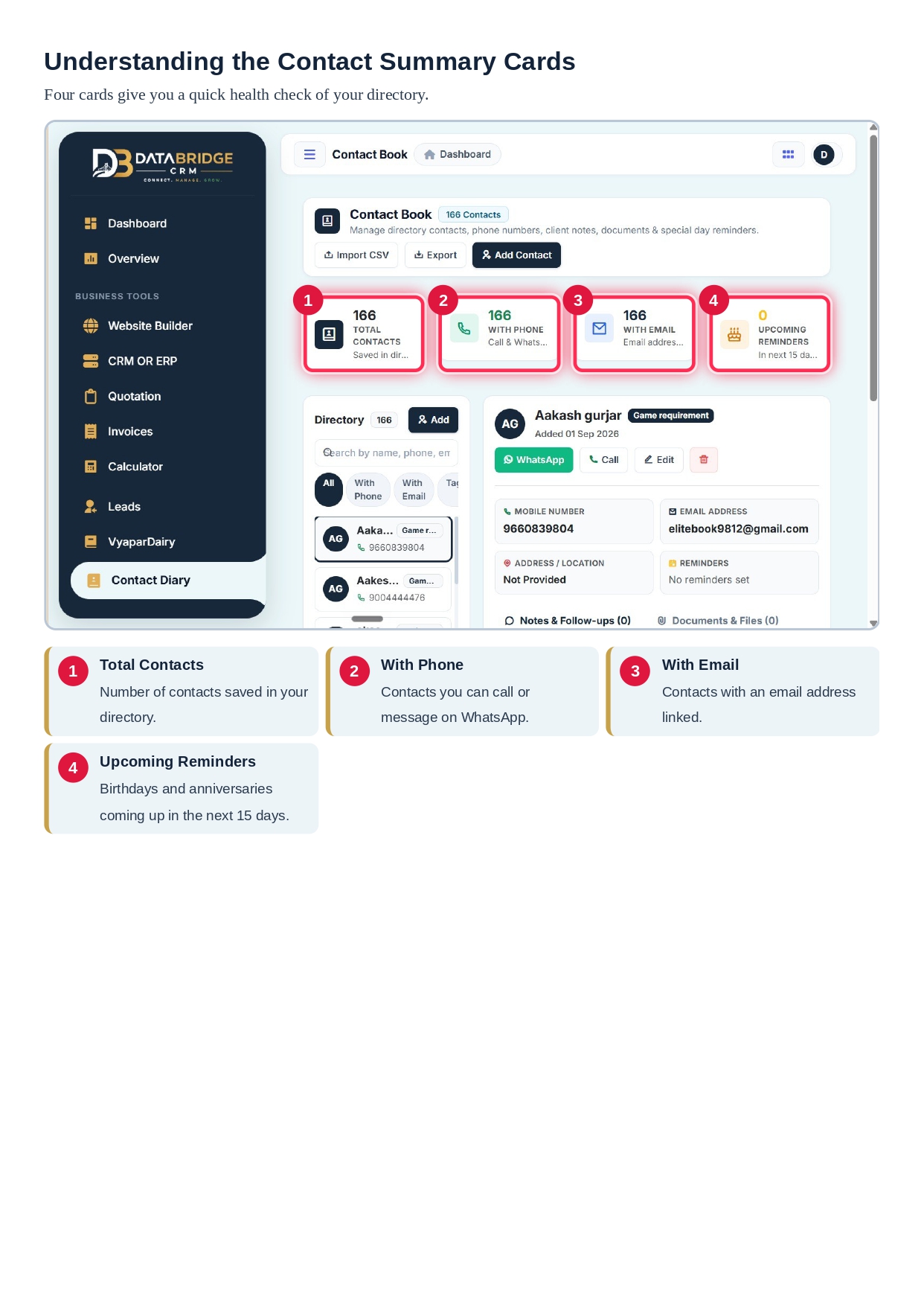
Below the header, four summary cards give you an instant picture of your contact database.
Total Contacts shows how many contacts are saved in your directory.
With Phone shows how many contacts have a phone number, which means you can call them or message them on WhatsApp.
With Email shows how many contacts have an email address linked.
Upcoming Reminders shows birthdays and anniversaries coming up in the next 15 days.
These cards help you spot gaps. For example, if your total contacts are much higher than contacts with email, you know it is time to collect more email addresses for your marketing.
How Adding a New Contact Works
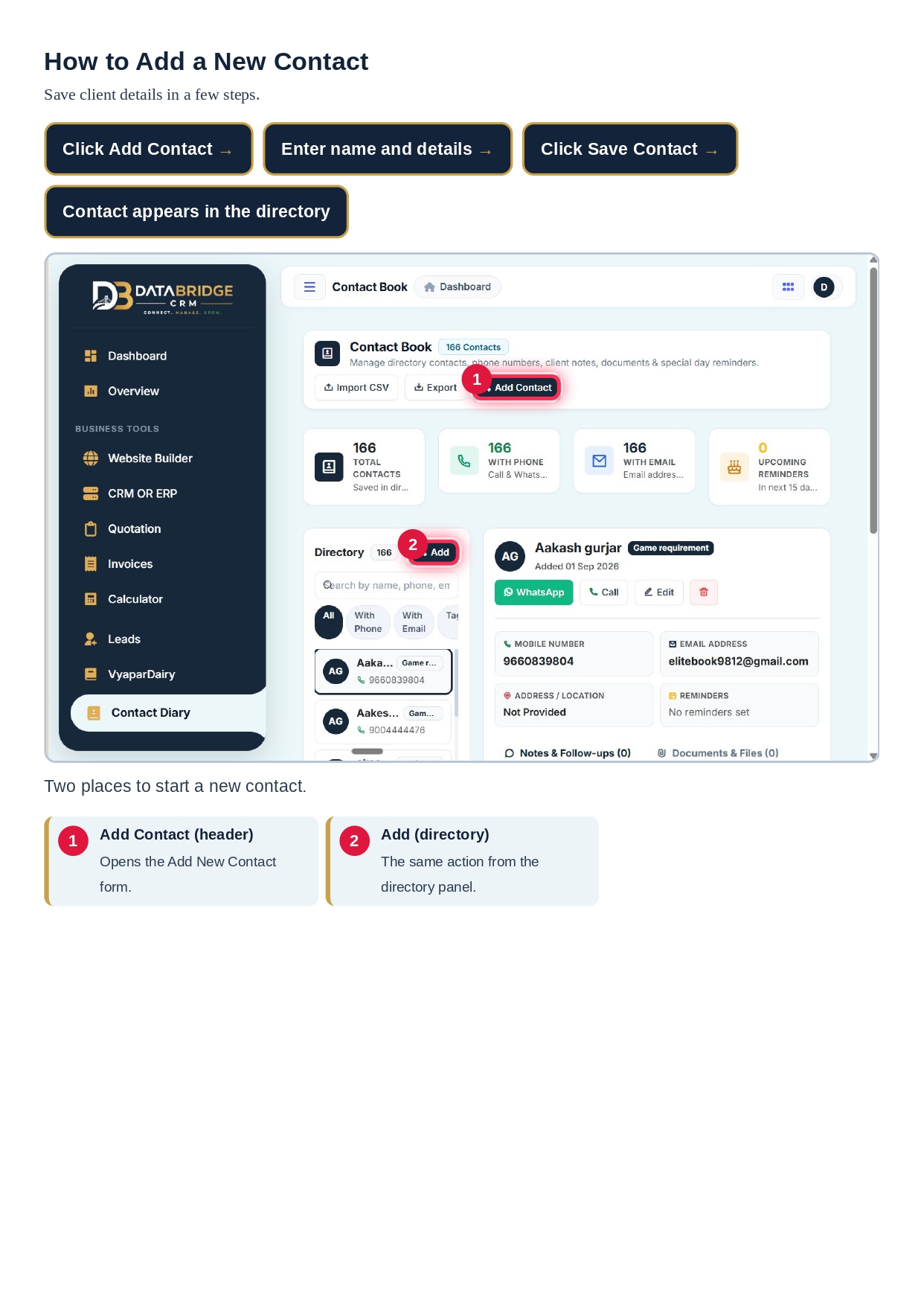
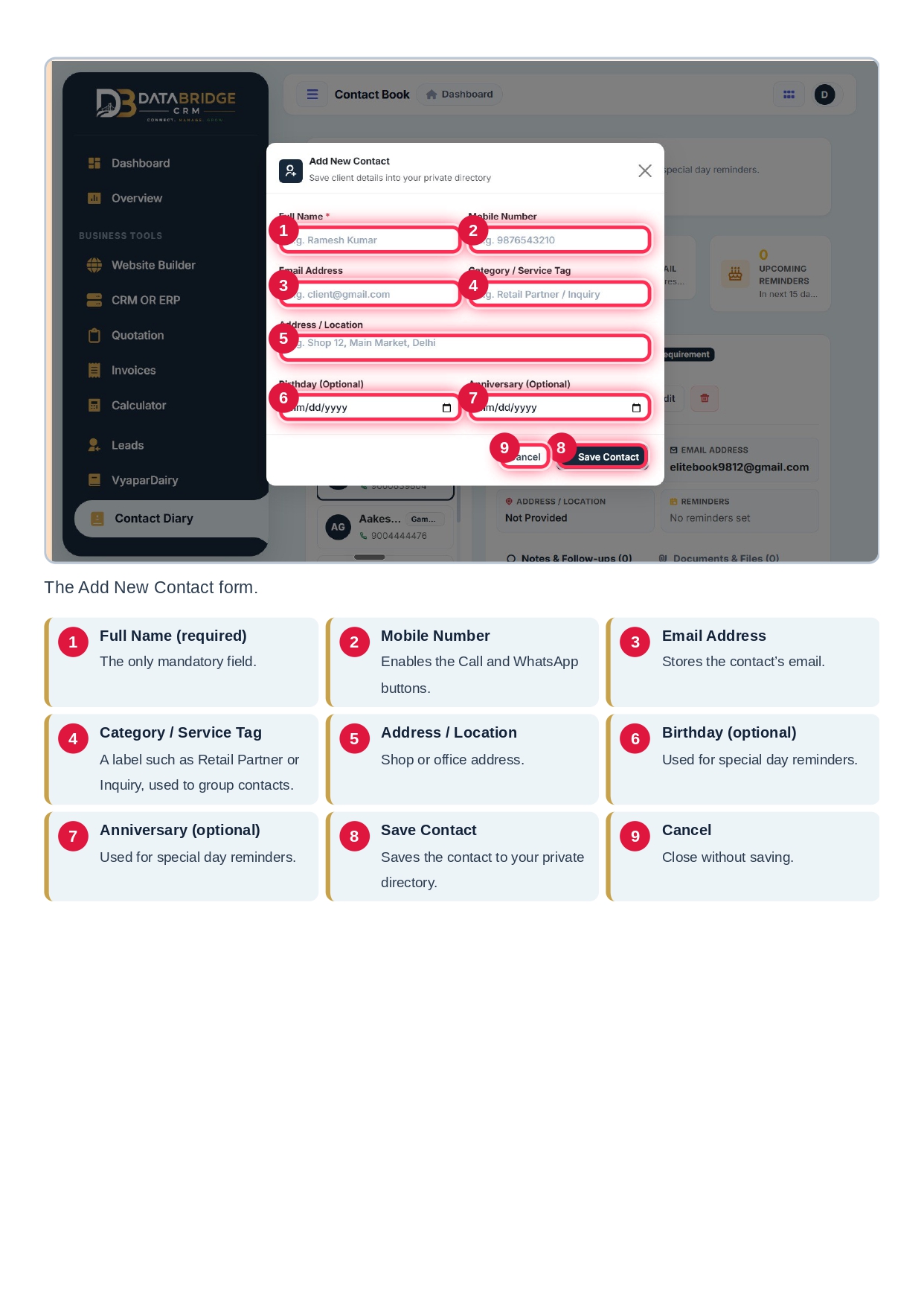
You can start a new contact from two places: the Add Contact button in the page header, or the Add button inside the Directory panel. Both open the same “Add New Contact” form, which describes itself as a way to save client details into your private directory.
The form contains these fields:
Full Name: The only mandatory field.
Mobile Number: Powers the Call and WhatsApp buttons.
Email Address: Stores the client’s email.
Category / Service Tag: A label such as Retail Partner or Inquiry, used to group your contacts.
Address / Location: The shop or office address.
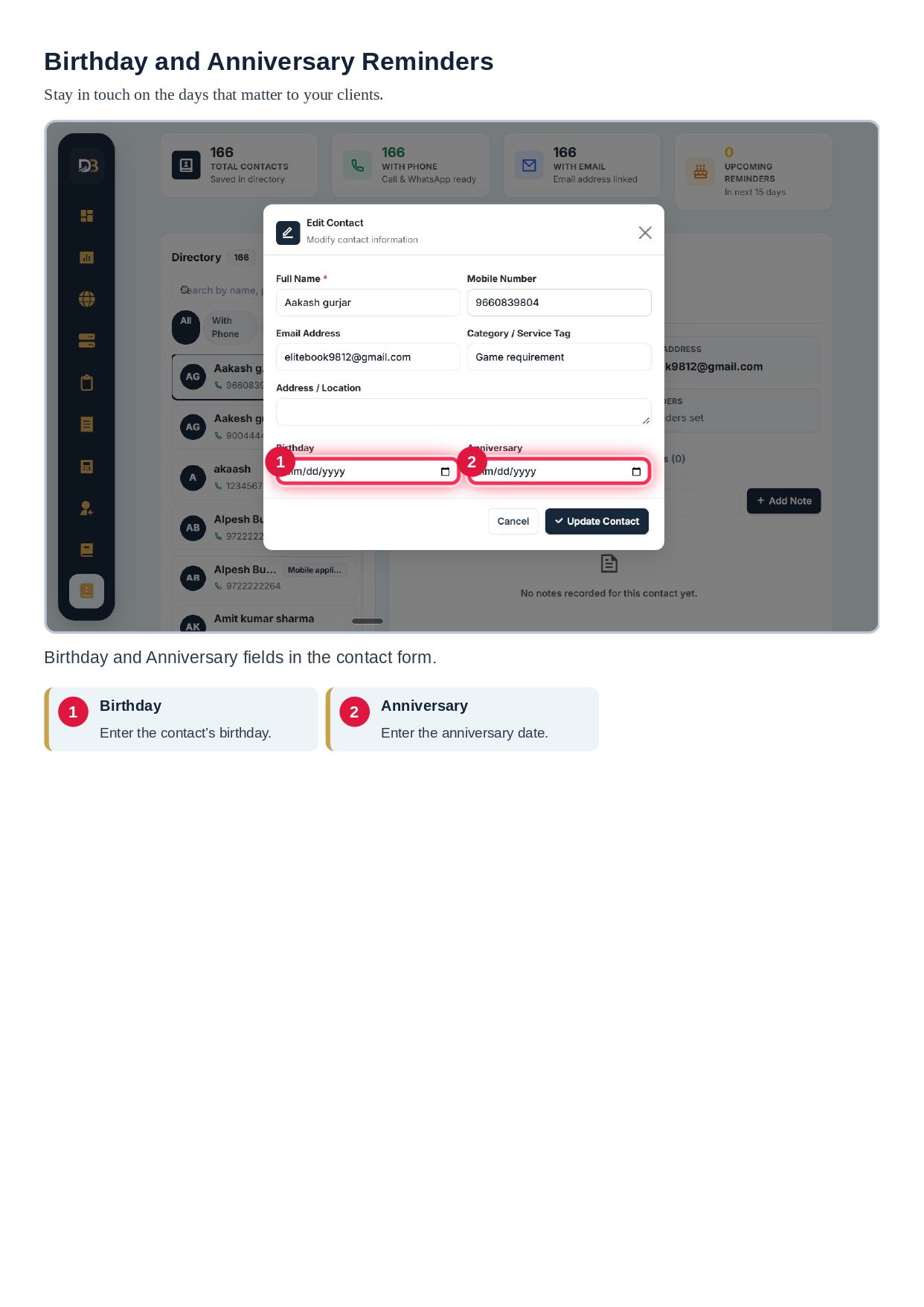
Birthday (optional): Used for special day reminders.
Anniversary (optional): Also used for special day reminders.
After filling in the details, you click Save Contact and the new client appears in your directory immediately. If you change your mind, Cancel closes the form without saving anything.
Since only the name is required, you can save a quick lead in a few seconds and complete the remaining details later.
Searching and Filtering Your Contact Directory
As your business grows, finding the right client becomes harder. The Directory panel is designed to fix this.
On the left side of the Contact Diary, the Directory panel shows the total number of contacts and a list of all your clients. Each entry shows the person’s name, their category tag and their phone number.
Search box: Type a name, phone number, email or tag to find a contact instantly.
Filter chips: Quickly narrow the list using All, With Phone, With Email and Tagged.
Contact list: Click any contact to open the full profile on the right side of the screen.
This layout lets you move through hundreds of contacts without losing your place. Search is especially useful for business contact management when a client calls and you need their history immediately.
Reading a Contact Profile
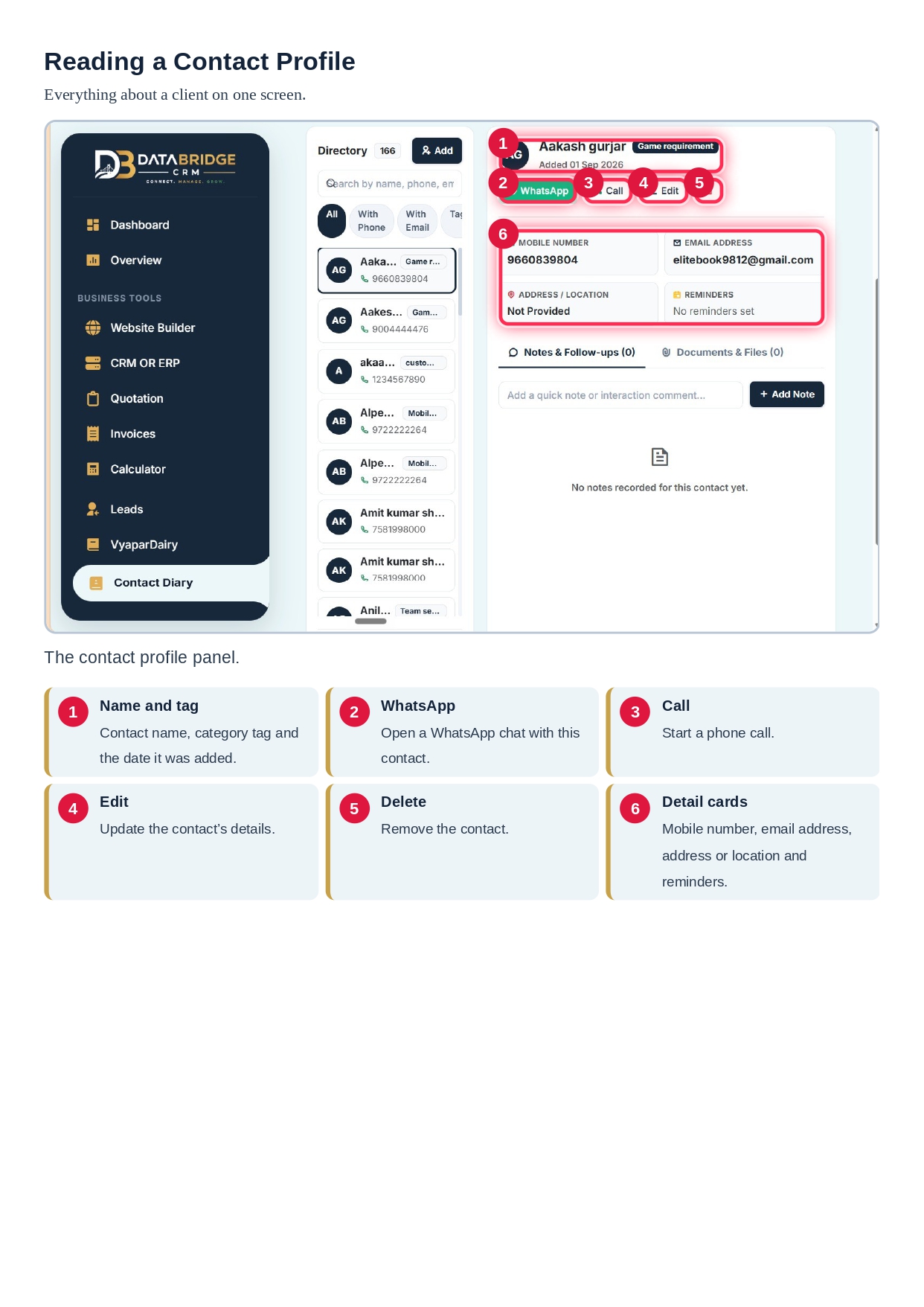
When you select a contact, the profile panel opens and shows everything about that client on one screen.
At the top you see the contact’s name, their category tag (for example, “Game requirement”) and the date they were added. Below the name are four action buttons:
WhatsApp: Opens a WhatsApp chat with the contact.
Call: Starts a phone call.
Edit: Opens the form to update details.
Delete: Removes the contact.
Under these buttons are four detail cards for Mobile Number, Email Address, Address or Location, and Reminders. The Reminders card tells you whether any special day reminder is set for that client.
Having call and WhatsApp buttons right inside the profile saves time. You do not need to copy a number and switch to another app.
How to Edit or Delete a Contact
Client details change. People switch numbers, move offices and update email addresses. Keeping your directory accurate is part of good client relationship management.
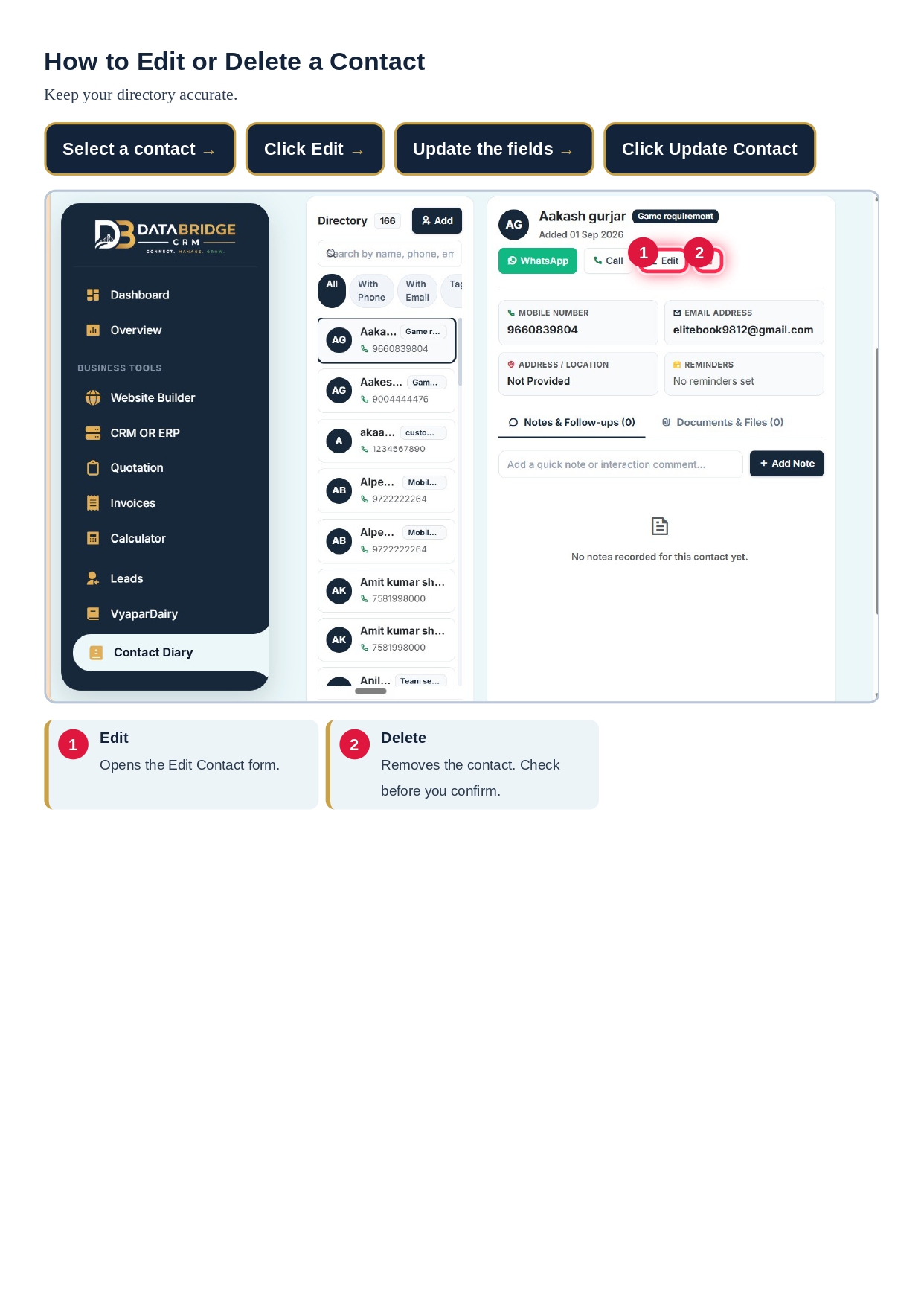
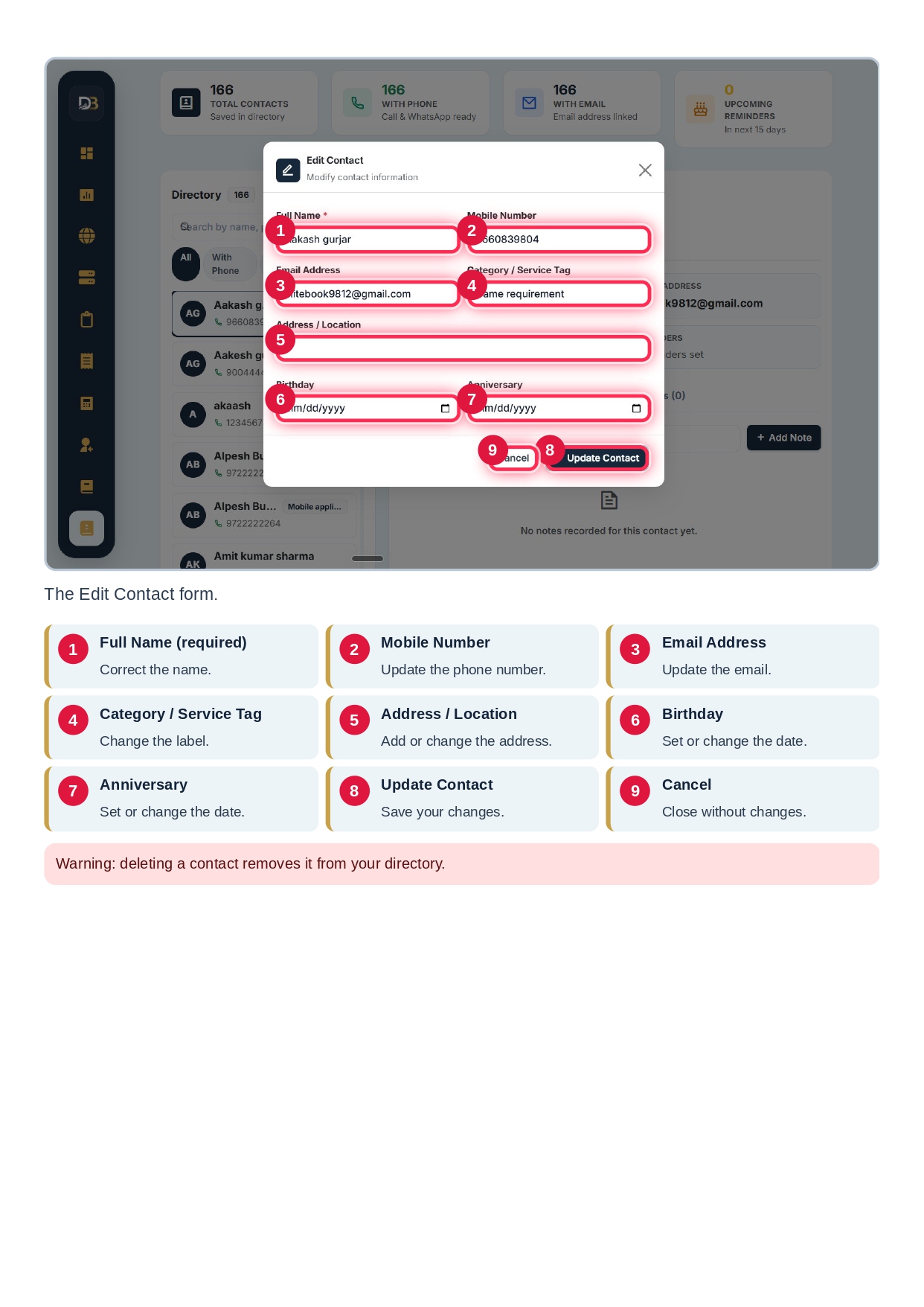
To update a client, select the contact and click Edit. The Edit Contact form opens with all existing information filled in. You can correct the name, update the phone number or email, change the category tag, add or change the address, and set or change the birthday and anniversary. When you are done, click Update Contact to save. Click Cancel to close the form without any changes.
The Delete button removes a contact from your directory. Please check carefully before confirming, because a deleted contact is removed from your directory.
Adding Notes and Follow-ups After Every Interaction
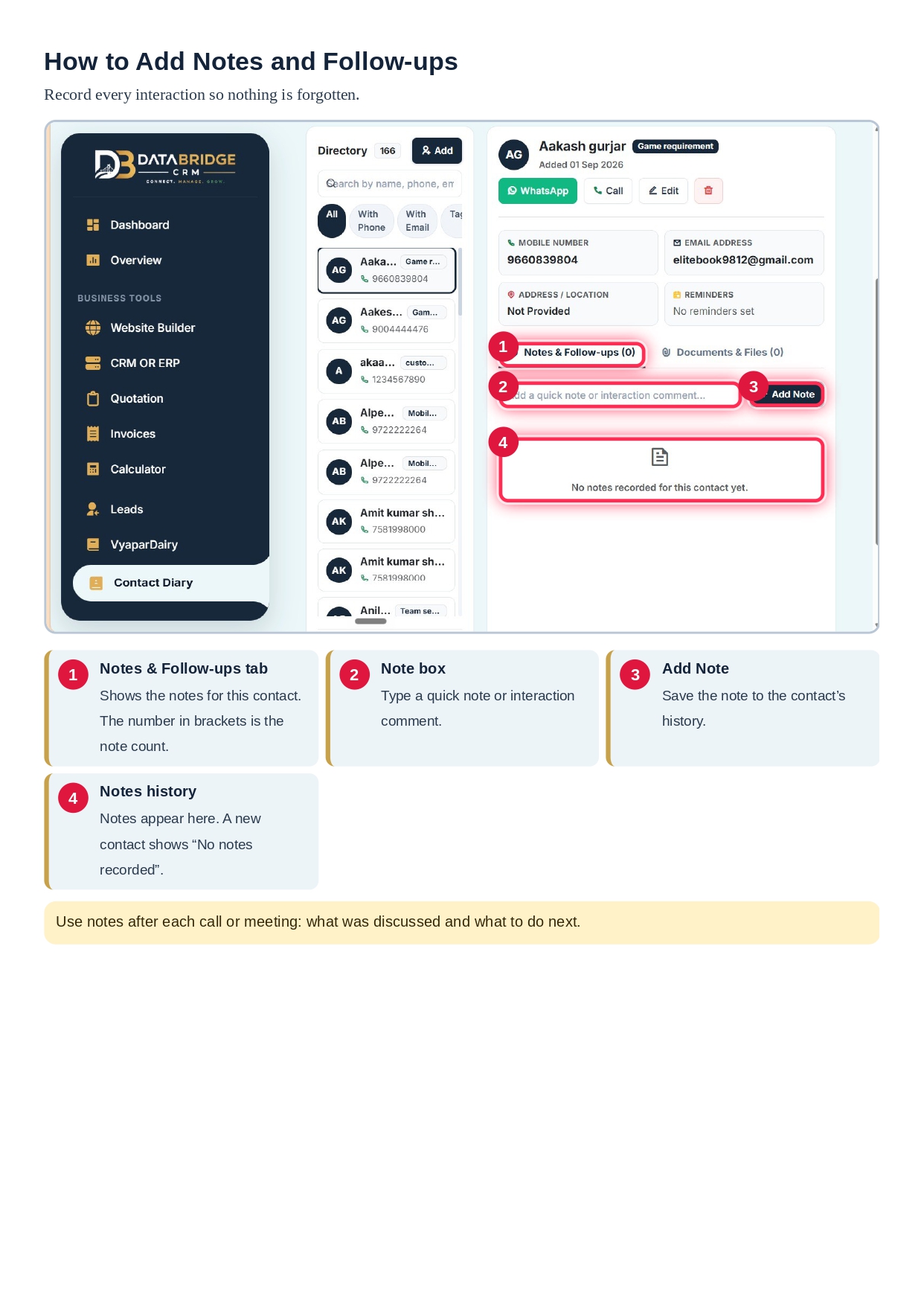
This is one of the most valuable parts of the Contact Diary. Every contact profile has a Notes & Follow-ups tab with a counter showing how many notes are saved.
Inside this tab you will find a note box where you can type a quick note or interaction comment, and an Add Note button that saves it to the contact’s history. A new contact shows the message “No notes recorded for this contact yet” until you add the first one.
The best habit is to write a note right after each call or meeting. Record what was discussed and what needs to happen next. For example, you can note that a client asked for a quotation, wants a callback next week, or prefers WhatsApp over calls.
Over time, these notes become a full conversation history. Anyone on your team can understand the relationship in a minute, and nothing is forgotten. This is what makes it customer follow-up notes software and not just a phone book.
Uploading Documents and Files to a Contact
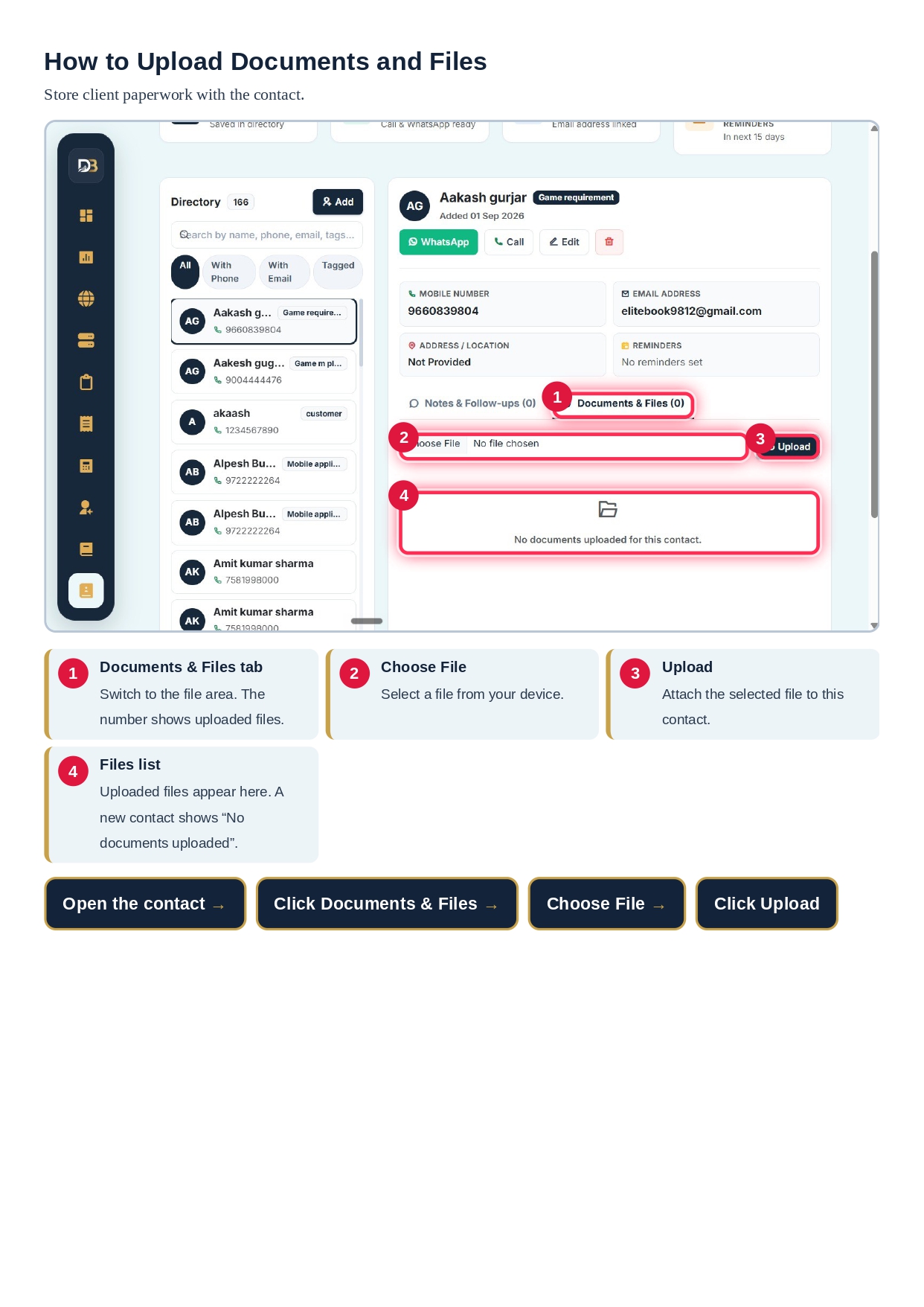
Client paperwork often gets lost in email threads and phone galleries. The Contact Diary lets you store it right inside the client’s profile.
Open the contact and switch to the Documents & Files tab. The counter shows how many files are uploaded. Click Choose File to select a document from your device and then click Upload to attach it to that contact. Uploaded files appear in the files list below. For a new contact, the list shows “No documents uploaded for this contact”.
This turns the Contact Diary into a simple client document manager. Agreements, ID copies, requirement sheets and quotations can sit next to the person they belong to.
Birthday and Anniversary Reminders That Build Loyalty
Clients remember businesses that remember them. A simple birthday greeting or anniversary wish can strengthen a relationship far more than a discount offer.
In the Add Contact or Edit Contact form, you will find two optional date fields: Birthday and Anniversary. Once a date is saved, it works as a special day reminder.
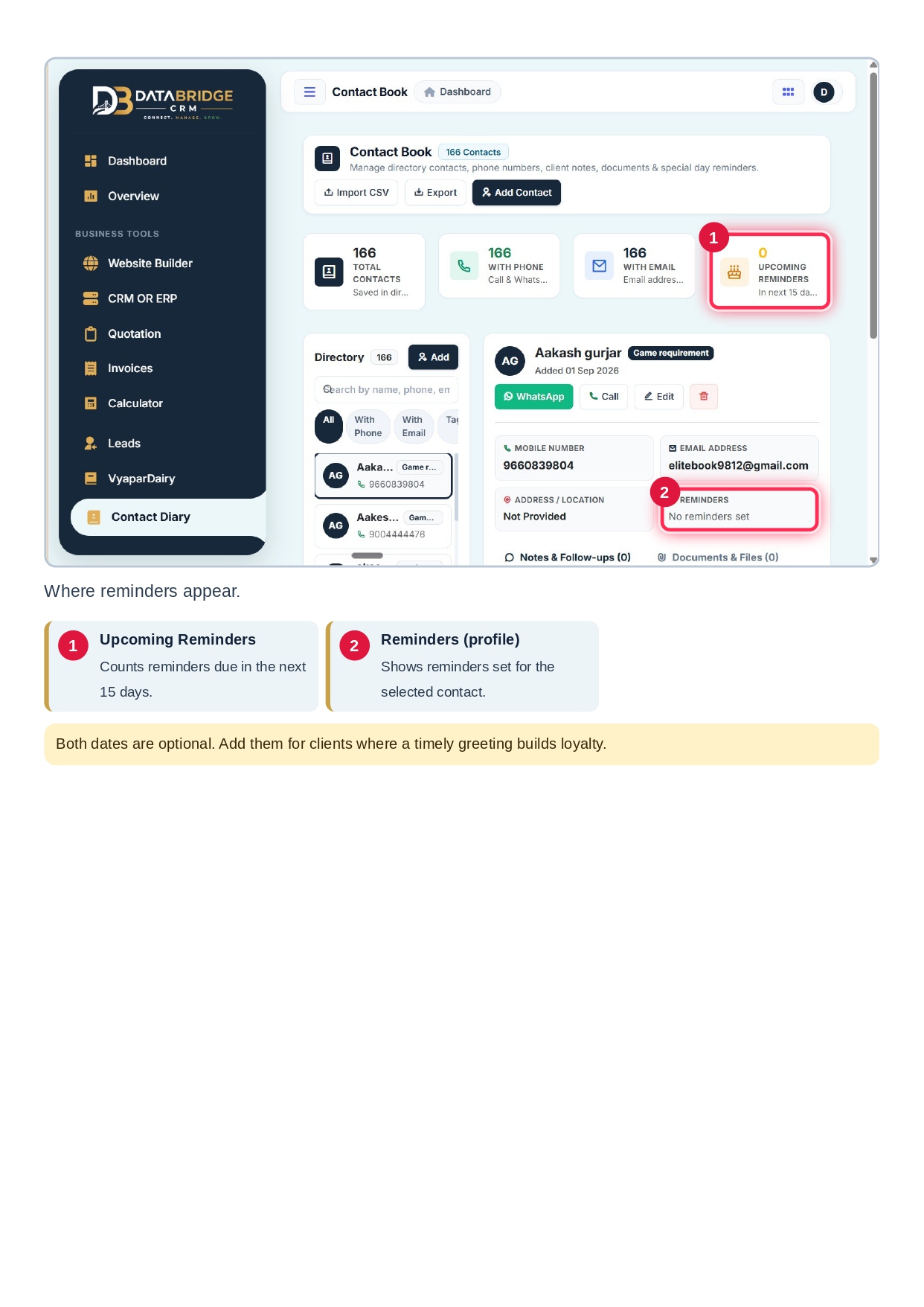
You can see reminders in two places:
Upcoming Reminders card: On the home screen, this card counts the reminders due in the next 15 days.
Reminders card in the profile: Inside a client’s profile, this card shows the reminders set for that specific contact.
Both dates are optional, so you can add them for the clients who matter most. If you are looking for a CRM with birthday reminders that is simple and practical, this feature does the job without extra setup.
The Complete Contact Diary Workflow at a Glance
Here is how a typical client journey flows through the Contact Diary:
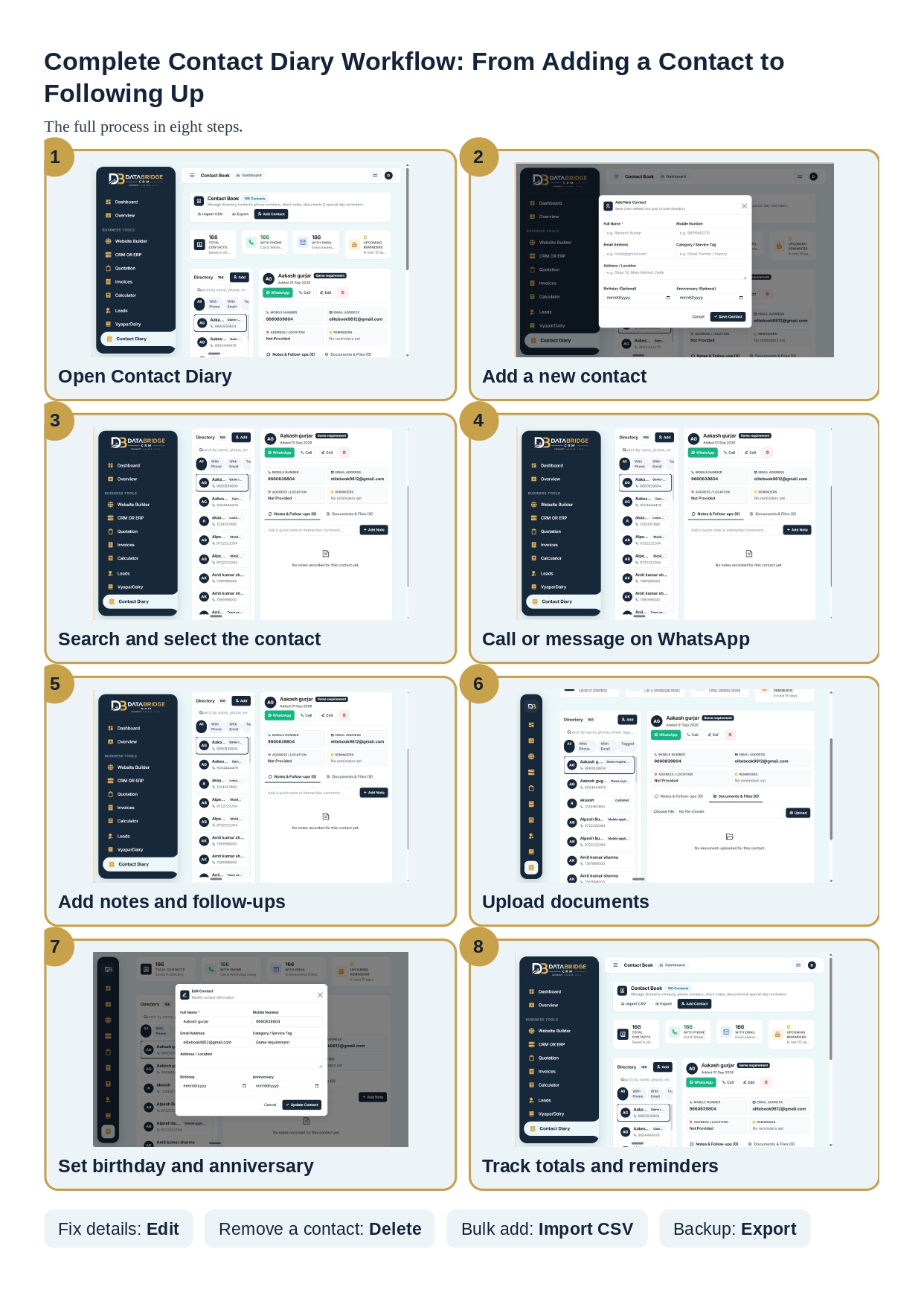
You open the Contact Diary from the sidebar and add a new contact with name, number and tag. When you need that client later, you search and select them from the directory. You call them or message them on WhatsApp from the profile. After the conversation, you add a note with the next action. Any paperwork gets uploaded into the Documents and Files tab. You set birthday and anniversary dates so you never miss a special day. Finally, you track your totals and upcoming reminders from the summary cards.
Along the way, Edit fixes details, Delete removes a contact, Import CSV adds contacts in bulk, and Export gives you a backup.
Who Can Benefit from the Contact Diary?
The Contact Diary works well for many kinds of businesses:
Retailers and shop owners who deal with repeat customers
Service providers who manage inquiries and follow-ups
Distributors and wholesalers who keep partner details
Agencies and freelancers who track leads and client paperwork
Sales teams who need a shared history of every conversation
If your business depends on relationships, a private client directory is not optional. It is the foundation of repeat sales.
Why Choose DataBridge CRM for Contact Management?
DataBridge CRM is built for practical business use. The Contact Diary sits alongside tools like Quotation, Invoices, Leads, Calculator and VyaparDairy, so your client data and business workflow stay connected in one platform.
Key benefits include:
One searchable place for all clients and leads
Direct Call and WhatsApp buttons
Notes and follow-ups saved against each contact
Documents stored with the client profile
Special day reminders for stronger relationships
Bulk Import CSV and Export for easy data movement
You can explore the full platform at DataBridge CRM, learn about our Leads module, or contact us for a demo.
Frequently Asked Questions
What is the DataBridge CRM Contact Diary?
It is a private client directory inside DataBridge CRM where you can save contacts, add notes, upload documents and set birthday and anniversary reminders.
Which field is mandatory when adding a contact?
Only the Full Name is mandatory. All other fields are optional.
Can I import my existing contacts?
Yes. Use the Import CSV button to bring in many contacts at once from a CSV file.
Can I back up my contact list?
Yes. The Export button downloads your contact directory for backup or sharing.
Can I call or WhatsApp a client directly from the CRM?
Yes. If a mobile number is saved, the Call and WhatsApp buttons appear in the contact profile.
How do birthday and anniversary reminders work?
Add the dates in the contact form. Reminders due in the next 15 days are counted on the Upcoming Reminders card, and each contact’s profile shows its own reminders.
Is deleting a contact reversible?
Deleting removes the contact from your directory, so please confirm carefully before you delete.
Conclusion
The DataBridge CRM Contact Diary brings your clients, conversations, documents and important dates into one clean, private workspace. It saves time, prevents missed follow-ups and helps you build stronger relationships.
Ready to organise your client contacts the smart way? Visit DataBridge CRM and start using the Contact Diary today.
Leads Management in DataBridge CRM
Quotation and Invoice Tools
VyaparDairy for Business Records
#DataBridgeCRM #ContactDiary #PrivateClientDirectory #ClientContactBook #CRMSoftware #CRMwithBirthdayReminders #CustomerFollowUp #ClientDocumentManager #VyaparDairy #BusinessContactManagement #ContactManagement #SmallBusinessCRM #CRMIndia #ClientManagement #LeadManagement #CustomerRelationship #SalesFollowUp #BusinessGrowth #WhatsAppCRM #BirthdayReminders #AnniversaryReminders #ClientNotes #DigitalContactBook #BusinessTools #CRMForSmallBusiness #MSME #StartupIndia #SalesTools #CustomerRetention #BusinessAutomation

