
In today’s fast-paced corporate world, sending a professional proposal quickly can make the difference between winning and losing a deal. Businesses need a reliable quotation maker that not only saves time but also ensures every document leaving the office looks polished, accurate, and aligned with their brand identity. This is exactly where the DataBridge CRM Quotation builder comes in.
Whether you are a startup pitching to a new client or an established enterprise managing daily sales pipelines, generating corporate proposals instantly is crucial. The DataBridge CRM provides an advanced, centralized platform to generate, manage, and dispatch all your quotations effortlessly. If you want to elevate your billing and proposal workflow, visit https://databridgecrm.com/ to explore the ecosystem. Below is a comprehensive guide to understanding and utilizing this powerful quotation maker to maximize your business efficiency.
Understanding the Quotation Dashboard
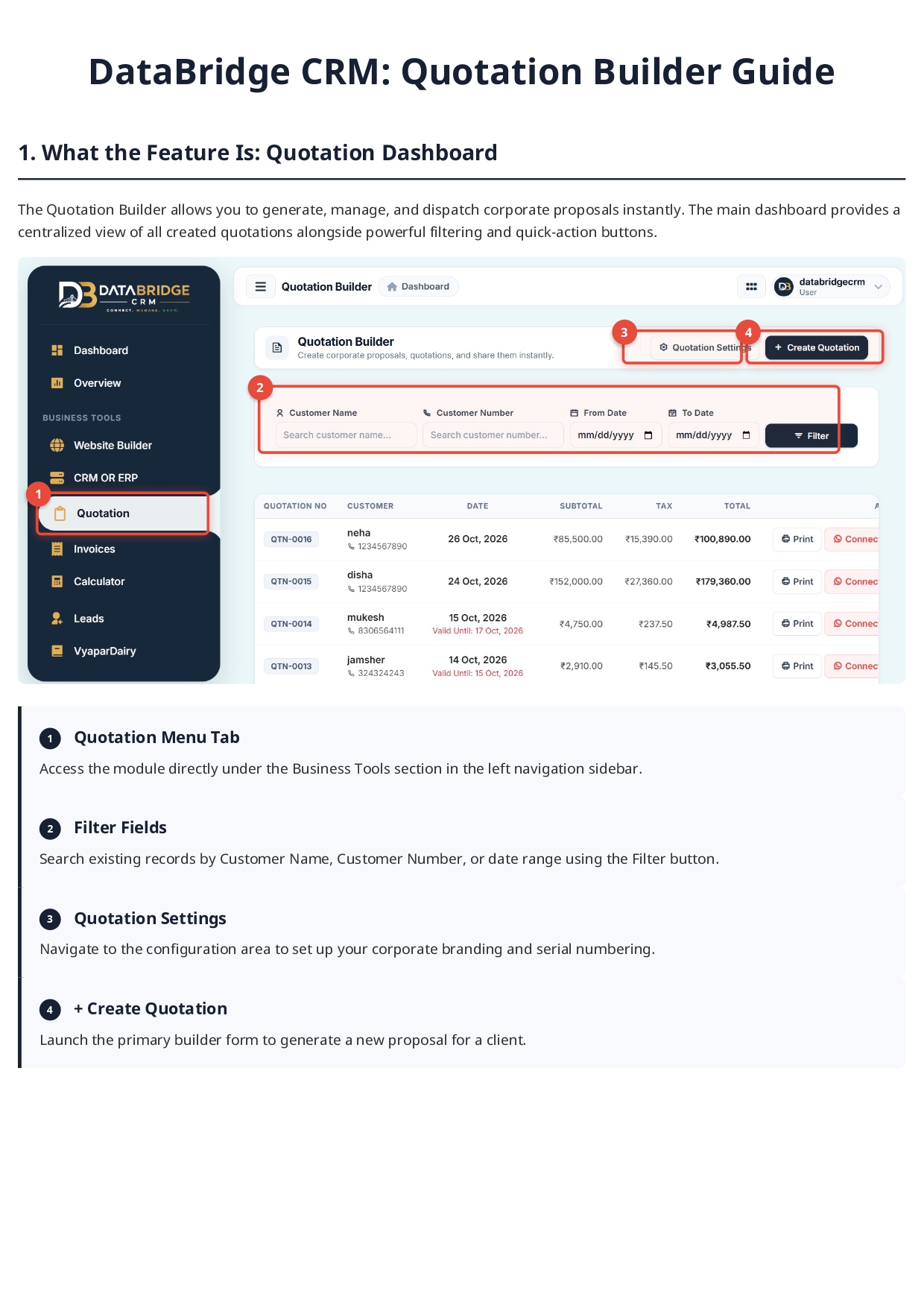
The journey begins at the Quotation Dashboard, which serves as your central command center. Accessible directly under the Business Tools section in the left navigation sidebar of your DataBridge CRM interface, this dashboard provides a bird’s-eye view of all your created quotations.
Efficiency is built into the core of this module. The dashboard features powerful filter fields that allow you to search existing records instantly. Whether you need to find a document by Customer Name, Customer Number, or a specific date range, the filtering system ensures you never lose track of a proposal. Alongside these filters, you will find quick-action buttons such as 'Print' and 'Connect', which enable direct interactions right from the main screen. The top right corner prominently houses the '+ Create Quotation' button, your gateway to launching the primary builder form and crafting a new proposal for your client.
Brand Configuration and Quotation Settings
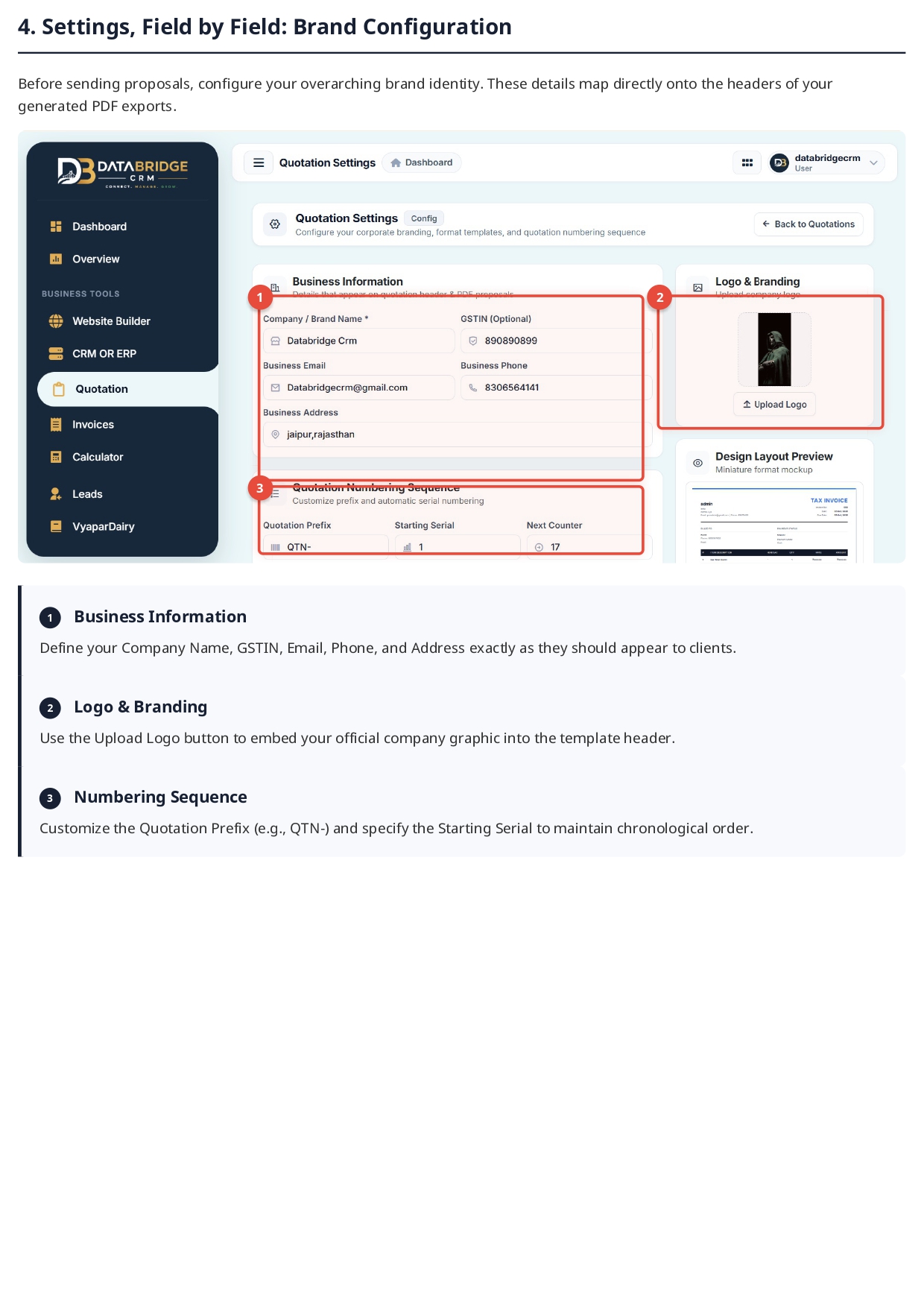
Before you start sending out proposals, it is vital to configure your overarching brand identity. A professional quotation maker must reflect your corporate image flawlessly. By navigating to the Quotation Settings, you can set up exactly how your business is presented to the world.
The Business Information section allows you to define your Company Name, GSTIN, Business Email, Business Phone, and complete Address exactly as they should appear on the headers of your generated PDF exports. Furthermore, the Logo & Branding feature lets you easily upload your official company graphic. This ensures that every document acts as a brand ambassador for your business.
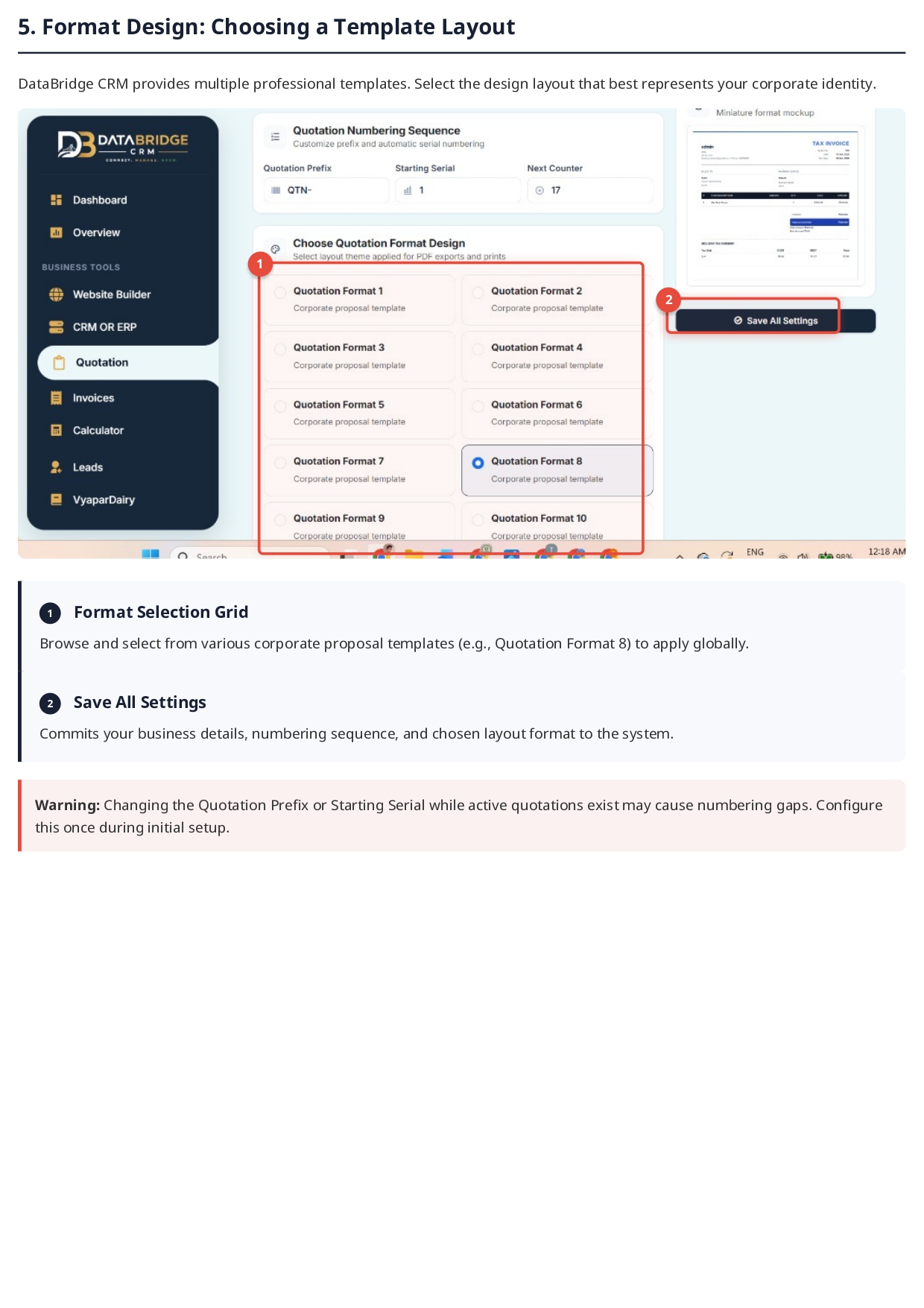
Additionally, DataBridge CRM allows for precise control over your numbering sequence. You can customize your Quotation Prefix (for example, "QTN-") and set the Starting Serial number to maintain chronological order and perfect accounting hygiene. It is highly recommended to configure this during your initial setup to prevent any numbering gaps in your active records.
Choosing the Perfect Format Design
Visual presentation matters in sales. The DataBridge CRM Quotation builder provides multiple professional templates to suit your specific industry needs. Within the Format Selection Grid, you can browse and select from various meticulously designed corporate proposal templates (such as Quotation Format 1 through Quotation Format 10).
By viewing the Miniature Format Mockup on the screen, you can preview exactly how your tax invoices and quotations will look. Once you find the design layout that best represents your corporate identity, simply click 'Save All Settings'. This applies your chosen theme globally to all PDF exports and prints, ensuring consistency across all your business communications.
How to Create a New Record: Core Details
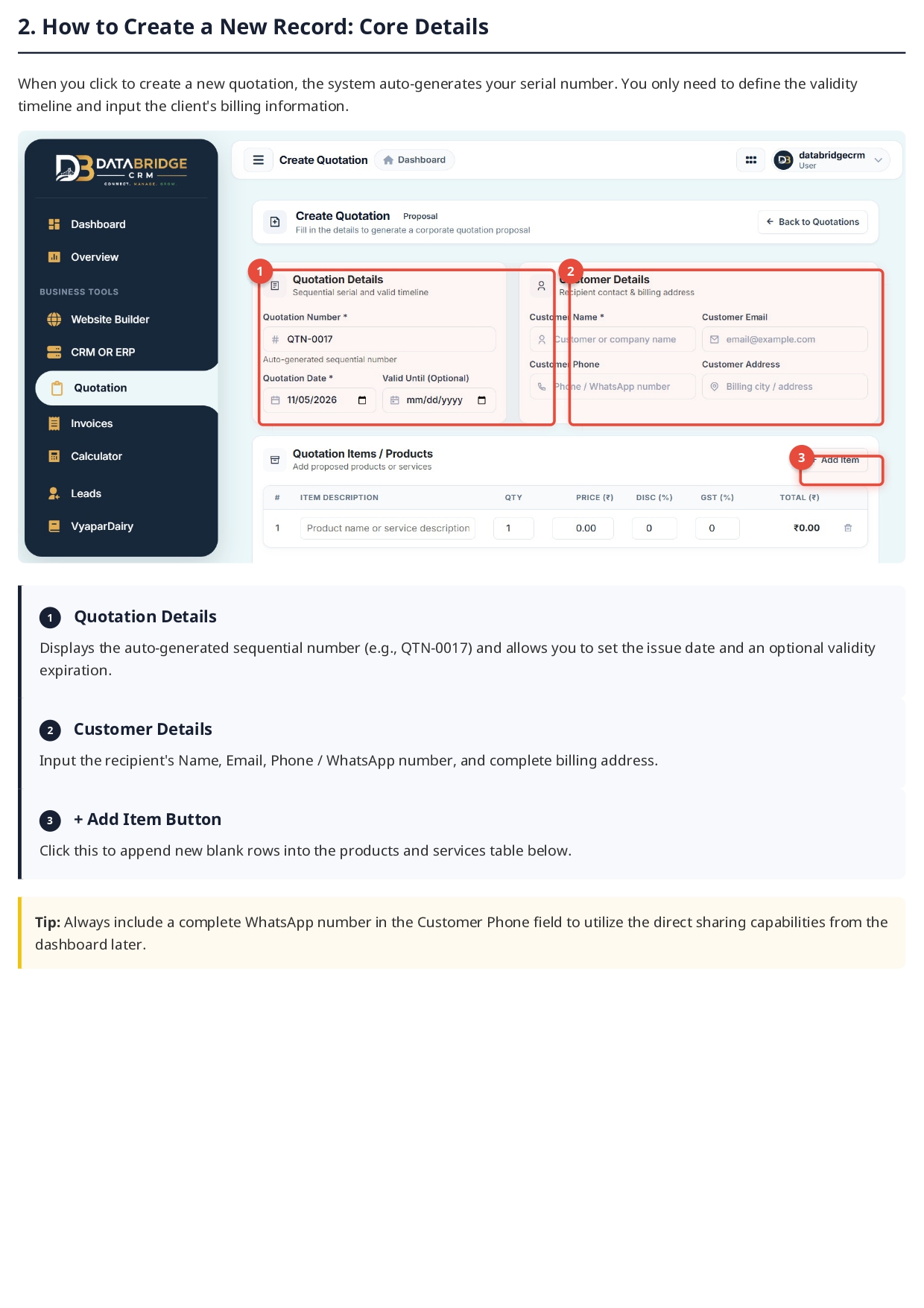
When you are ready to pitch, clicking '+ Create Quotation' opens a clean, intuitive workspace. The system instantly auto-generates your sequential number based on your settings. From here, creating the document is incredibly straightforward.
First, you manage the Quotation Details. The system displays the auto-generated number and allows you to set the issue date. You can also add an optional 'Valid Until' date to create a sense of urgency for your client.
Next is the Customer Details section. Here, you input the recipient's Name, Email, and complete billing address. A crucial tip for modern businesses: always include a complete WhatsApp number in the Customer Phone field. The DataBridge CRM is built for modern communication, and entering this number allows you to utilize the direct sharing capabilities from the dashboard later, sending proposals straight to your client's mobile device.
Adding Line Items and Financial Summaries
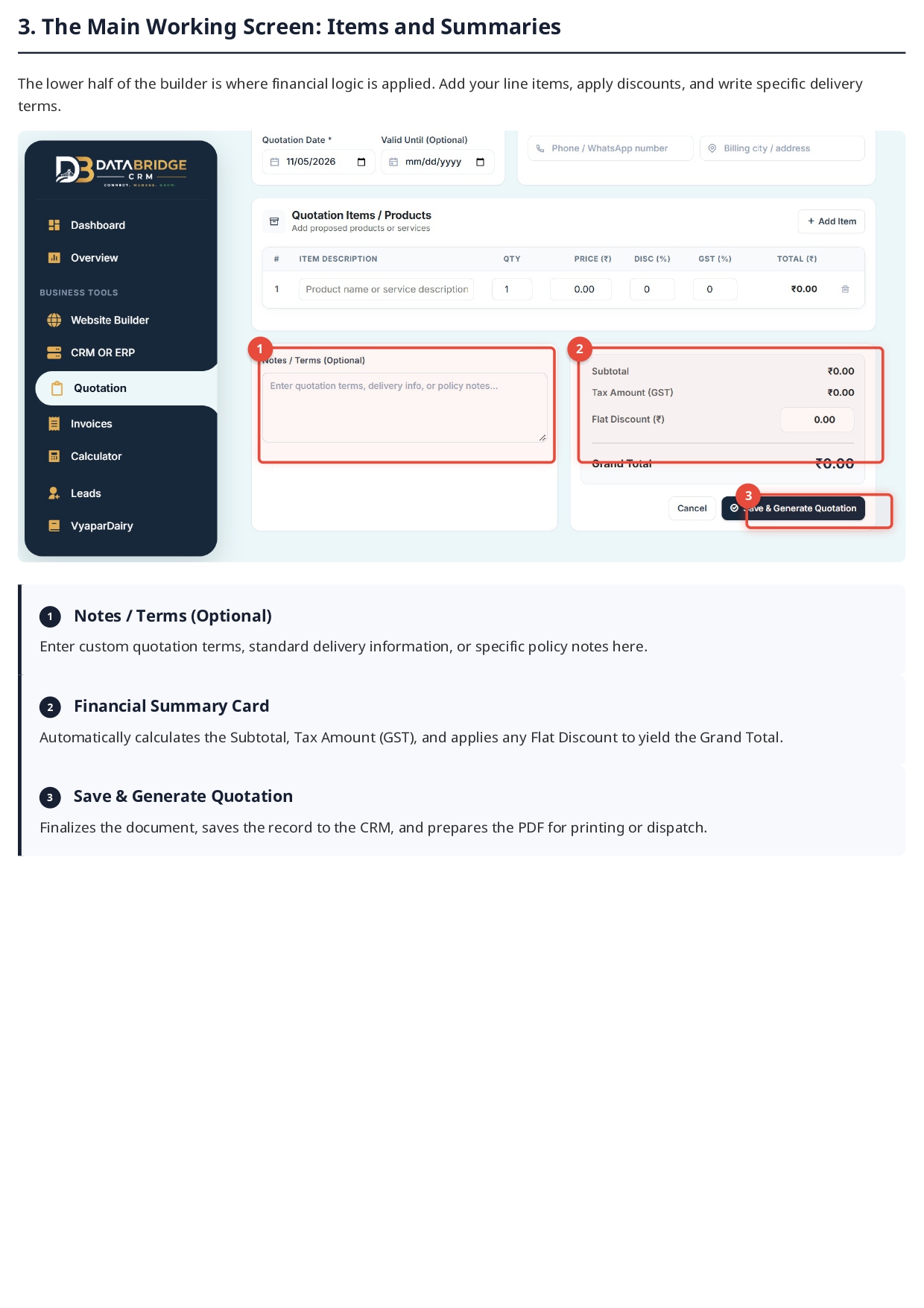
The lower half of the DataBridge CRM Quotation builder is where the financial logic is applied. By clicking the '+ Add Item' button, you can append new blank rows into the products and services table. This section is highly detailed, allowing you to list item descriptions, set exact quantities, define prices, and apply discount percentages and GST rates per item.
As you populate your products and services, the Financial Summary Card on the right side works in real-time. It automatically calculates the Subtotal, computes the exact Tax Amount (GST), and deducts any Flat Discount you wish to offer, instantly yielding the final Grand Total.
Additionally, the builder includes a dedicated section for Notes / Terms. This optional field is incredibly useful for entering custom quotation terms, standard delivery information, bank account details, or specific policy notes that your client needs to be aware of before approving the deal. Once everything is perfectly aligned, clicking 'Save & Generate Quotation' finalizes the document, saves the secure record to the CRM, and prepares a high-quality PDF for printing or dispatch.
The Complete End-to-End Workflow
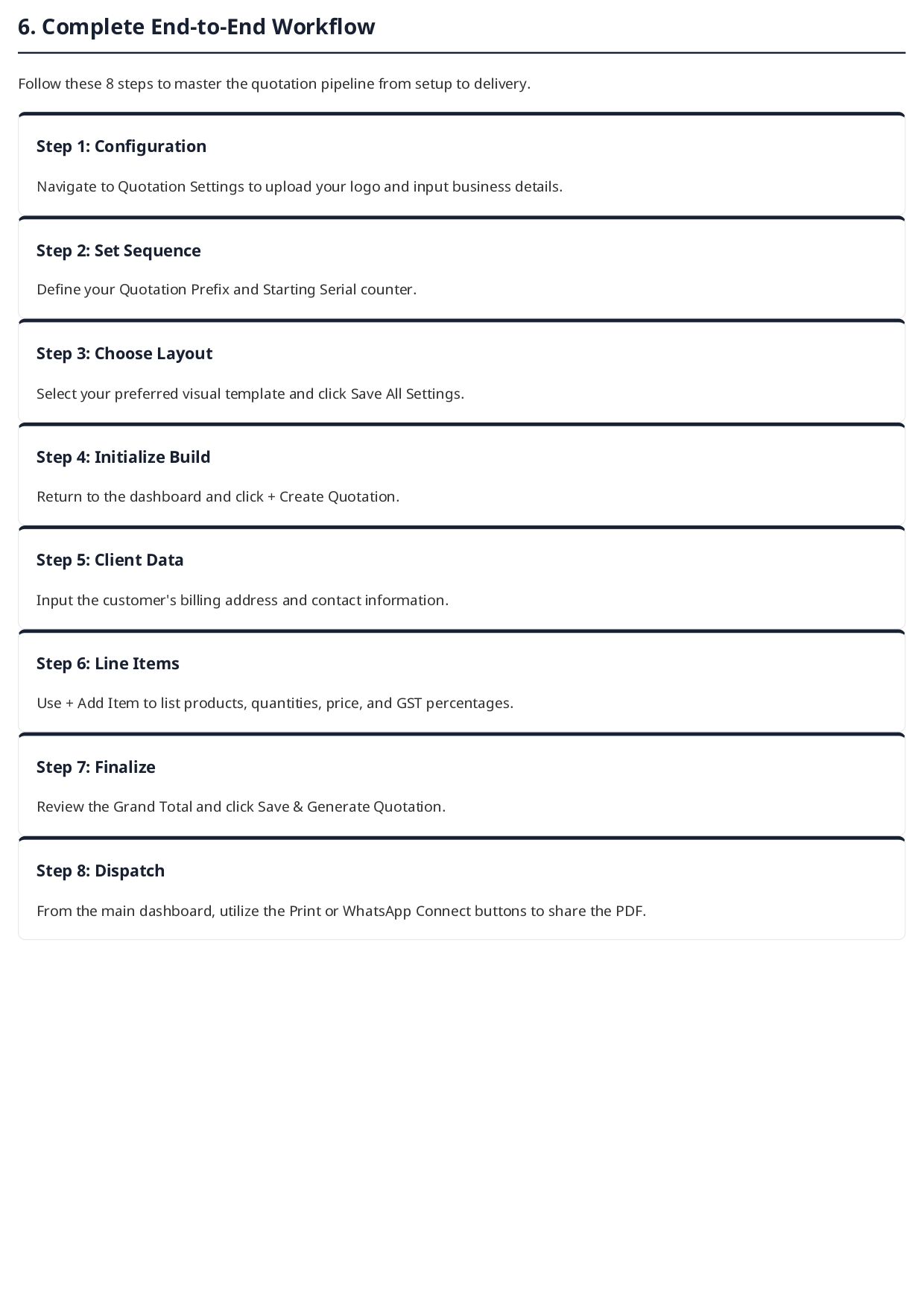
To master the quotation pipeline from setup to delivery, follow this simple 8-step workflow within the DataBridge CRM:
- Step 1: Configuration - Navigate to Quotation Settings to upload your brand logo and input your official business details.
- Step 2: Set Sequence - Define your custom Quotation Prefix and Starting Serial counter for accurate record-keeping.
- Step 3: Choose Layout - Select your preferred visual template from the library and click Save All Settings.
- Step 4: Initialize Build - Return to the main dashboard and click '+ Create Quotation' to start a new document.
- Step 5: Client Data - Input the customer's complete billing address and contact information, ensuring the WhatsApp number is accurate.
- Step 6: Line Items - Use the '+ Add Item' button to carefully list your proposed products, quantities, prices, and GST percentages.
- Step 7: Finalize - Review the automatically calculated Grand Total, add any necessary terms, and click Save & Generate Quotation.
- Step 8: Dispatch - From the main dashboard, utilize the Print or WhatsApp Connect buttons to share the final PDF instantly with your client.
Elevate your business operations today with a quotation maker designed for speed, accuracy, and professional elegance. Discover more and transform your sales process at https://databridgecrm.com/.
#QuotationBuilder #QuotationMaker #DataBridgeCRM #CRMSoftware #BusinessTools #SalesProposals #InvoicingSoftware #BillingSoftware #CorporateProposals #BusinessGrowth #SalesAutomation #B2BSoftware #TaxInvoice #GSTBilling #SmallBusinessTools #EnterpriseSoftware #TechSolutions #SaaS #CloudCRM #LeadManagement #SalesStrategy #BusinessEfficiency #DigitalTransformation #ProposalSoftware #QuoteManagement #BusinessSoftware #StartupTools #Entrepreneurship #SalesPipeline #MarketingTools #SmartBusiness #ClientManagement #InvoiceGenerator #OnlineBilling #TechStartup #CRMSystem #BusinessAutomation #WorkflowOptimization #SalesProductivity #GrowYourBusiness #DataBridge #InvoiceMaker #TechForBusiness #SalesSuccess #CorporateIdentity #ProfessionalTemplates #BusinessManagement #CloudComputing #SoftwareDevelopment #DigitalSales

