
Walk into a busy school office at nine in the morning and you will often see the same scene. One staff member is matching a fee receipt against a register. Another is phoning a parent about yesterday's absence. A teacher is waiting for the latest timetable, and the notice board still carries last week's circular.
None of this happens because people are careless. It happens because the school's information lives in too many places. A student's profile sits in one file, attendance in another, fees in a third, and announcements go out on whichever platform someone had time to open.
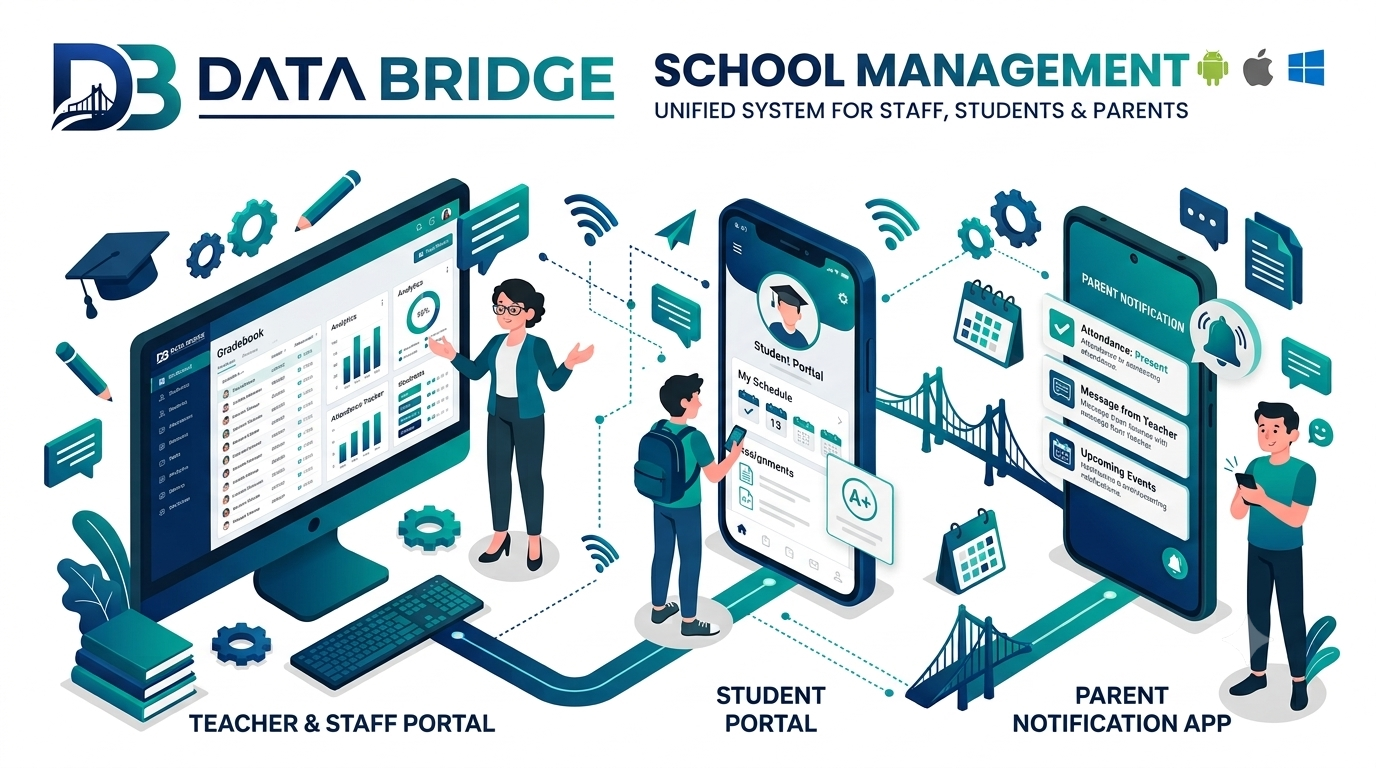
School management software pulls those threads into one place. DataBridge CRM, built in Jaipur, offers a School Management CRM that covers students, staff, academics, attendance, fees, exams and communication, together with apps for the people who use it every day. This guide explains what the system covers, how the Android, iOS and Windows apps fit into school life, and what to check before you commit.
What a School Management System Should Actually Do
A good school system does more than store names. It follows a student from enrolment through every term, and it lets teachers, accountants, administrators and parents see only what they need.
The DataBridge School CRM page lists more than 24 modules. Grouped by the work they support, they look like this:
| Area of school work | Modules listed on the product page |
|---|---|
| People | Students, Teachers, Staff Management, Staff Leave, Payroll |
| Academics | Academics, Attendance, Time Table, Assignments, Online Exam, Offline Exam, Student Diary |
| Finance | Fees, Expenses |
| Communication | Announcements, Notifications, Holidays, Gallery |
| School operations | Transportation, Certificates, Reports, Custom Fields, Slider, Dashboard |
The dashboard gives school leaders a single view of attendance, fee collection, upcoming events and key academic figures. Instead of asking four people for four reports, the principal can open one screen.
The Four-Step School Flow
The product page describes a simple four-step flow for getting a school started. It is a sensible way to think about any rollout, whichever software you choose.
- Set up the campus. Add classes, sections and subjects so the system matches your real academic structure.
- Onboard staff. Register teachers and assign them roles, classes and subjects.
- Enrol students. Admit students with complete digital profiles, fee plans and academic history.
- Manage daily. Track attendance, collect fees, send notifications and monitor exams from the same system.
The order matters. When classes and staff are set up properly first, every later task, from attendance to timetables, has a place to land.
Android, iOS and Windows: Which App Serves Whom
A school is not one kind of user. The accounts desk, the class teacher, the principal and a parent at home all need different things from the same data. That is why the app question deserves more thought than a download button.
Android apps for staff and students
DataBridge publishes two separate Android apps for the School CRM on Google Play: a Staff app and a Student app. Separate apps generally mean simpler screens. Teachers do not have to scroll past student-facing content, and students do not see staff tools.
iOS for iPhone households
The School CRM page also lists an App Store download option. Many families use iPhones, so this matters for parent communication. Before you announce an iOS app to parents, ask the team to confirm the current version and which roles it supports.
Windows for the school office
A Windows download is listed as well. For the front office, fee counter and accounts desk, a desktop application suits long working sessions, such as entering records, reviewing reports and handling receipts. As with iOS, confirm the current release during your demo.
What to check in each app during a demo
- Which roles can sign in, and what each role sees after login
- Whether teachers can handle their daily tasks from a phone
- How parents receive notices, diary entries and notifications
- Whether the apps and the web panel show the same, up-to-date data
- How logins are created, reset and removed when staff leave
How Daily School Work Changes
Software only earns its place if ordinary days get easier. Here is where the modules help most.
Fees. Fee collection, receipt generation and expense tracking sit in the same finance area. The accounts desk stops rebuilding the same numbers at the end of every month.
Attendance and academics. Attendance, timetables, assignments and the student diary live alongside the student record, so a teacher can see the whole picture instead of one register page.
Exams. Online and offline exam modules let a school keep both kinds of assessment in one place, which helps when a school mixes written tests with digital ones.
Communication. Announcements, notifications and holiday updates can reach parents without a round of phone calls. The product page lists seamless communication among its main benefits.
Staff. Leave and payroll records stay with the staff profile, which removes a separate spreadsheet for the office.
Transport and certificates. Schools that run buses or issue certificates regularly can manage both from the same system.
Who Benefits, and How
The product description says the software is built for schools, coaching institutes and academic organisations of different sizes. In practice, the benefits look different depending on your scale.
- Small schools: replace paper registers and scattered files with one record for each student.
- Growing schools: use role-based access so teachers, accountants and administrators see only their own areas.
- Coaching institutes: manage students, schedules, assessments and fees without building separate sheets for each batch.
Custom fields help here. Every institution tracks a few details nobody else does, and being able to add them keeps the system from forcing a rigid template on you.
Protecting Student and Parent Records
School data belongs to children and families, so it deserves careful handling. The product description mentions security systems and data protection policies for student records, parent information and administrative data, and the page lists role-based access among its highlights.
When you evaluate any system, ask how permissions are assigned, what a teacher can and cannot open, and how access is removed when someone leaves. Good software supports a school's own data-protection policies. It does not replace them.
Questions to Ask Before You Choose
Whichever vendor you shortlist, put these questions on the table early:
- Which of our daily tasks can staff complete from a phone, and which need a computer?
- Are the Android, iOS and Windows apps live today, and which roles does each one serve?
- How will our existing student, fee and staff records move into the new system?
- Who trains the staff, and what happens when someone needs help in the middle of a busy week?
- How does the system protect student and parent information, and who can access it?
- Does the school need integrations, such as payment or messaging services, and are they confirmed in writing?
Note what the product page does not state. It does not describe a separate admission-enquiry pipeline, and it does not list integrations for payment gateways or messaging. If you need those, ask for them directly instead of assuming.
See the School CRM in Action
The easiest way to judge school software is to watch your own routine run through it. Bring a real timetable, a sample fee structure and a list of the notices you send each week, and ask the team to show those tasks on the Android, iOS and Windows apps.
You can book a demo or contact the DataBridge CRM team to discuss your school's requirements. If your office also runs other workflows, you can look at the wider DataBridge ERP options, or read more on the DataBridge CRM blog.
Frequently Asked Questions
1. What is school management software?
It is a digital system that helps a school manage student records, staff, attendance, fees, exams, timetables and communication in one place, instead of across separate registers and spreadsheets.
2. Does DataBridge School CRM have mobile apps?
Yes. DataBridge lists a Staff app and a Student app on Google Play for the School CRM. The product page also lists Windows and App Store downloads, so schools should confirm the current availability of those versions during a demo.
3. Can parents receive updates through the system?
The platform is described as connecting administration, teachers, students and parents, and it can send alerts, notifications and announcements. How parents sign in to the Student app should be confirmed with the team.
4. Which modules does the School CRM include?
The product page lists modules such as Students, Teachers, Attendance, Fees, Online Exam, Offline Exam, Assignments, Time Table, Staff Management, Staff Leave, Payroll, Expenses, Transportation, Announcements, Notifications, Student Diary, Certificates, Gallery, Holidays, Reports and Custom Fields.
5. Is the system suitable for small schools?
The product is described as suitable for institutions of every size, including coaching institutes. A small school can start with student records, attendance and fees, and use the other modules as its needs grow.
#DataBridgeCRM #SchoolManagementSoftware #SchoolERP #SchoolApp #EducationTechnology
School Management Software, School ERP Software, School CRM Software, School Management App, Student Management Software, School Fee Management, School Attendance App, Parent Communication App, School Software Jaipur, Android and iOS School App, DataBridge CRM, Education CRM

