
Most small businesses do their sums in several places. A phone calculator for quick totals, a website for GST, a bank app for loan EMIs and a calendar for deadlines. Switching between them wastes time and invites mistakes.
The Calculator module in DataBridge CRM brings these jobs into one panel. It is a built-in Financial & Utility Calculator with four tools: a standard calculator, age and date calculations, an EMI loan calculator and a GST tax calculator. This guide explains what the module is and how each part works, screen by screen.
What Is the Calculator Module in DataBridge CRM?
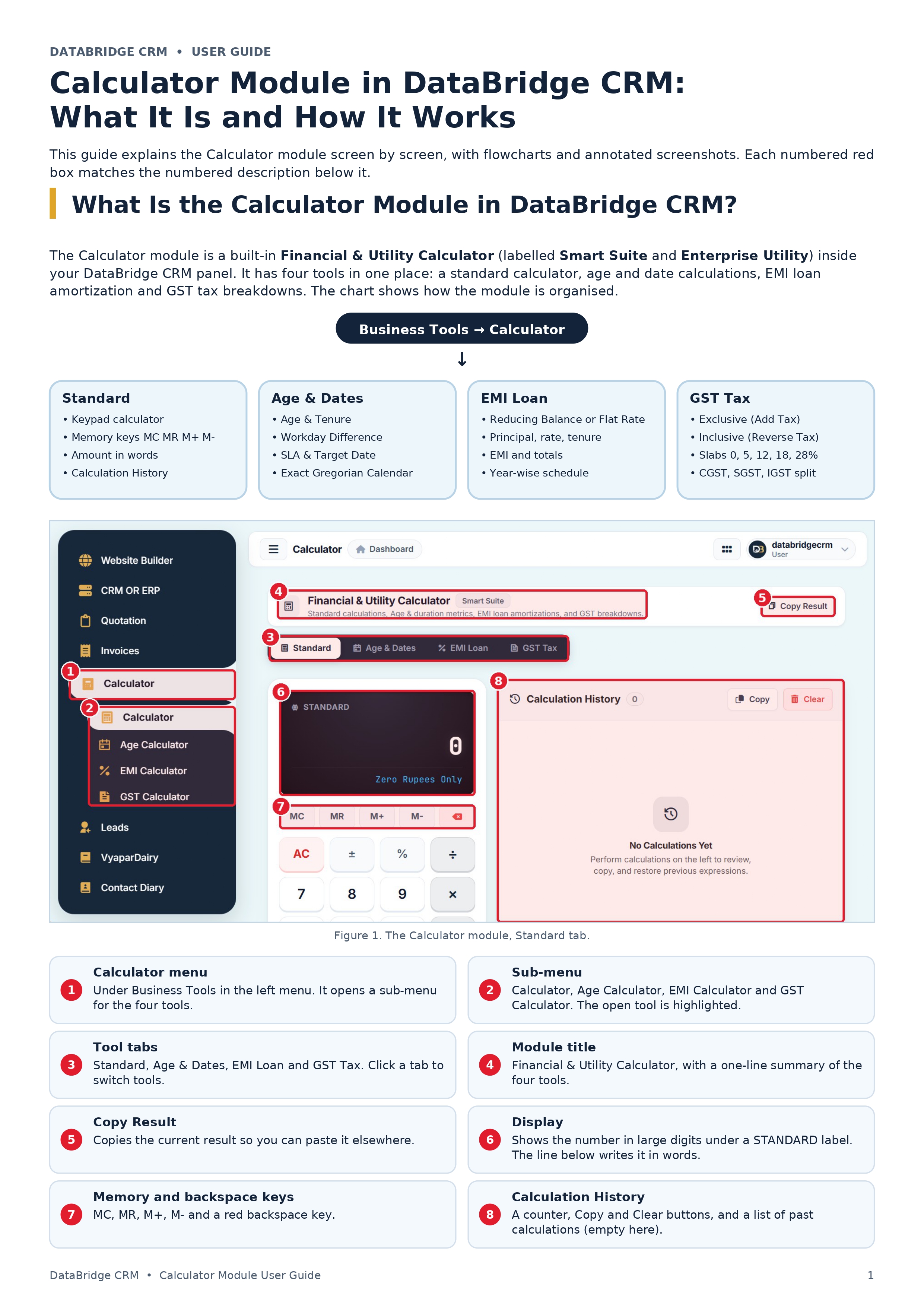
The Calculator sits under Business Tools in the left menu of your DataBridge CRM panel. Its page is titled Financial & Utility Calculator and carries a Smart Suite label. A Copy Result button at the top right copies the current result so you can paste it elsewhere.
Open the menu item and a sub-menu appears with four shortcuts: Calculator, Age Calculator, EMI Calculator and GST Calculator. The same four tools are also available as tabs on the page: Standard, Age & Dates, EMI Loan and GST Tax.
How the Calculator Module Is Organised
| Tab | What it does | What you see |
|---|---|---|
| Standard | Everyday keypad calculations | Display, amount in words, memory keys, history |
| Age & Dates | Age, working days and deadlines | Age and tenure, workday count, target date |
| EMI Loan | Monthly loan installments | EMI, total interest, year-wise schedule |
| GST Tax | Add or remove GST | CGST, SGST, IGST and invoice total |
Standard Calculator: Keypad, Memory and History
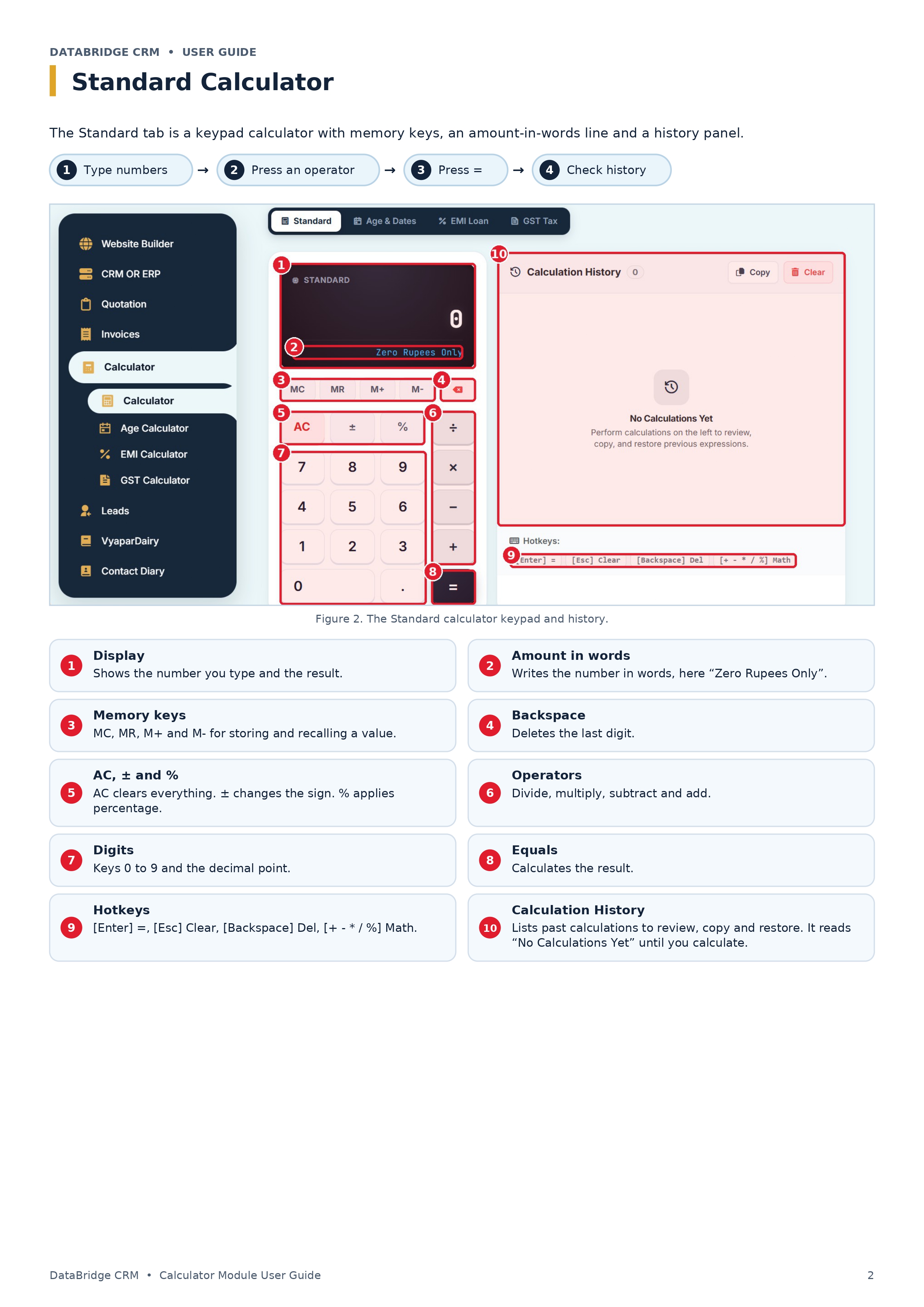
The Standard tab is a full keypad calculator. It has digits, the four operators, AC to clear, ± to change the sign and % for percentages. Above the keypad sit the memory keys MC, MR, M+ and M- and a backspace key.
Two details make it useful for billing work:
- Amount in words: under the number, the display writes the amount in words, such as "Zero Rupees Only" on a blank screen. This helps when you prepare cheques or invoices.
- Calculation History: a panel on the right keeps a counter with Copy and Clear buttons. It reads "No Calculations Yet" until you start, and then lets you review, copy and restore earlier expressions.
Hotkeys speed things up: Enter for equals, Esc to clear, Backspace to delete, and the + - * / % keys for maths.
Age & Dates Calculator: Age, Workdays and Deadlines
The Age & Dates tab has three sub-tabs and works on an exact Gregorian calendar.
Age & Tenure
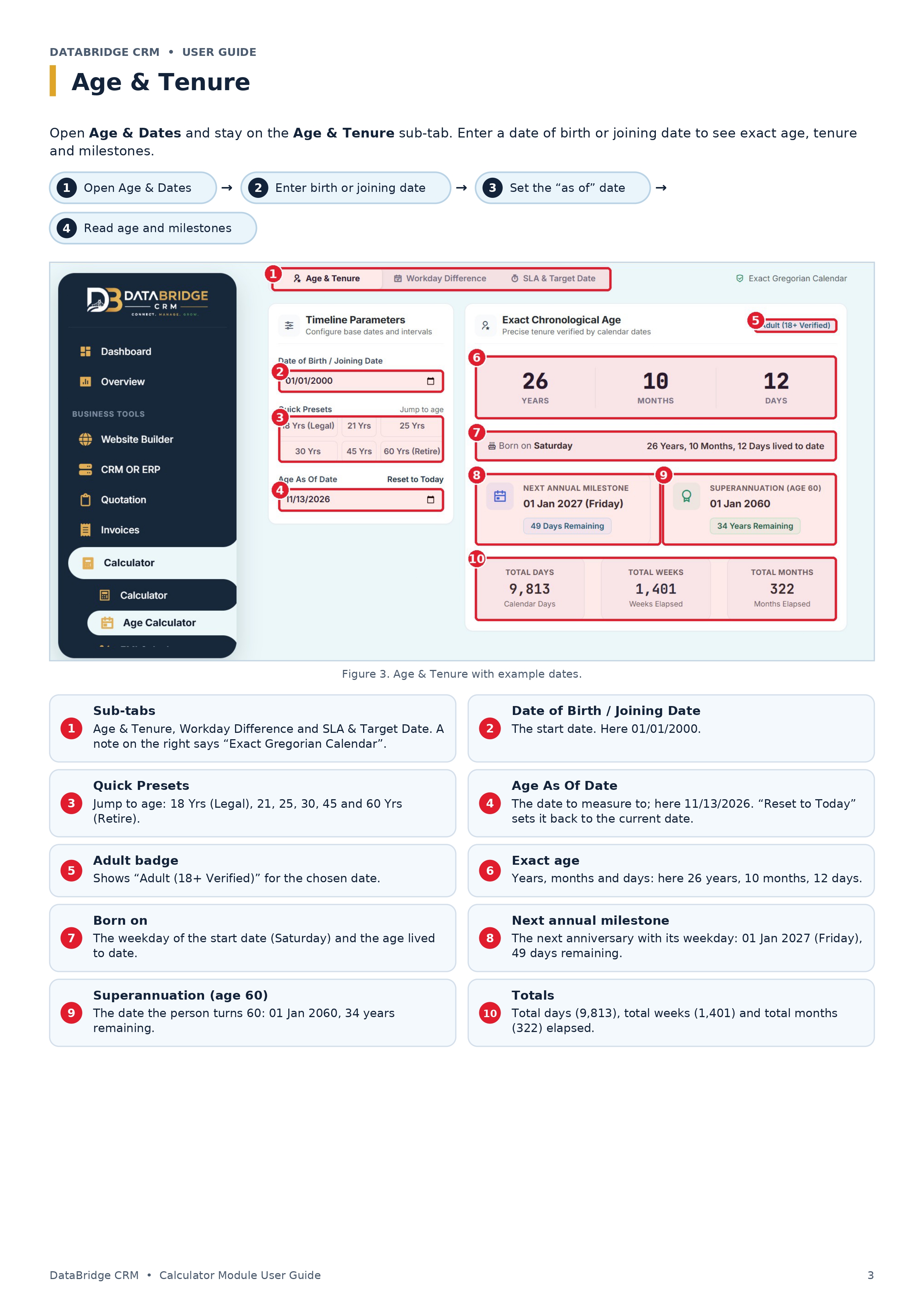
Enter a date of birth or joining date, then an "as of" date. Quick presets jump to 18 Yrs (Legal), 21, 25, 30, 45 and 60 Yrs (Retire). The tool then shows:
- Exact age in years, months and days
- The weekday of the start date
- The next annual milestone and days remaining
- The date of superannuation at age 60
- Total days, weeks and months elapsed
- An "Adult (18+ Verified)" badge where it applies
Example: a date of birth of 01/01/2000 measured on 11/13/2026 gives 26 years, 10 months and 12 days. The person was born on a Saturday, the next milestone is 01 Jan 2027 (Friday) in 49 days, and age 60 falls on 01 Jan 2060. Totals are 9,813 days, 1,401 weeks and 322 months.
Workday Difference
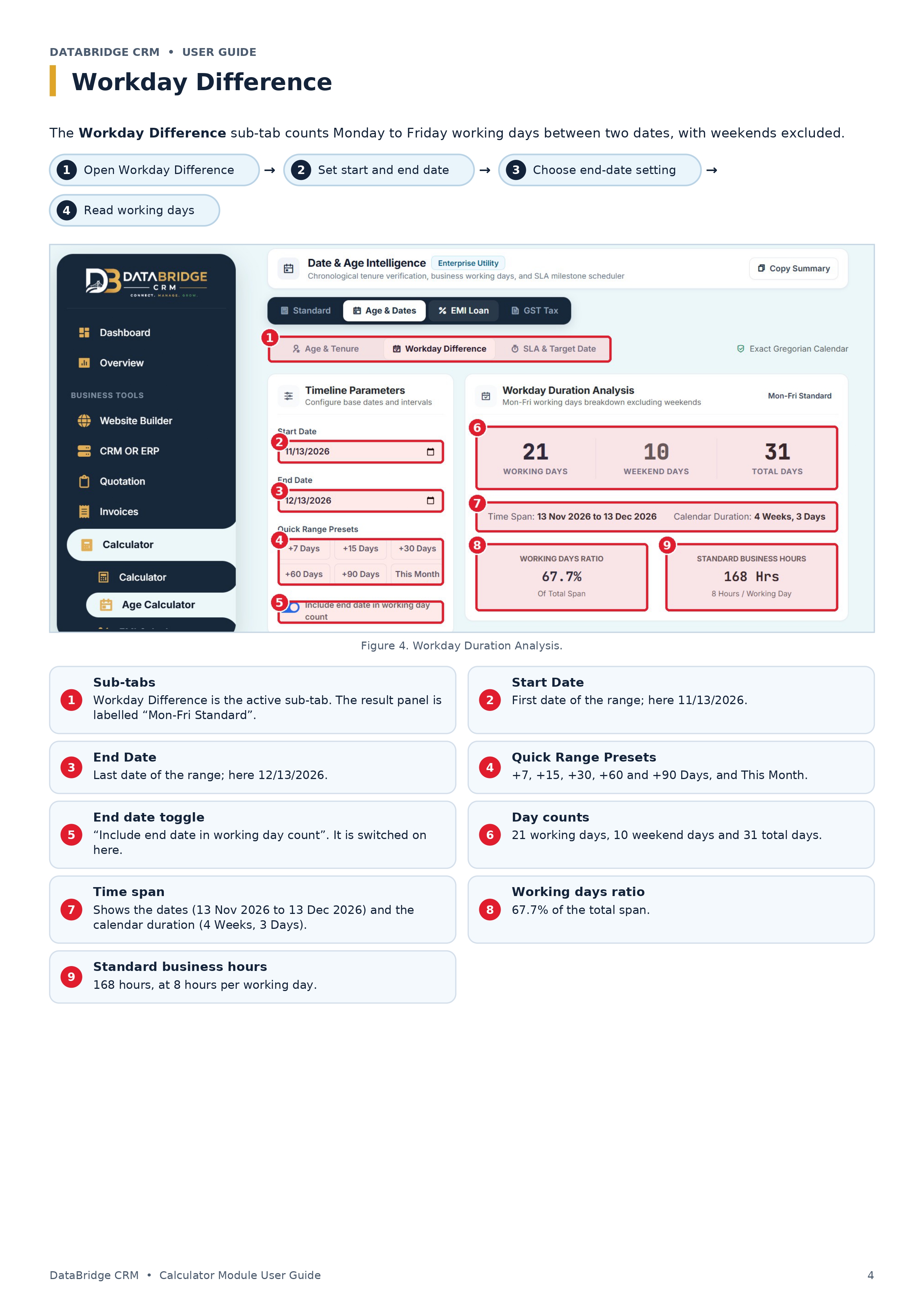
Pick a start and end date, and the tool counts Monday to Friday working days, with weekends excluded. A switch lets you include or exclude the end date. Presets cover +7, +15, +30, +60 and +90 days and "This Month".
Example: 13 Nov 2026 to 13 Dec 2026 gives 21 working days, 10 weekend days and 31 total days. That is a working-day ratio of 67.7% and 168 business hours at 8 hours per day.
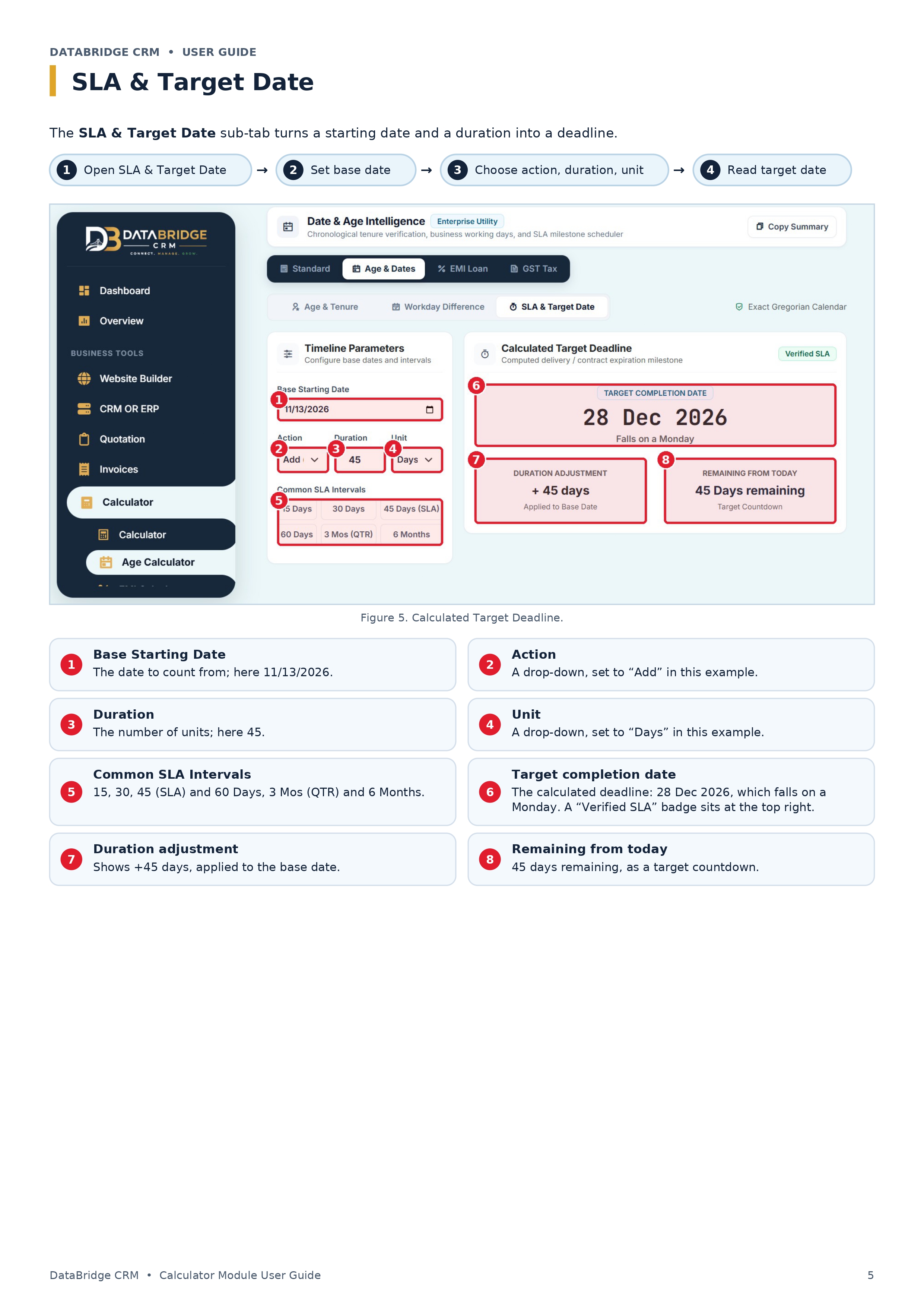
SLA & Target Date
Set a base starting date, an action, a duration and a unit, and the tool returns the deadline with its weekday. Common intervals are 15, 30, 45 (SLA) and 60 days, 3 months (QTR) and 6 months. It also shows the adjustment applied and the days remaining from today.
Example: 13 Nov 2026 plus 45 days is 28 Dec 2026, which falls on a Monday.
EMI Loan Calculator: Monthly Installments and Schedule
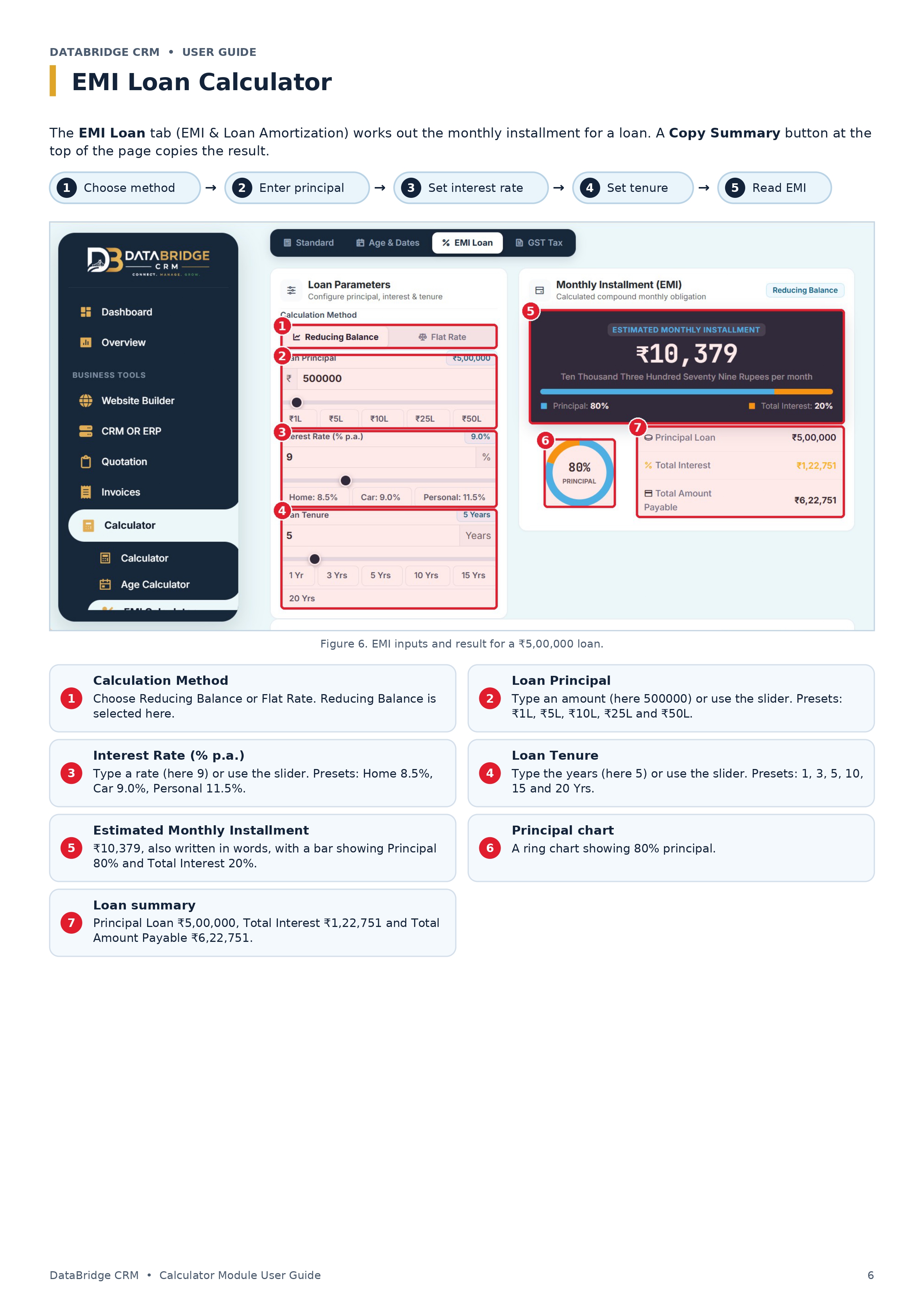
The EMI Loan tab (EMI & Loan Amortization) works out the monthly installment for a loan. You choose a method, either Reducing Balance or Flat Rate, then set three values:
- Loan principal: type an amount or use the slider. Presets run from ₹1L to ₹50L.
- Interest rate (% p.a.): type a rate or use the slider. Presets are Home 8.5%, Car 9.0% and Personal 11.5%.
- Loan tenure: choose from 1 Yr to 20 Yrs, or type the years.
The result card shows the estimated monthly installment in numbers and in words, a bar for the principal and interest split, a ring chart, and a summary of principal, total interest and total payable. A Copy Summary button copies the result.
| Loan | Rate | Tenure | Monthly EMI | Total interest | Total payable |
|---|---|---|---|---|---|
| ₹5,00,000 | 9.0% p.a. | 5 years | ₹10,379 | ₹1,22,751 | ₹6,22,751 |
Year-wise Loan Amortization Schedule
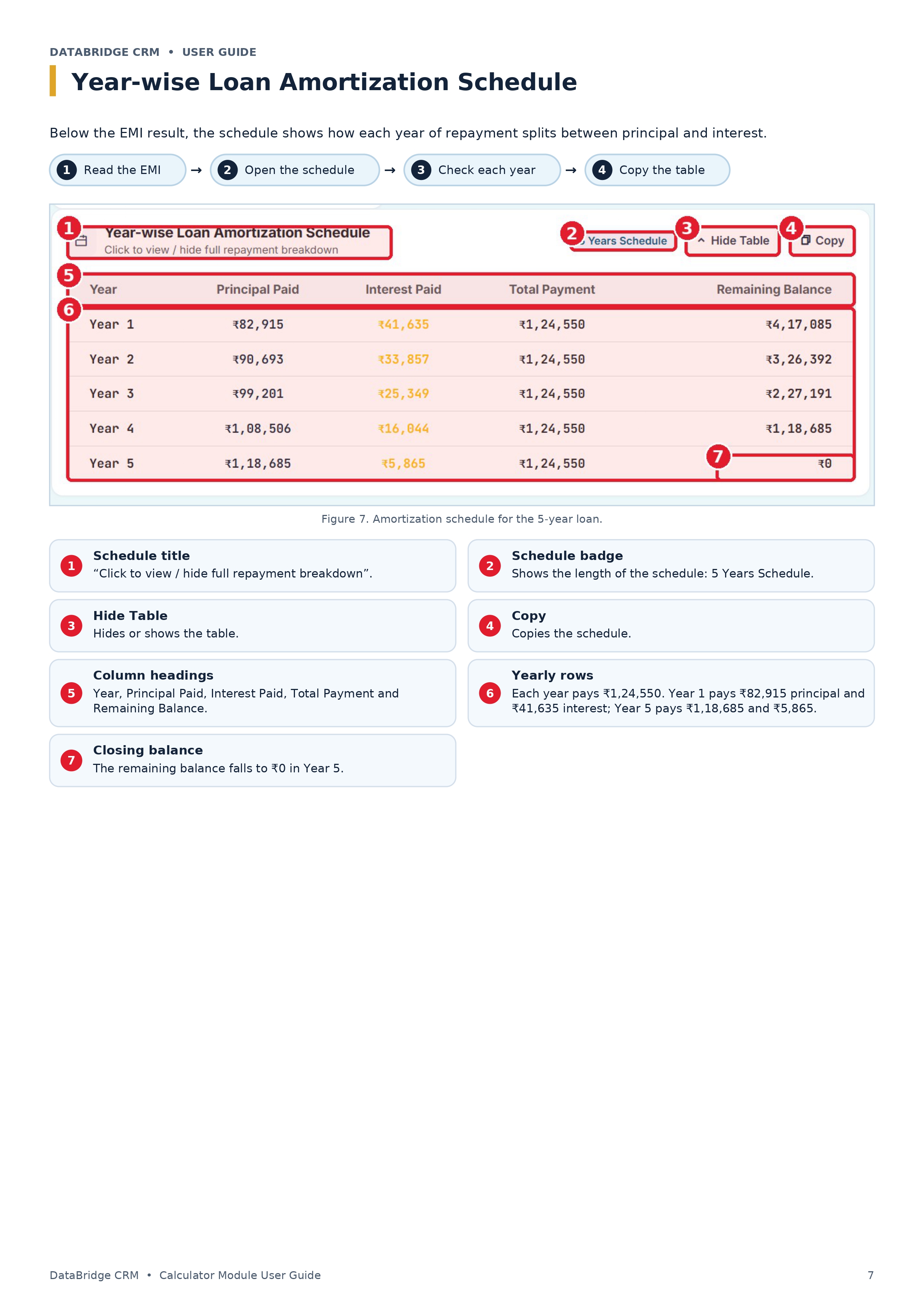
Below the result, a table shows each year of repayment: principal paid, interest paid, total payment and remaining balance. You can hide or show the table and copy it. For the example loan, every year pays ₹1,24,550 in total, and the balance reaches ₹0 in Year 5.
| Year | Principal paid | Interest paid | Total payment | Remaining balance |
|---|---|---|---|---|
| Year 1 | ₹82,915 | ₹41,635 | ₹1,24,550 | ₹4,17,085 |
| Year 2 | ₹90,693 | ₹33,857 | ₹1,24,550 | ₹3,26,392 |
| Year 3 | ₹99,201 | ₹25,349 | ₹1,24,550 | ₹2,27,191 |
| Year 4 | ₹1,08,506 | ₹16,044 | ₹1,24,550 | ₹1,18,685 |
| Year 5 | ₹1,18,685 | ₹5,865 | ₹1,24,550 | ₹0 |
GST Calculator: Add Tax or Reverse Tax
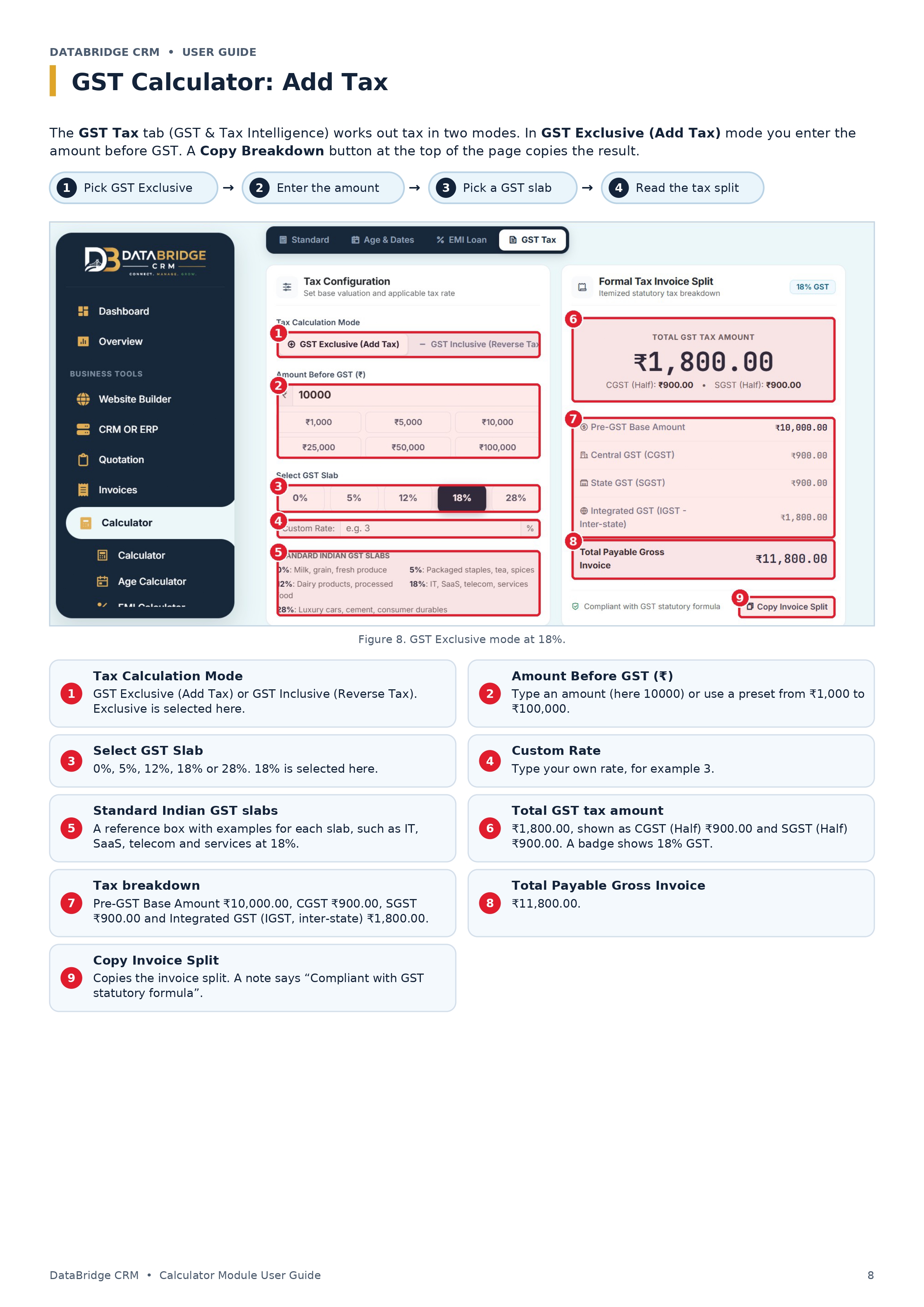
The GST Tax tab (GST & Tax Intelligence) works in two modes, and a Copy Breakdown button at the top copies the result.
- GST Exclusive (Add Tax): enter the amount before GST and the tool adds the tax.
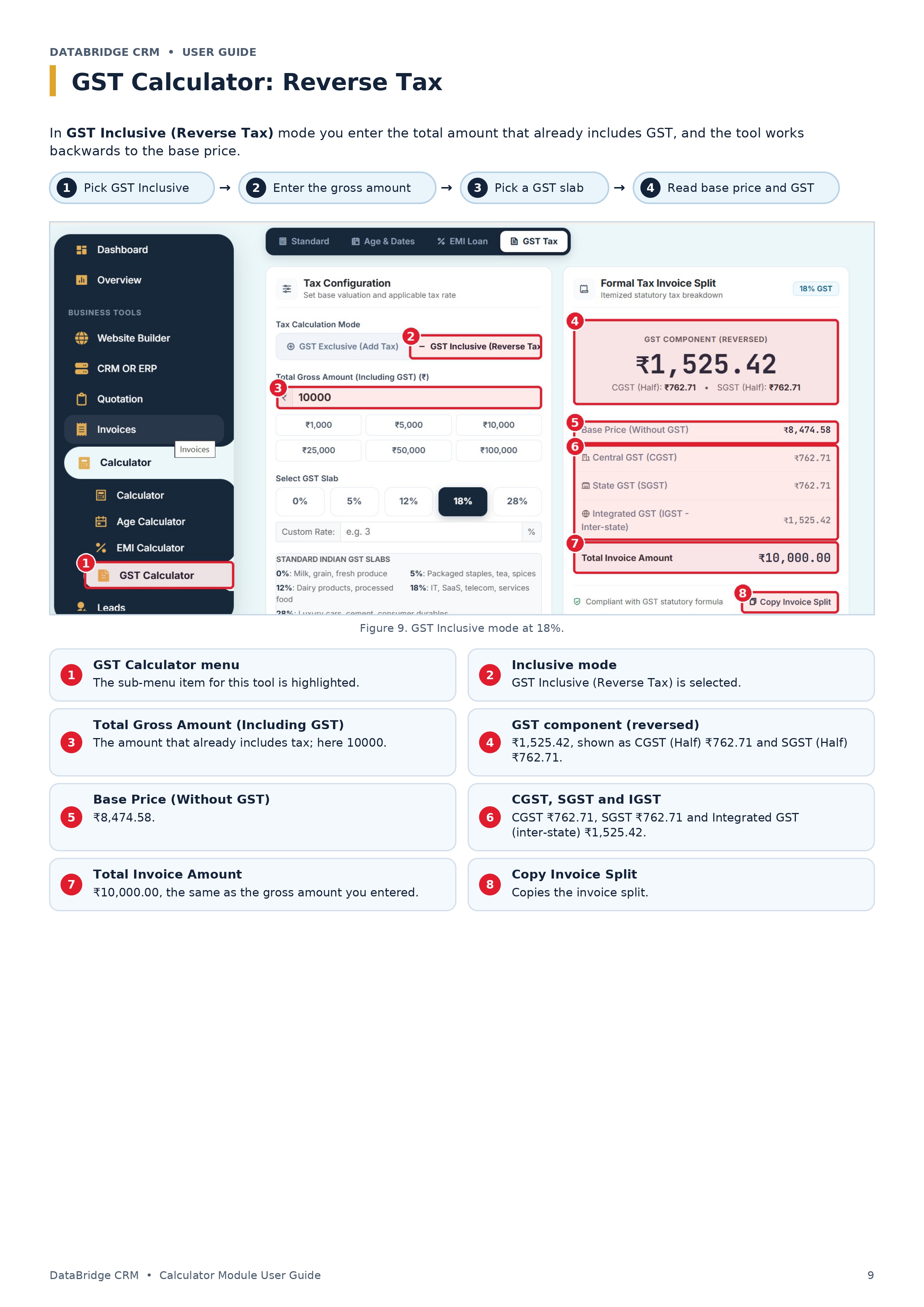
- GST Inclusive (Reverse Tax): enter the total that already includes GST and the tool works back to the base price.
Choose a slab of 0%, 5%, 12%, 18% or 28%, or type a custom rate. A reference box lists examples for each slab, such as milk and grain at 0%, packaged staples, tea and spices at 5%, and IT, SaaS, telecom and services at 18%.
Results appear as a formal invoice split with CGST, SGST and Integrated GST (IGST) for inter-state sales.
| Mode | You enter | GST at 18% | Split | Result |
|---|---|---|---|---|
| GST Exclusive | ₹10,000 before GST | ₹1,800.00 | CGST ₹900.00, SGST ₹900.00 (or IGST ₹1,800.00) | ₹11,800.00 total invoice |
| GST Inclusive | ₹10,000 including GST | ₹1,525.42 | CGST ₹762.71, SGST ₹762.71 (or IGST ₹1,525.42) | ₹8,474.58 base price |
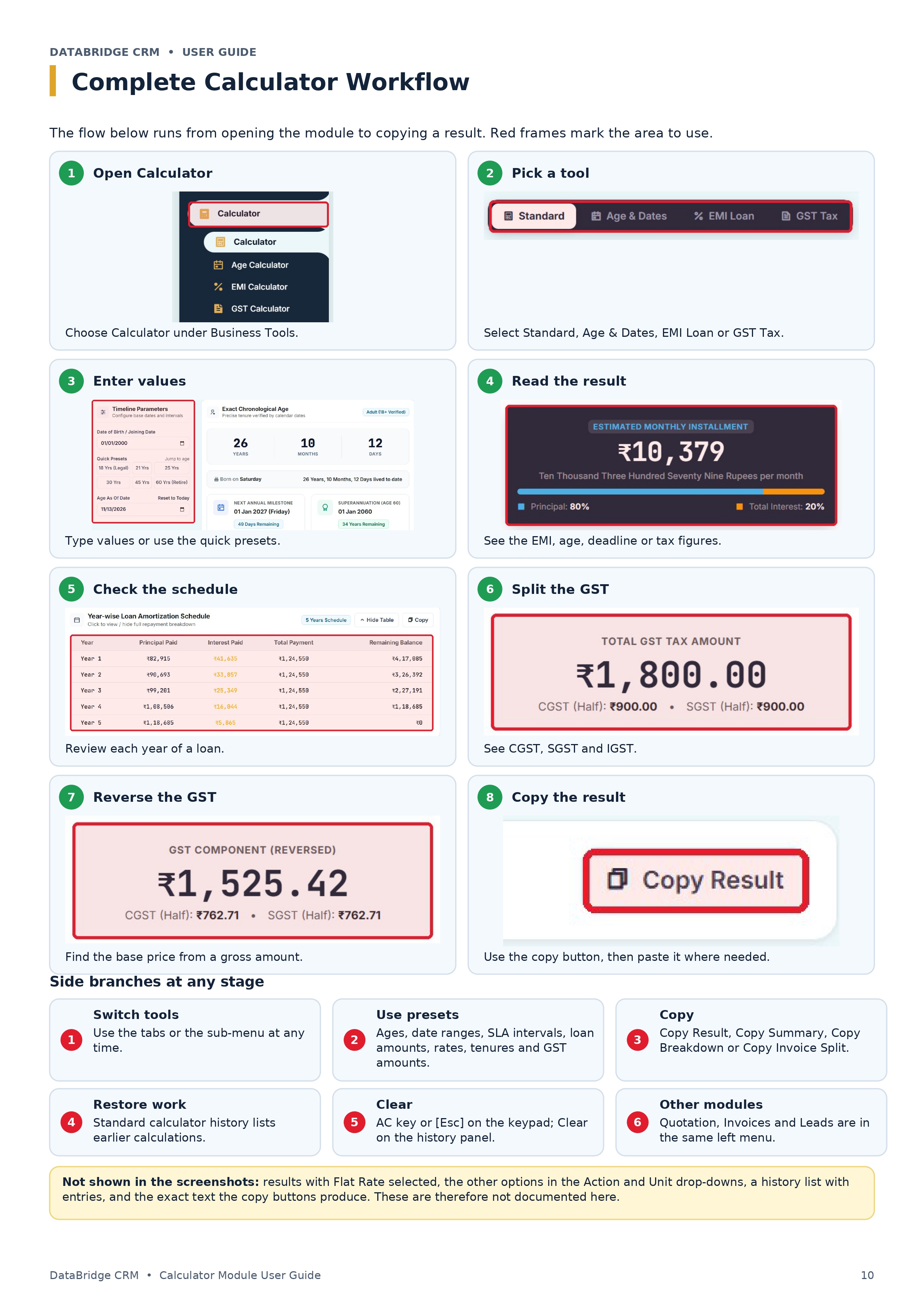
Complete Workflow: From Opening the Module to Copying a Result
- Open Calculator under Business Tools.
- Pick a tool: Standard, Age & Dates, EMI Loan or GST Tax.
- Enter your values or use the quick presets.
- Read the result: the EMI, age, deadline or tax figures.
- Check the year-wise schedule for loans, or the CGST, SGST and IGST split for tax.
- Use the copy button (Copy Result, Copy Summary, Copy Breakdown or Copy Invoice Split) and paste the numbers where you need them.
Benefits of a Calculator Inside Your CRM
- One panel: sums, loans, dates and tax are in the same place as your other business tools.
- Fewer mistakes: the tool shows the full breakdown, so you do not rework figures by hand.
- Quick presets: ages, date ranges, SLA intervals, loan amounts, rates, tenures and GST amounts are one click away.
- Copy and reuse: every tool has a copy button for quotes, replies and records.
- Clear explanations: amount in words and labelled breakdowns make results easy to share.
Who Is It For?
The module suits shop owners who need quick GST figures, accountants and billing teams who split tax into CGST, SGST and IGST, HR teams who check age and tenure, project and support teams who track working days and SLA deadlines, and sales teams who explain EMI options to customers. If you are looking for CRM software for small business India, the Calculator is one of the everyday tools included in the same panel as Quotation, Invoices and Leads.
Frequently Asked Questions
What is the Calculator module in DataBridge CRM?
It is a built-in Financial & Utility Calculator with Standard, Age & Dates, EMI Loan and GST Tax tools, found under Business Tools.
Does the GST calculator work both ways?
Yes. GST Exclusive adds tax to a base amount. GST Inclusive works backwards from a gross amount to the base price. Both show the CGST, SGST and IGST split.
Which GST rates can I use?
You can pick 0%, 5%, 12%, 18% or 28%, or enter a custom rate.
What does the EMI calculator show?
It shows the monthly EMI, total interest, total amount payable, a principal and interest split and a year-wise amortization schedule. You can choose Reducing Balance or Flat Rate.
Can I count working days between two dates?
Yes. The Workday Difference tool counts Monday to Friday working days and shows weekend days, total days, a working-day ratio and business hours.
Can I copy the results?
Yes. Each tool has a copy button, such as Copy Result, Copy Summary, Copy Breakdown or Copy Invoice Split.
Conclusion
The DataBridge CRM Calculator replaces a handful of separate tools with one panel. You get a keypad with history, exact age and tenure, working-day and deadline counts, EMI schedules and GST splits, all with copy buttons for quick reuse. Open Calculator under Business Tools and try the tab that fits your task today.
Ready to try it? Visit databridgecrm.com to explore DataBridge CRM.

